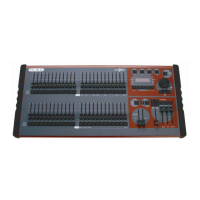
maXim Operator Manual Utilities
LSC Lighting Systems (Aust) Pty. Ltd. Page 53 of 66
TOTAL RESET
Total Reset will ERASE all the recorded memory from the maXim and reset the operating system.
All Scenes, Stacks Chases and Patches are erased. The maXim resumes operation in PRESET
mode with the patch bypassed. See also “POWER ON RESET” below.
To perform a TOTAL reset, press and hold [function], tap [F/A] (reset), release [function].
The display asks “Do SYSTEM RESET?”. Press [no].
The display asks “Do TOTAL RESET?”. Press [yes].
The display asks “RESET will clear all memories - Continue?”. Press [yes].
POWER ON RESET
If the maXim is not responding to your actions you will not be able to perform a reset as described
above. In this case, switch off the maXim and wait for 10 seconds then;
• To perform a “system reset”, hold [function], switch on the power, release [function].
• To perform a “total reset”, hold [no], switch on the power, release [no].
16.3 SETUP
The setup function provides access to the “Preferences” settings.
PREFERENCES
DEFAULT TIMES
To set your own default times that are used when you record scenes (in and out), stacks (in, out
and link) and chases (speed and crossfade %):
Press and hold [function], tap [F/A] (setup).
The display asks “Set Preferences?”. Press [yes].
The display asks “Set default times and speeds?”. Press [yes].
Follow the prompts and set the times with the EDIT wheel.
You can set default times for the following;
• Scenes
o In time
o Out time
• Chases
o Rate
o Crossfade
• Stacks
o In time
o Out time
o Link time
Stack default In and Out times are only used if the step is a snapshot or a chase. If the step
is a scene it will use the times from the scene memory.
When a fade time is set lower than 0 seconds, it is controlled by the manual “time” fader.
To accept the setting, press [ok].
LANGUAGE (FUTURE RELEASE)
To set the language shown on the display:
Press and hold [function], tap [F/A] (setup).
The display asks “Set Preferences?”. Press [yes].
The display asks “Set default times and speeds?”. Press [no].
The display asks “Set Language default?”. Press [yes].
Choose from English, French, Spanish, German, Japanese or Chinese by using the [yes] or [no]
buttons.
DEFAULT FILE NAME (FUTURE RELEASE)
To set the default file name for saving shows to disk:
Press and hold [function], tap [F/A] (setup).
The display asks “Set Preferences?”. Press [yes].
The display asks “Set default times and speeds?”. Press [no].
The display asks “Set Language default?”. Press [no].



 To Next Page