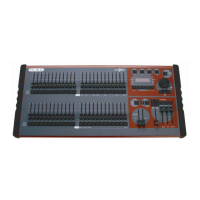
maXim Operator Manual Stacks
LSC Lighting Systems (Aust) Pty. Ltd. Page 41 of 66
The PAGE indicators show the current red and blue pages. Both PAGE buttons and the
FUNCTION buttons flash to show that they are active. All Playbacks will flash twice to indicate
possible memory location choices, then Playbacks already containing stacks in that page will flash
slowly. (Playbacks containing scenes are lit, chases flash quickly and empty playbacks are not lit.)
This acts as a warning to you of existing stack (scene or chase) numbers and unused numbers in
each page.
PAGE SELECTION
You can record stacks in any page of memory. Repeated presses of either red or blue PAGE
button will cycle through their 9 respective pages of memory.
To switch directly to a page;
Press and hold [PAGE], tap [F/A] (Page number).
As you select each page, all Playbacks will flash twice then indicate their contents as above.
Choose a Bank and Page number for the stack.
Give the stack a number by pressing;
[F/A] (stack number), (any red or blue F/A button) or press
[F/A] (grab), to record the stack in the Grab master memory (S & M models).
Note; Recording over an existing stack, chase or scene number will erase the previous contents.
The display will scrolls “Record Snap or select Memory”. The [record scene] and the [function]
buttons flash.
Each step of a stack consists of either a snapshot of the output or an existing scene or chase.
RECODING SNAPSHOTS AS STEPS
To record snapshots, create the look on the output, then, to record it as a step, press;
[record scene]
RECORDING (ADDING) SCENES AS STEPS
To record an existing scene as step, press the F/A button of the scene.
If the required scene is in a different page to the current page, select the required red or blue page
then press the F/A button of the scene.
RECORDING (ADDING) CHASES AS STEPS
To record an existing chase as step, press the F/A buttons of the chase.
If the required chase is in a different page to the current page, select the required red or blue page
then press the F/A button of the chase.
Continue to create and record steps as above. You may mix snapshots, chases and scenes in any
order.
The display shows the last step number.
REMOVING STEPS
If the step that you add is not correct, the last step may be deleted by pressing;
[remove]
HINT: If a step other than the last step is incorrect, complete the stack recording then Edit the stack
and remove the incorrect step.
FADE AND LINK TIMES
As each step is added you may set the fade IN, OUT and LINK times (automatically links to next
step after link time expires) for that step.
When a step has been added, repeatedly press [function] to cycle through the fade IN time, fade
OUT time and LINK time. When any of the time settings are indicated, the EDIT wheel lights to
show that it is active. Rotate the EDIT wheel to set the desired time. The maximum time is 16
minutes and 39 seconds and the minimum time is 0 seconds. When a fade time is set lower than 0
seconds, it reverts to “Fader” (IN or OUT time Fader) control.
If you do not enter a time then the default settings will be used.
The default times are;
• SCENE The in and out fade times from that scene



 To Next Page