Lighting Relay Panel
Controller User’s Guide
www.lumisys1.com
Due to continuous product improvement, Lumisys reserves the right to change product specications without notice.
Page 18
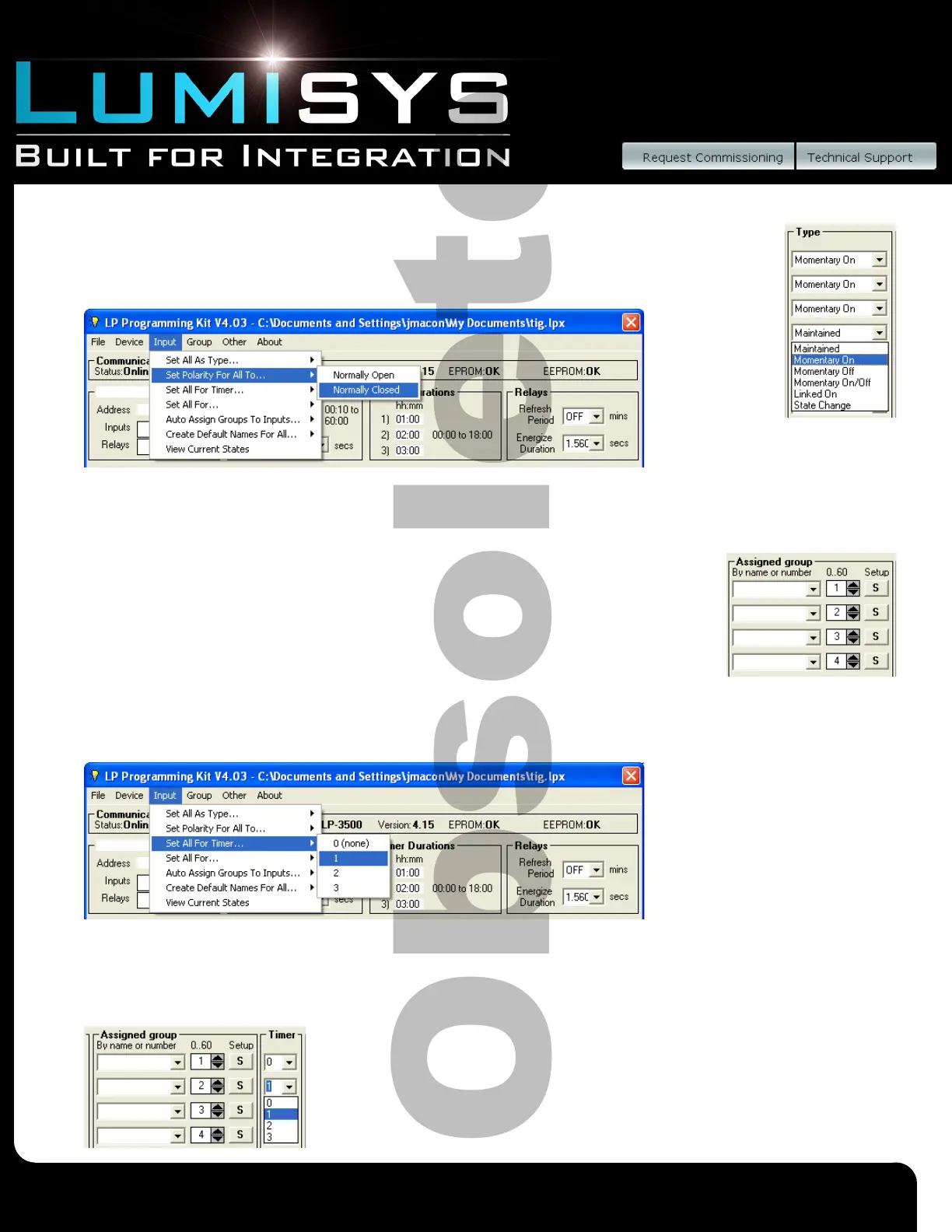
Input Polarity
1) Each input can be assigned a normally open or normally closed polarity.
2) To automatically assign all inputs to the same type go to the tool bar and select
Input/Set All As Type then select the desired type. All inputs will be assigned this type.
3) To save this information to a le or to the LRP Controller see “General LRP Controller Data - Save File and Write Database
to LRP Controller”.
Assigning an Input to Control an Output Group
1) Under the Column heading labeled “Assigned Group” select the name of the group the input
will be controlling. If you do not know the Group Name then type in or select the group number
between 1 and 60 under the column labeled “0..60”.
2) Repeat step 1 for all inputs.
3) To save this information to a le or to the LRP Controller see “General LRP Controller
Data - Save File and Write Database to LRP Controller”.
Assign a Timer to an Output Group
1) To automatically assign all inputs to the same timer go to the tool bar and select
“Input/Set All For Timer” then select the desired timer. All inputs will be assigned
to this timer.
2) To individually set timers, enter timer duration between 1 and 3 in the box labeled “Timer” or scroll down to the desired
timer. Entering 0 will deactivate the timer feature.
3) Repeat step 2 for all inputs.
4) To save this information to a le or to the LRP Controller see “General LRP Controller
Data - Save File and Write Database to LRP Controller”.


 To Next Page
 Loading...