User Guide
12
© Copyright 2013 Luxul. All rights reserved. Trademarks & Registered Trademarks are property of respective holders.
CHAPTER:5 CONFIGURATION
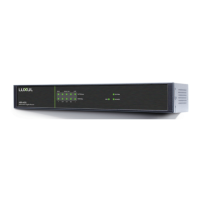
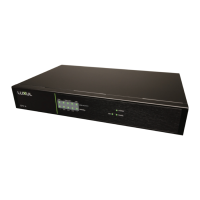
This section introduces the configuration of the XMS-1024 Gigabit Ethernet Smart
Switch functions via the XenSmart™ Web-based management interface.
5.1 Login
5.2 Status
5.3 Port Settings
5.4 Mirror
5.5 VLAN
5.6 Trunk
5.7 QoS
5.8 Mac Settings
5.9 802.1X
5.10 RSTP
5.11 IGMP Snooping
5.12 System
5.1 Login
The XMS-1024 is not equipped with internal DHCP server. However, if your switch is
connected to the the XBR-2300 Enterprise Dual-WAN Router, configuration will be
automatic. Otherwise, the IP address of the computer for login and configuration
will need to be manually configured. The table below lists the default parameters
of the XMS-1024.
Parameter: Default Value
Default IP address:
192.168.0.2
Default
us
er
name:
admin
Default
pas
sword:
admin
Login to the switch with the following steps:
1.
Plug
an
Ethernet
cable
int
o
any
of
the
por
ts
of
the
s
witch
2. Plug the other end into the Ethernet port of your computer
3. Power on the switch
4.
Check
t
o
s
ee
tha
t
the
IP
addr
ess
of
the
c
omputer
is
within
this
netw
ork
s
egment:
192
.168.0.xxx
(“
xxx”
r
anges
100~254).
F
or
ex
ample,
192
.168.0.100.
F
or
IP
addr
ess
s
ettings,
r
efer
t
o
Appendix
3.
5. Open the Web browser, and enter 192.168.0.2. The switch login window appears,
as
sho
wn
belo
w.
6. Enter the user name and password (default user name and default password are
both set as “admin”), and then click “OK” to login to the switch configuration
window.


 To Next Page