Creating a startDrag/stopDrag event using Script Assist 333
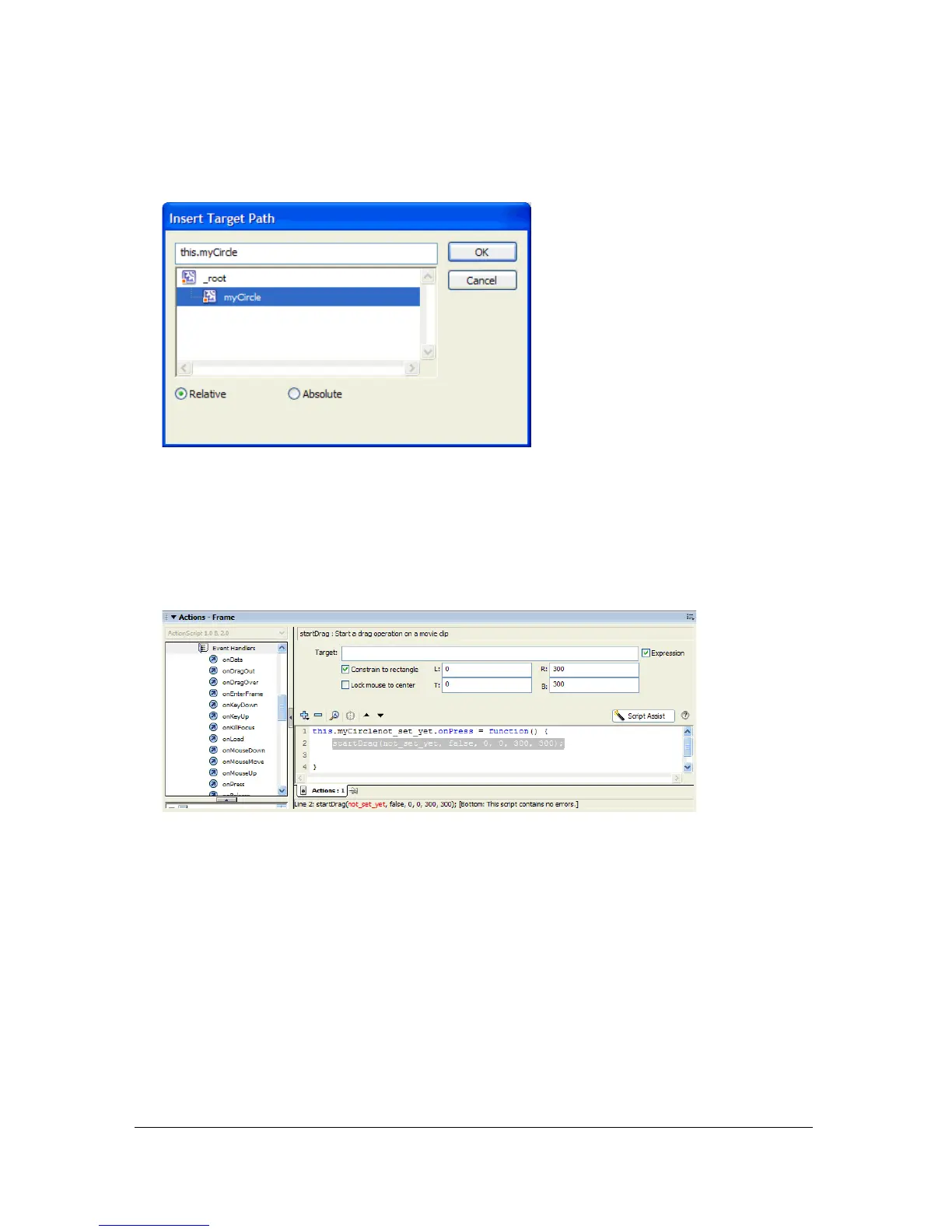
14. In the Target Path dialog box, select the MyCircle movie clip instance, and ensure that the
Relative path option is selected. Click OK.
15. Click the Add (+) button, and select Global Functions > MovieClip Control > startDrag.
16. Enter type into the Target text box.
17. Select the Expression and Constrain to Rectangle check boxes.
18. Enter the following values in the L, T, R, and B text boxes: L:0, T:0, R:300, B:300.
These values constrain the movement of the movie clip.
19. Click beneath the last line of the code currently inserted in the Actions panel.



 To Next Page