Masimo LiDCO Chapter 4: Operation
www.masimo.com 27 Masimo
About the Action Menu
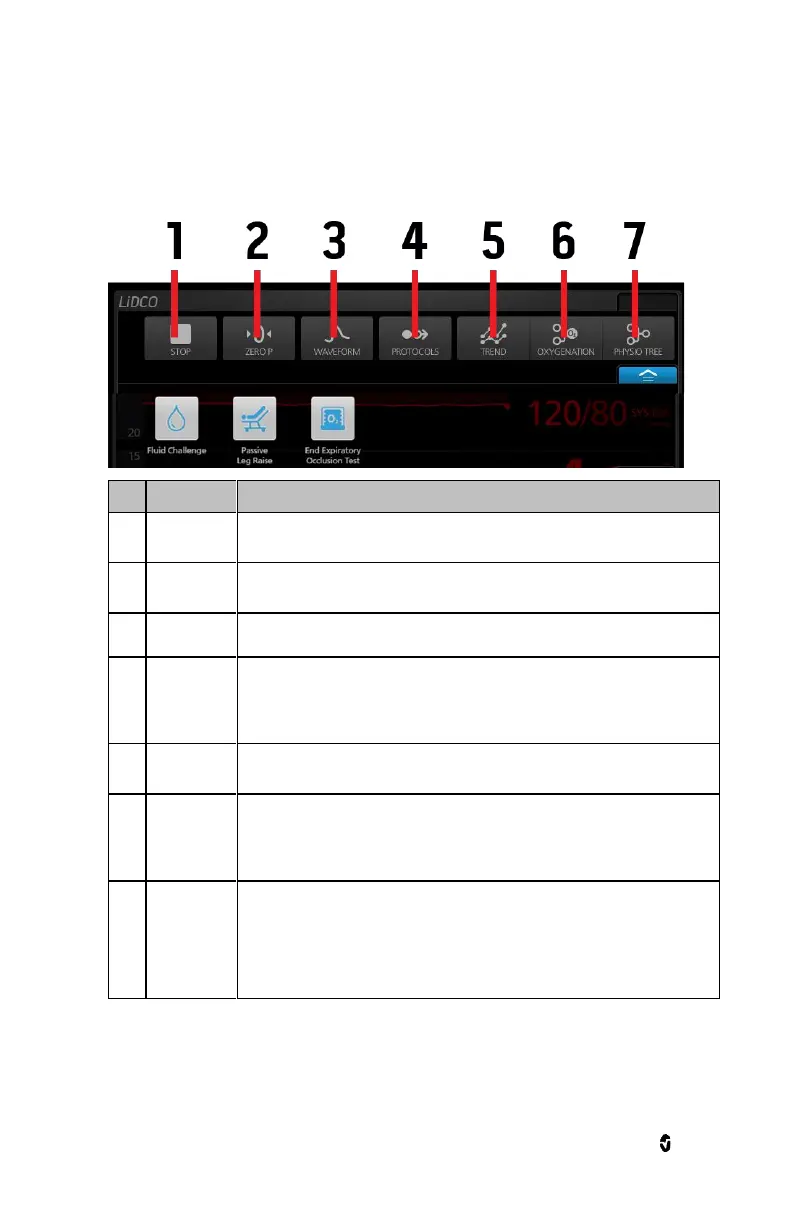
At the top of the Main Screen is the Action Menu with interactive icons. Each icon provides a shortcut to a
menu item or an action on Masimo LiDCO. Protocols submenu displays available Guided Protocols.
Select the Stop button in the Action Menu and press Confirm to stop LiDCO
monitoring.
Initiates BP zeroing. Zero status is displayed in the channel header. Zero button
in the action menu cannot be used for initial zeroing.
Displays the arterial blood pressure waveform
Masimo LiDCO supports several methods to assist in performing fluid response
assessments. Each protocol provides supporting information and guidance to
complete along with a detailed display of the hemodynamic parameters.
See Guided Protocols on page 42.
Displays each parameter or measurement alongside a graph of its values over
time.
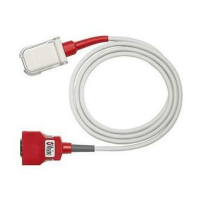
When SpO
2
and Hb values are present, calculates Oxygen Delivery. If SvO
2
is
entered, calculates oxygen consumption. Oxygen Delivery Tree is only displayed
when there is a connected pulse oximetry channel. See Oxygen Delivery Tree
on page 49.
The Physio Tree screen displays the parameters in a manner that shows how
the parameters depend physiologically on each other. The Physio Tree will
always be shown and never be hidden, irrespective of the connection to a pulse
oximetry channel.
See Physio Tree on page 51.


 To Next Page