Installation & Operation Manual | HORIZON3D
With the HORIZON3D system connected to your Local Area Network (LAN) via an Ethernet Cable
connection, as long as your network has a wireless enabled router, it is possible to connect your
mobile device (Tablet or Phone) in order to carry out the alignment procedure from the theatre
auditorium.
Initially connect your mobile device to the wireless network and open your web browser, e.g. Safari.
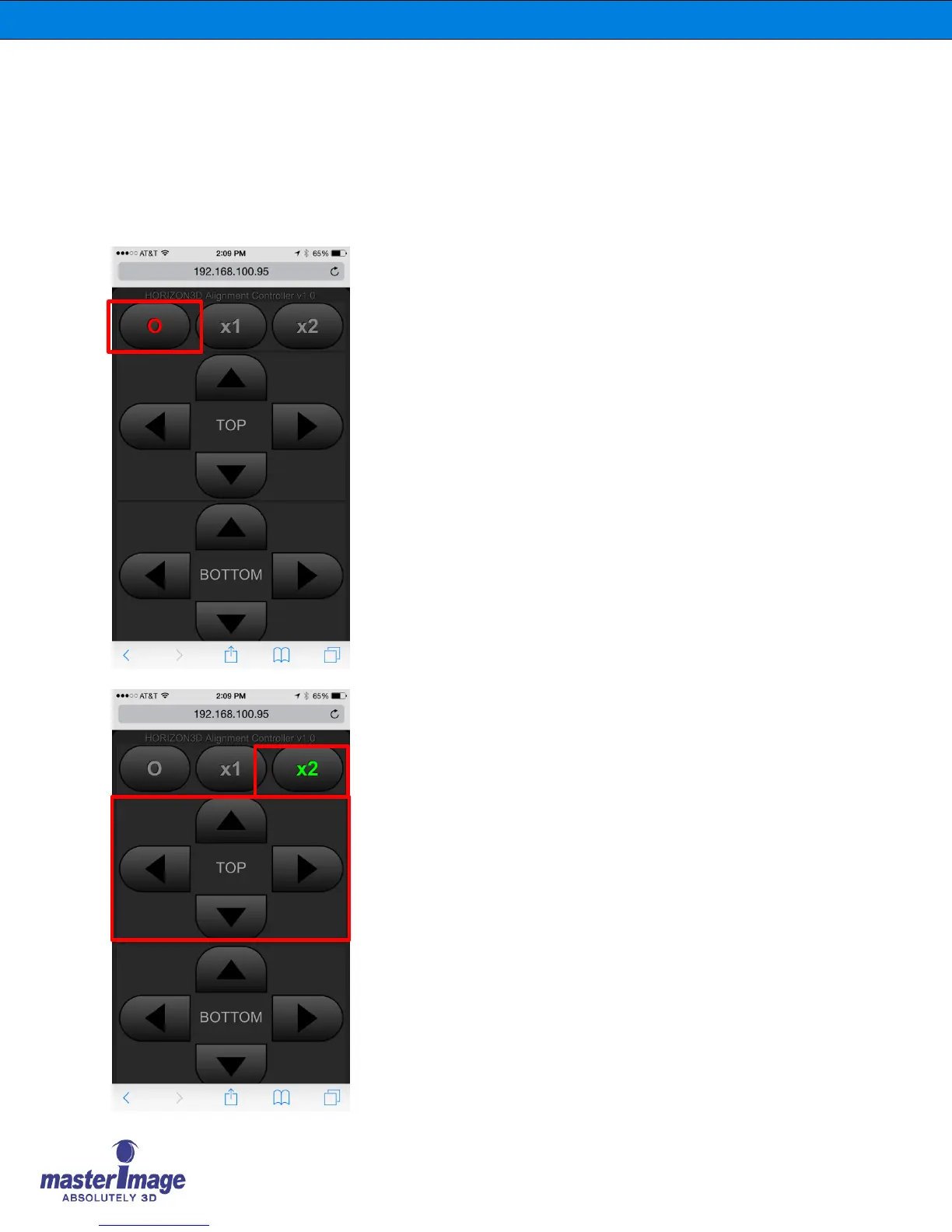
Enter the IP address of the HORIZON3D and you will be taken to the wireless Alignment Controller
home page as below:
Initially the button displaying the O indicates
the wireless Alignment Controller feature is
disabled.
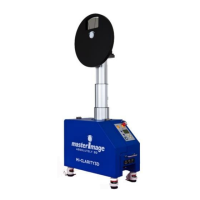
Pressing the x2 button so it displays green
indicates that the wireless Alignment Controller
feature is active in ‘high-speed’ mode.
Use this mode for faster alignment if the image
is miss-aligned by a long distance.
Use the directional buttons to roughly align the
image following the same criteria in 6.2.2
Image Alignment – Manual
Carry out this procedure for both the top and
bottom images.


 To Next Page