© Microhard Systems Inc. 31
4.0 Configuration
4.0 Web User Interface
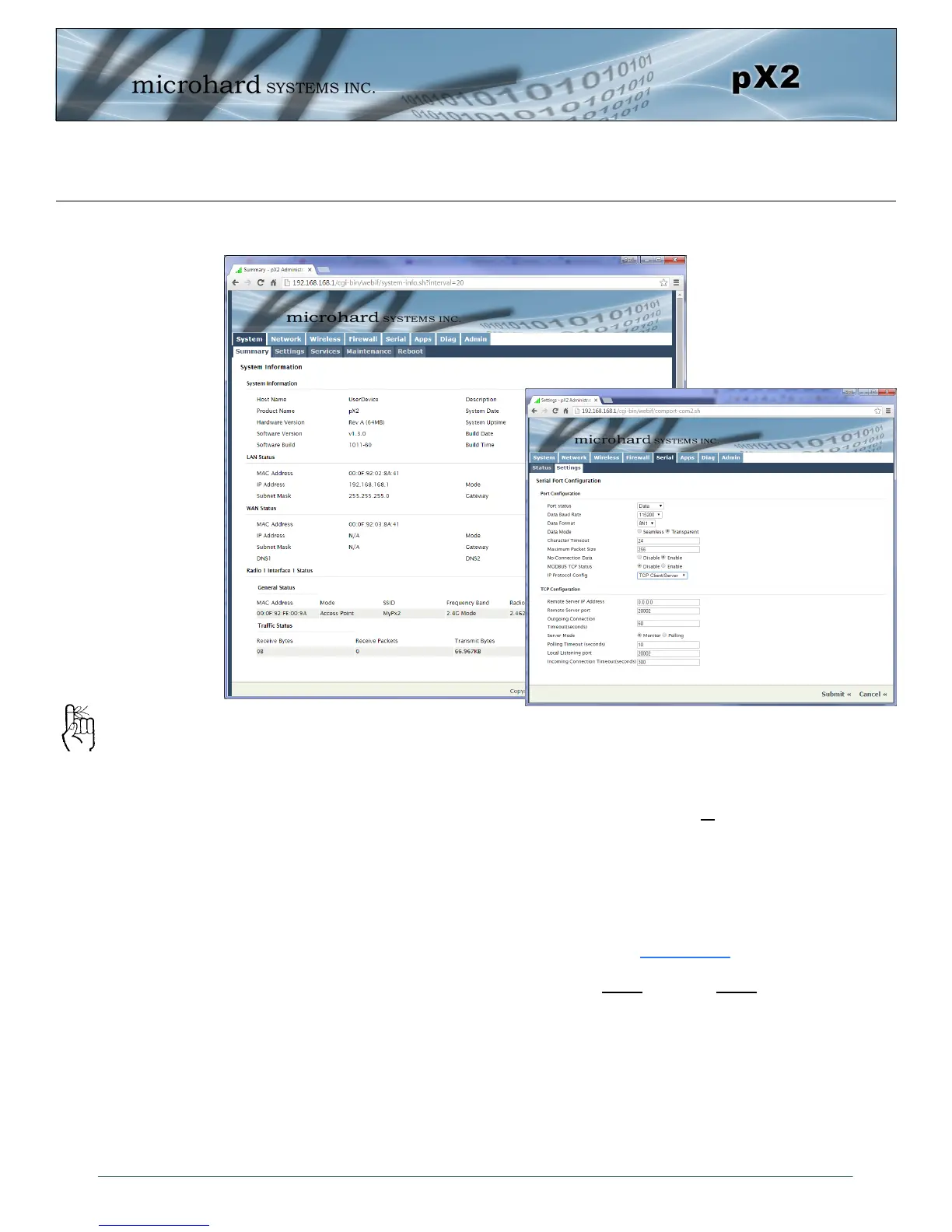
Initial configuration of an pX2 using the Web User (Browser) Interface (Web UI) method involves the
following steps:
configure a static IP Address on your PC to match the default subnet or if your PC is configured for
DHCP, simply connect a PC to the LAN port of the PX2 and it will be assigned a IP address
automatically.
connect the pX2 ETHERNET(LAN) port to PC NIC card using an Ethernet cable
apply power to the pX2 and wait approximately 60 seconds for the system to load
open a web browser and enter the factory default IP address (192.168.168.1) of the unit:
logon window appears; log on using default Username: admin Password: admin
use the web browser based user interface to configure the pX2 as required.
refer to Section 2.0: Quick Start for step by step instructions.
In this section, all aspects of the Web Browser Interface, presented menus, and available configuration
options will be discussed.
Image 4-0-1: WebUI
The factory default network
settings:
IP: 192.168.168.1
Subnet: 255.255.255.0
Gateway: 192.168.168.1


 To Next Page