© Microhard Systems Inc. 38
4.0 Configuration
4.1.4 System > Maintenance
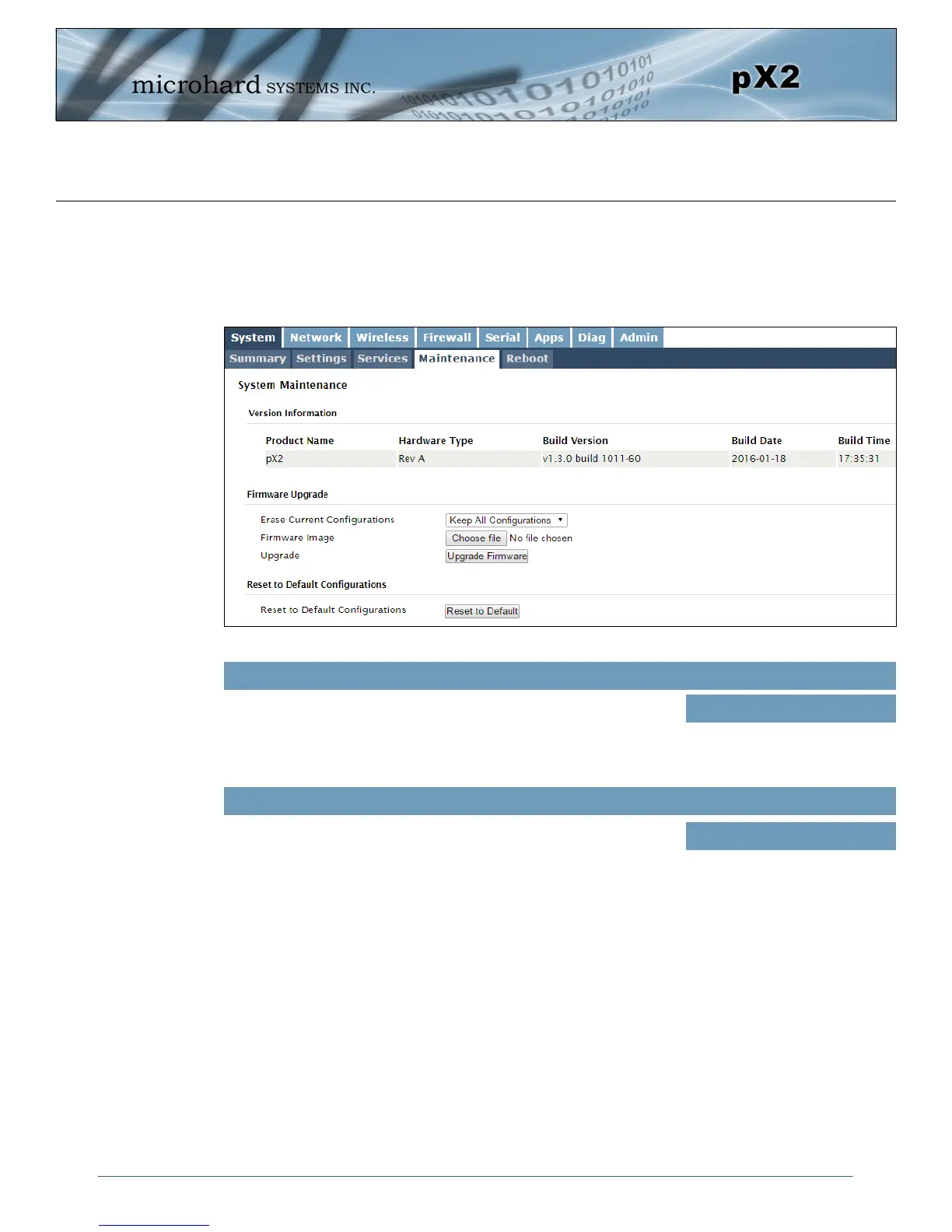
Image 4-1-5: Maintenance > Firmware Upgrade
Choose to keep or erase the current configuration. Erasing the
configuration of the pX2 unit during the upgrade process will upgrade,
and return the unit to factory defaults, including the default IP Address
and password.
Erase Current Configuration
Values (check box)
Keep ALL Configuration
Erase Configuration
Firmware Image
Use the Browse button to find the firmware file supplied by Microhard
Systems. Select “Upgrade Firmware” to start the upgrade process.
This can take several minutes.
(no default)
Values (file)
Firmware Upgrade
Occasional firmware updates may be released by Microhard Systems which may include fixes and/or new
features. The firmware can be updated wirelessly using the WebUI.
Reset to Default
The pX2 may be set back to factory defaults by using the Reset to Default option under System >
Maintenance > Reset to Default. *Caution* - All settings will be lost!!!


 To Next Page