© Microhard Systems Inc. 20
2.0 Quick Start
2.2.3 Testing the Connection
Visually check to see if the pX2 units are communicating.
With the PC connected to the Access Point (AP), type in the IP address of the
Station (ST) into the URL address bar of your browser. You should be able to
connect, log in and view the WebUI of the Station via the wireless connection.
If any additional
settings need to be
changed, ensure they
are also changed on
the Station/Client.
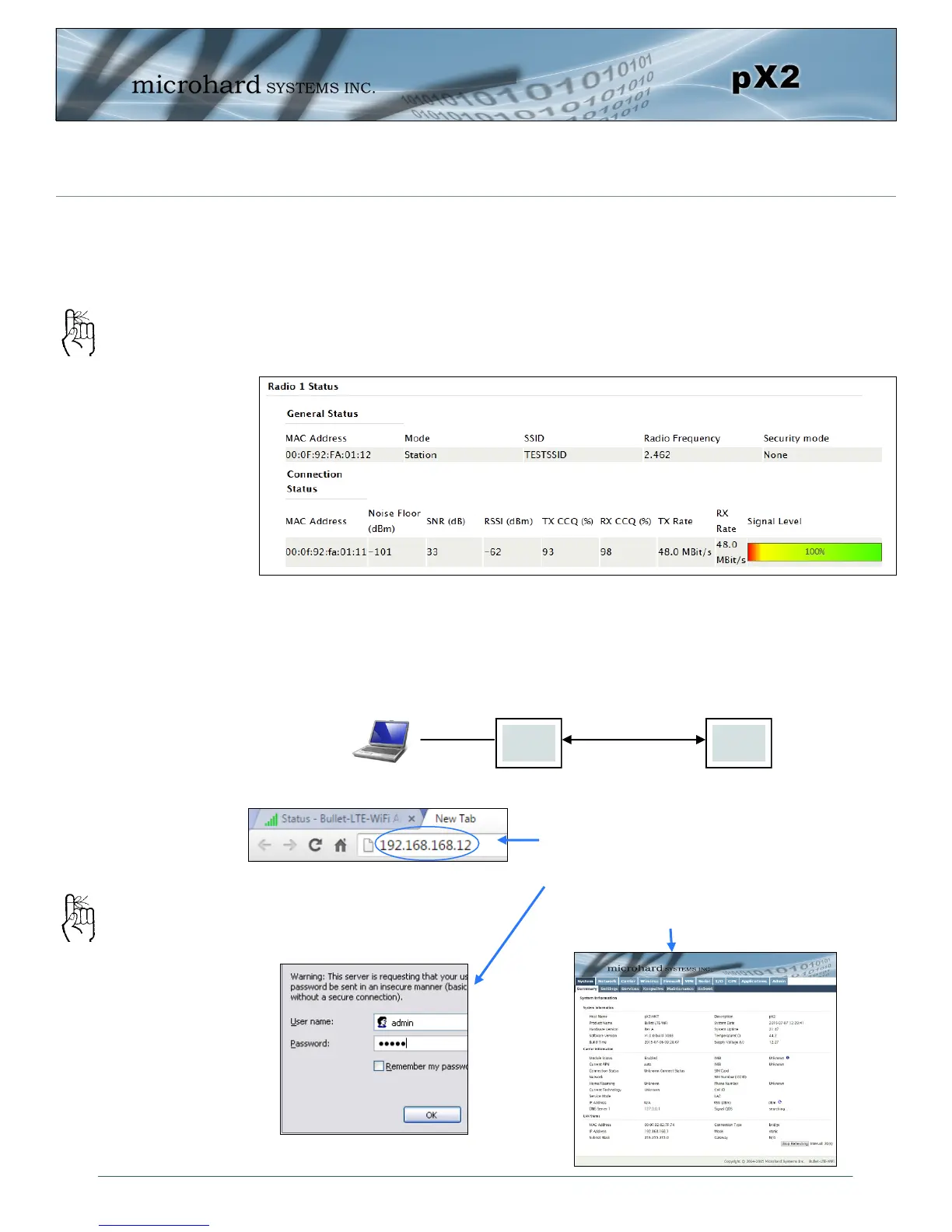
The RSSI LED’s represent signal strength, the more LED’s that are illuminated, the
stronger the signal. The Wireless > Status window also has a Connection Status sec-
tion as seen below:
RSSI LED’s that are
‘cycling’ or ‘scanning’
indicate that the unit
is searching for a
signal.
AP ST
Wireless
Open a browser and type in the address of
the station/client: 192.168.168.12
Log into the unit.
The System Summary screen should be dis-
played


 To Next Page