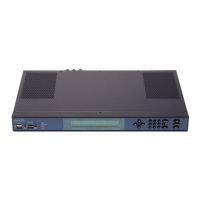
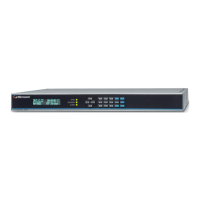
Setting the Time Manually
Press enter to terminate the script. Now plot the first field in each line (total satellites tracked)
and find the largest contiguous section of all zeros. Count the number of zeroes in a row,
divide by 3600 (sec/hr) and multiply by the drift rate of your oscillator (ms/hr).
For example: if your max number of contiguous 'zero' data points is 10,800 this is equivalent
to an outage of 10,800/3600 or 3 hours. If your SyncServer has a TCXO oscillator, the time
error would be 0.875ms/hr * 3 hrs or 2.625 milliseconds. If your SyncServer has a Rubidium
oscillator, the time error would be 0.001ms/hr * 3 hrs or 0.003 milliseconds.
Note: To minimize the accumulated time error during outages, Microsemi recommends pur-
chasing SyncServer with the Rubidium oscillator option. A SyncServer equipped with a
Rubidium oscillator can maintain time to better than one millisecond accuracy to UTC with
GPS satellite outages of one month. Generally, for outages longer than several hours, the
GPS receiver needs to track a satellite contiguously for several hours to acquire time and
remove the accumulated time error.
Setting the Time Manually
The SyncServer has features for setting the time manually. These can be used for a variety
of reasons, such as:
n Distributing approximate UTC time.
n Intentionally distributing non-UTC time.
Also see: Distributing Non-UTC Time (on page 180) and TIMING - HW Clock (on page
61).
In most cases, the user sets the time manually when:
n The Hardware Clock's Input References aren't available, or don't provide time (10MHz,
1PPS).
n NTP associations that are capable of providing time to the SyncServer aren't available.
Note: In the following instructions, enter UTC time using the 24-hour format. For example,
instead of 06:00 PM, enter 18:00.
Using the keypad/display
1.
Press the MENU button.
2.
Use the number buttons to select 2) Display and 1) Time Entry.
3. Enter the UTC date and time.
4.
For Set HW Clock to FreeRun?, select 1) OK.
Using the web interface
1.
On the TIMING - HW Clock page, enter the UTC date and time.
2.
Set Forced Timing Source to Free Run.
3. Enter the UTC date and time.
4.
Click APPLY.
Note: Once Forced Timing Source is set to Free Run, the Hardware Clock doesn't use the Input
References until the user sets Forced Timing Source back to Auto. If synchronizing NTP
997-01520-02 Rev. F1.......................................................................... Page 177


 To Next Page