Classic Manual Rev L
24 | P a g e 1 0 - 0 0 1 - 1 R E V L
IP address configuration
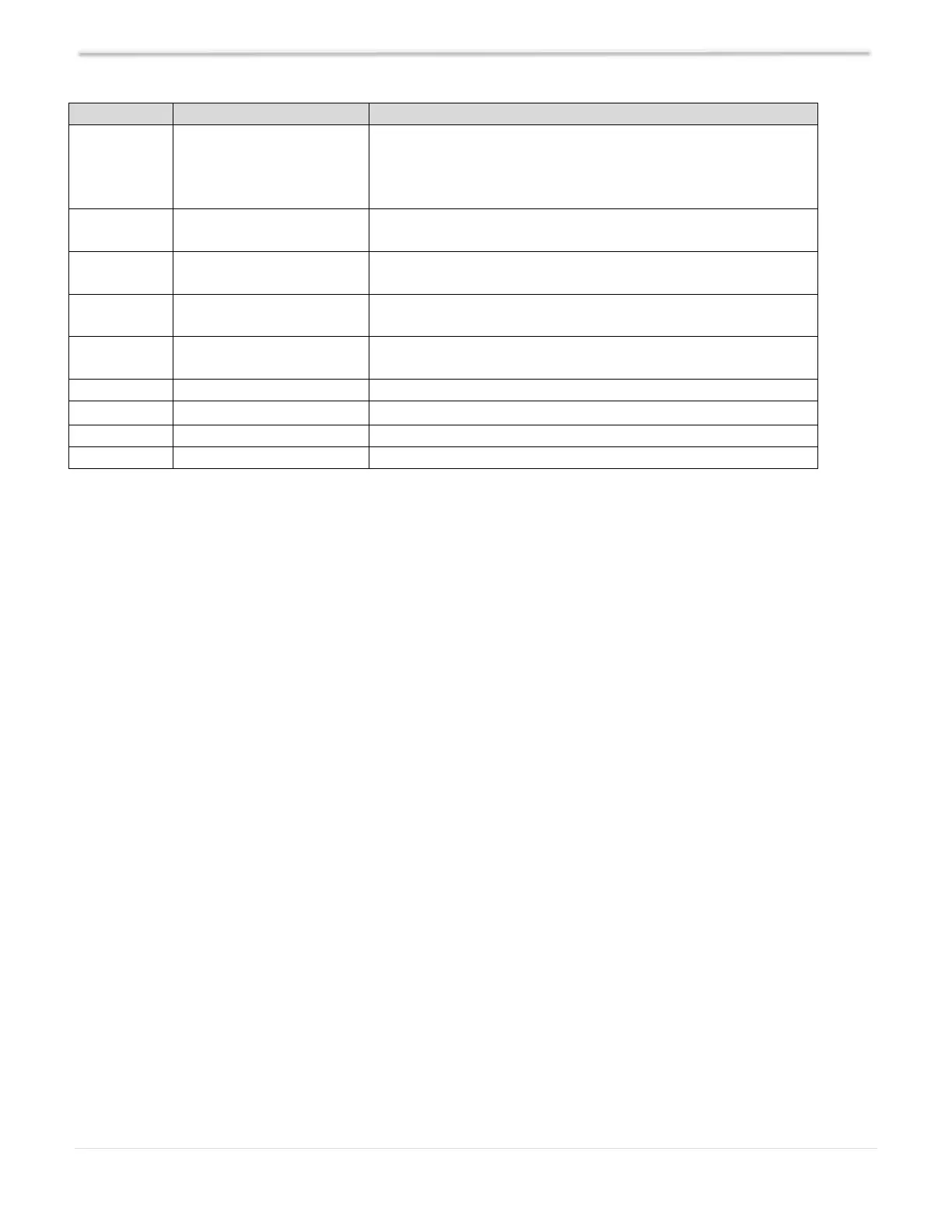
mode: DHCP/Static
The Classic supports both static and dynamically (DHCP)
allocated IP addresses. If you are unsure which to choose, try
DHCP first. If you have trouble, refer to the troubleshooting
section.
The Network address of the Classic (Assigned by customers
Router when using DHCP)
The Subnet or address class specifier (Assigned by customers
Router when using DHCP)
The address of the network’s gateway device (Assigned by
customers Router when using DHCP)
Primary Address lookup device (Assigned by customers
Router when using DHCP)
Enables or disables the Classic’s data push to My Midnite
The hardware or Ethernet address of the Classic
The unique MidNite Solar address of the Classic
Table 4
DHCP
The Classic supports Dynamic Host Configuration Protocol (DHCP) in which all networking settings
are derived from a DHCP-enabled router. This is the simplest configuration method and
recommended unless you explicitly need a statically allocated IP address for your Classic. In this
mode all other settings are automatically configured and are read-only (informational), except for
the Web Access feature.
Depress MAIN MENU key.
Scroll to NET menu and depress the ENTER key.
Highlight and select DHCP.
Depress ENTER key to save changes.
NOTE: The Classic’s DHCP protocol implementation usually takes a few seconds up to a minute to
update the network settings. If the network settings do not update within a minute, please consult
the troubleshooting section.
Static IP
The Classic supports static IP address allocation. In this mode you can assign the Classic a specific IP
address. This lets you set up things like port forwarding from your router or for networks with
static IP allocations.
Depress MAIN MENU key.
Scroll to NET menu and depress the ENTER key.
Highlight and select STATIC.
Using the LEFT and RIGHT ARROW keys, navigate to the settings to change and use the UP
and DOWN ARROW keys to adjust the desired fields.
Depress the ENTER key at any time to commit the settings to the Classic’s flash memory.



 To Next Page