Classic Manual Rev L
52 | P a g e 1 0 - 0 0 1 - 1 R E V L
Updating New Firmware to the Classic
The Classic’s firmware can be updated with a standard USB cable and a Windows-based PC (Apple
products are not supported). The USB cable is Standard-to-Mini B. Please visit
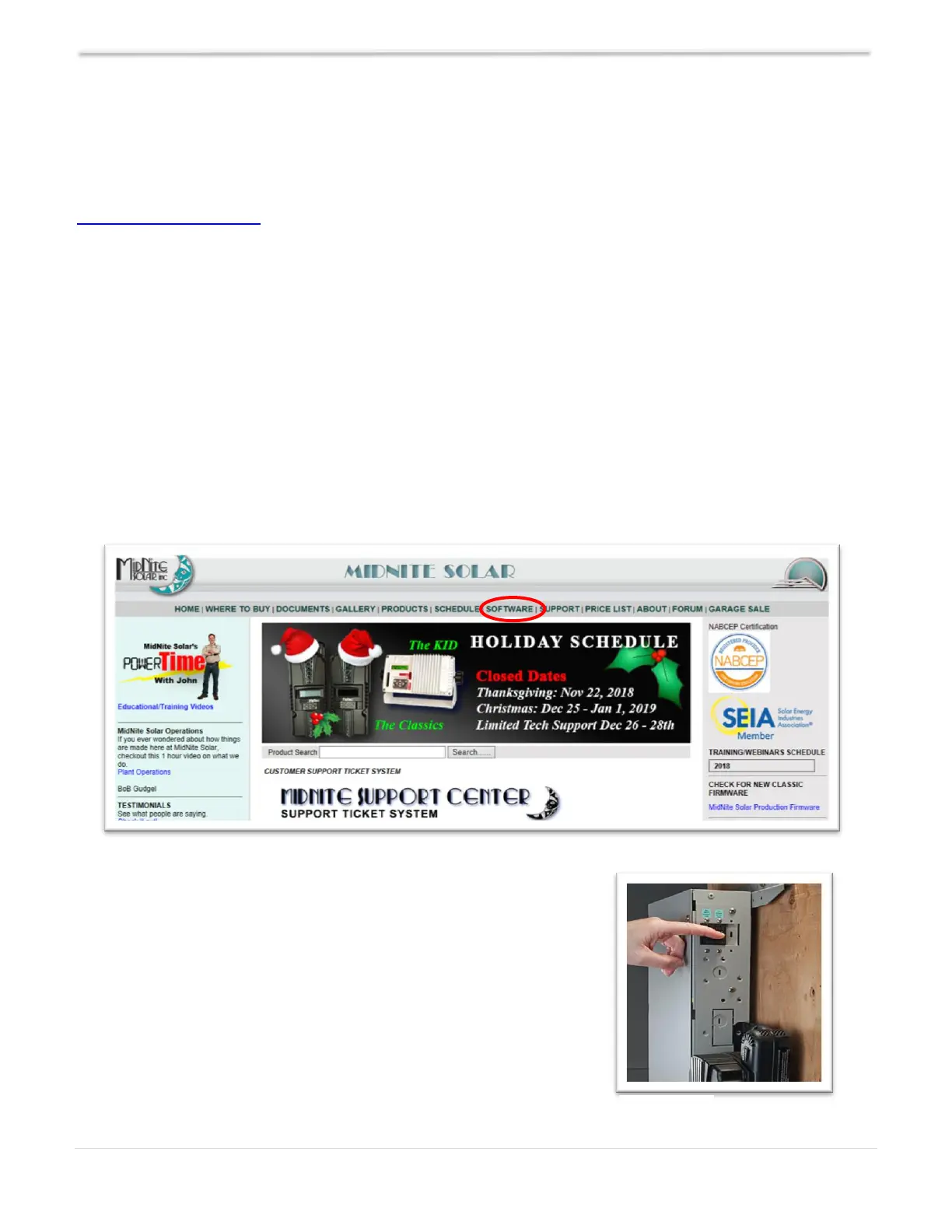
www.midnitesolar.com and click on the Software tab (see Screenshot 3) for the firmware and
instructions. Due to the various different Windows configurations, we will not go into detail in the
Classic Manual. The firmware upgrade is fail-safe, so if the wrong code is installed the Classic simply
says, “Wrong code,” prompting you to load the correct code. Also, if the upload is interrupted for
whatever reason, simply start over.
WARNING: The Classic's USB port is NOT isolated from battery negative. This is typically only an
issue on positive ground systems or systems with a tripped ground fault protection
device. Care must be taken that a computer connected to the Classic's USB port is either
isolated from ground and the Classic's negative or that the computer's USB negative is
common with the Classic's negative and ground.
WARNING: You cannot turn a Classic 150 into a Classic 200 by using new software; the internal
components are different.
Screenshot 3
Preparing Classic for Update
Go to your electrical panel and identify the input and output
breakers for the Classic. Turn them off. Wait 3 minutes for the
Classic to de-energize (see Figure 26).


 To Next Page