Classic Manual Rev L
50 | P a g e 1 0 - 0 0 1 - 1 R E V L
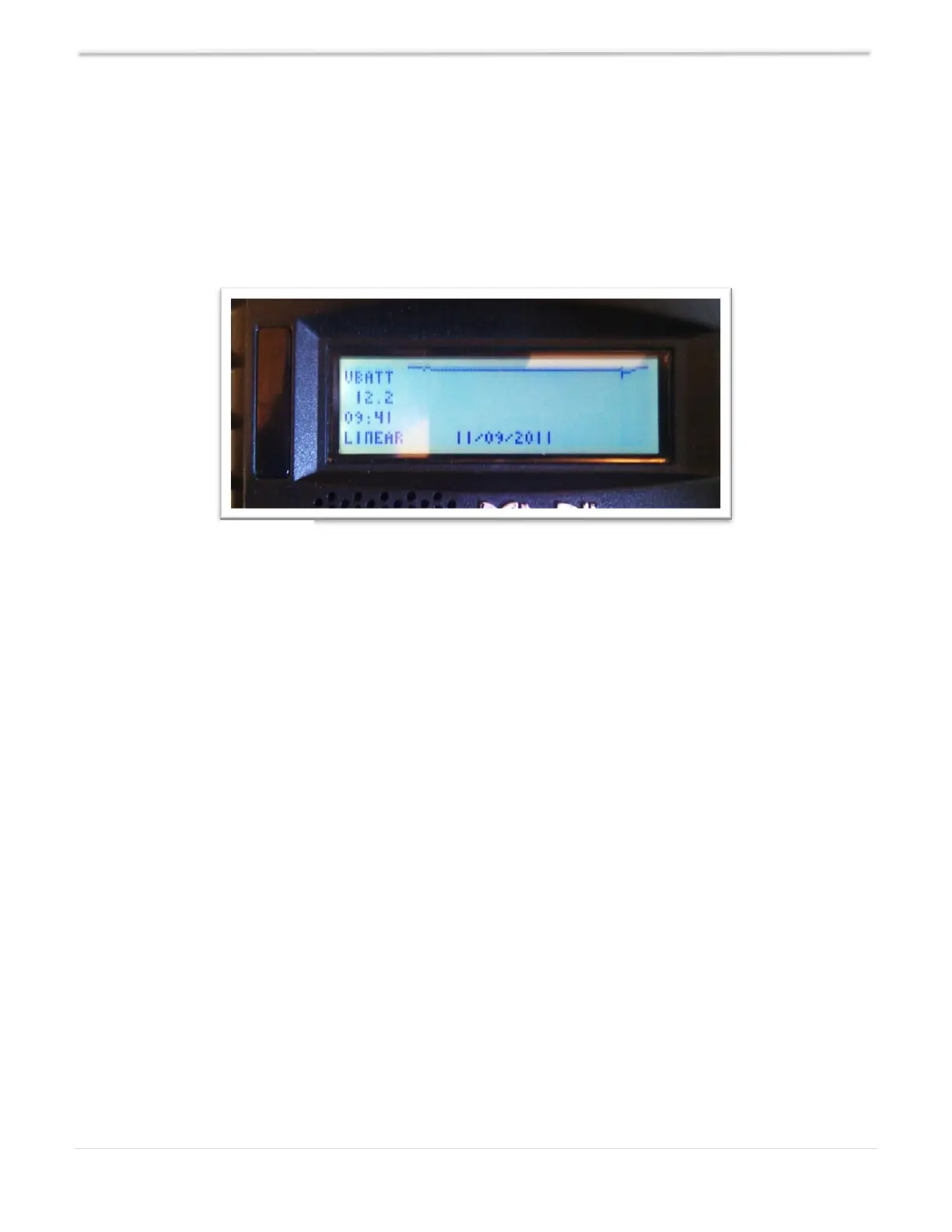
centered on the dot of the graph. The third line down on the left side of the recent data screen
shows the time stamp of that data where the cursor is positioned on the graph. Finally, the bottom
left of the graph screen alternates between two indicators. One is the charge stage at the cursor
position and the other is the scaling of the vertical axis of the graph. Power, for instance, can show a
very wide range of values and power lends itself better to using a logarithmic vertical scale, shown
as LOG. Voltage and other data shows up fine using a LINEAR vertical axis scale and is spelled out
on the lower left of the graphic screen.
The date of the particular selected cursor positioned data point is shown on the bottom middle of
the graphic screen. Moving the cursor left or right using the LEFT and RIGHT ARROW keys, selects
the next data points to the left or to the right of the present cursor position.
The flashing cursor is short and may be hard to detect at first, so you may have to look for it. The
cursor aligns and centers itself right on the dot that is selected.
The bottom date or time displayed may tend to obscure the data line graphed behind it. The
time/date and the graph data will be mixed together about a second after the date/time is drawn on
the bottom of that graph log screen. If, for some reason, the graphic log screen display shows bogus
data or dots that look like they should not be shown, simply press the ENTER key and the screen
will be quickly erased and re-drawn without the extra lines or dots.
There may or may not be any valid data past a certain point to the left if the unit is fairly new. The
data shown in unused spots may be zero, or it may be off the screen and not viewable. As time goes
on and new data is acquired, those unused data points will start to appear and be valid. Of course,
the Daily History will take many days to fill in, where the Recent Hourly (minutes really) data will
fill in after a few hours or maybe a day or two depending on how long the Classic is on and running
for that day. Remember, the Classic does not normally log data while it is in Resting mode.
CAUTION: Attempting to download the Logs using the Local app while viewing the Logs on the
MNGP will cause the Classic to reboot.


 To Next Page