6.3 Viewing Pictures in Thumbnail View
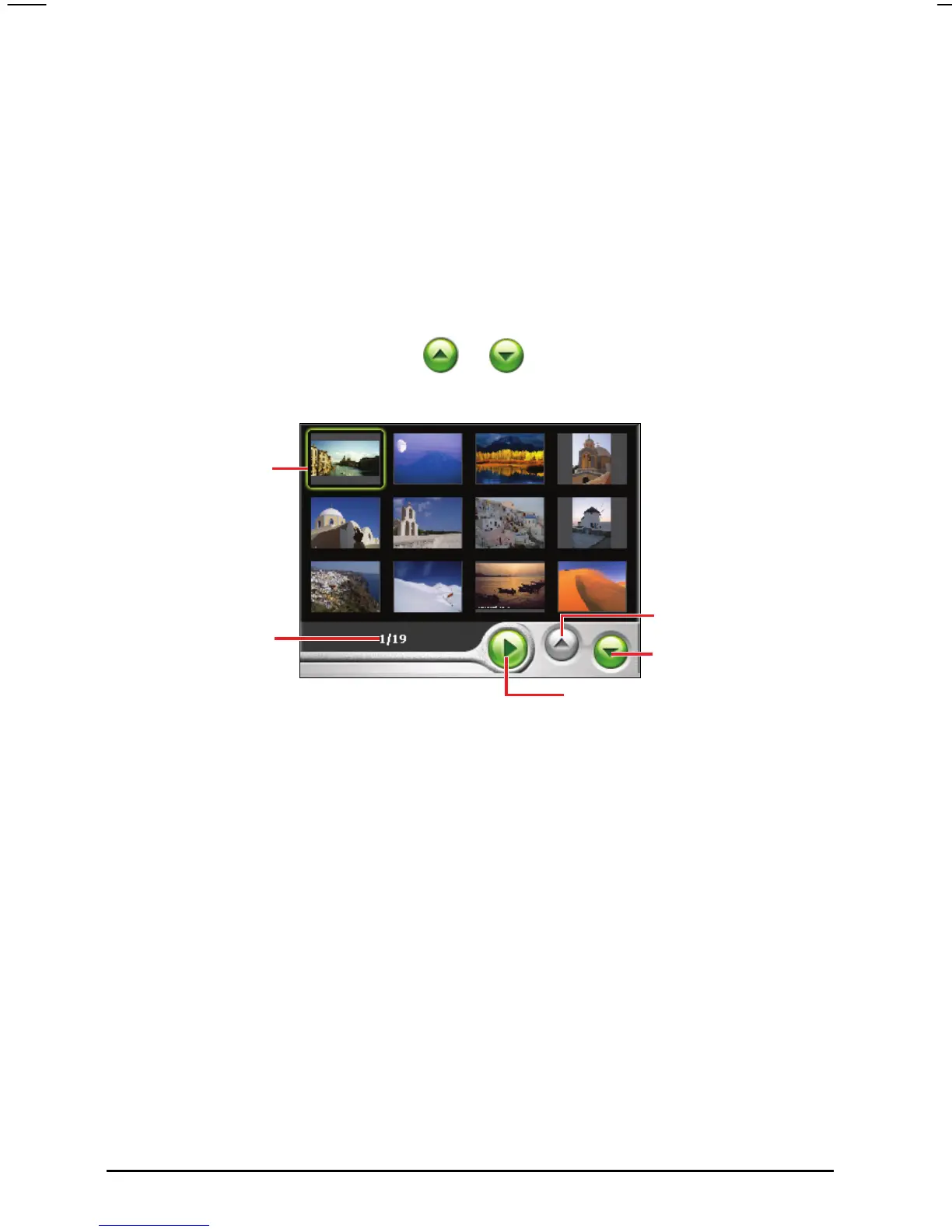
The thumbnail view is the default view of the Picture Viewer. It allows 12
photos to be displayed at one time.
1. Tap
Multimedia Picture to start the Picture Viewer program.
2. The Photo Viewer will automatically search all the photos under the folder
\Storage Card\My Picture\ on your device hard drive or under the folder \SD
Card\ My Picture\ on a storage card and display all the photos in thumbnail
view (4x3). You can press the
or
button at the bottom to go to next
or previous page.
Page up
Page down
Open the slideshow
green color frame
indicates the picture
selected
Selected file/
Total number of files
6.4 Viewing a Picture Full Screen
There are two ways to view pictures full screen. You can either:
Use the stylus to tap a picture.
Press the navigation pad up/down/left/right to choose a picture. Then press
the center of the navigation pad to open the picture.
48


 To Next Page