Getting Started
23
TOUCHSCREEN UI NAVIGATION
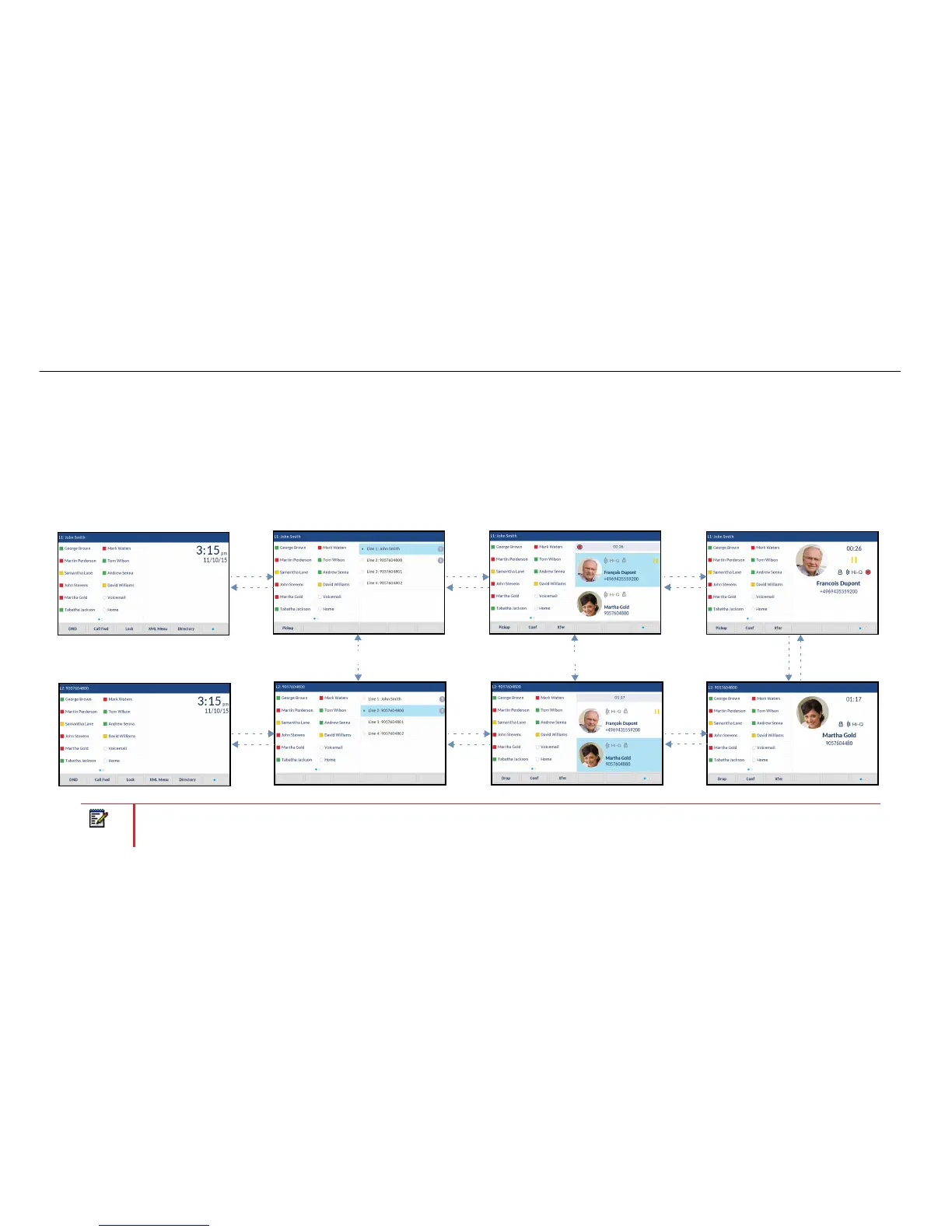
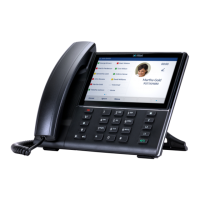
UI navigation is easily performed using the LCD touchscreen. Swipe left and right in the top softkey area to switch softkey pages. Swipe left and right on the
area to the right of the top softkeys to switch to the line and call screens and swipe up and down to scroll through the different lines or calls on the respective
screen. To select a line, call, or any other item, simply press the item on screen.
The figure below provides a visual representation of the different screens and UI navigation behavior.
Note: The Detailed-View Call screen is only accessible when at least one call is in a ringing or connected state. Moreover, the Multi-View
Call screen is only accessible when more than one call is a ringing or connected state.
Home Screen
Line Selection Screen
Multi-View Call Screen Detailed-View Call Screen
Swipe Left
Swipe Right
Swipe Left
Swipe Right
Swipe Left
Swipe Right
Swipe Left
Swipe Right
Swipe Left
Swipe Right
Swipe Left
Swipe Right
Press Caller to Switch
Swipe Up
Swipe Down
Press Line to Switch


 To Next Page