Configuring Softkeys
99
LINE KEY
You can set a softkey to act as a line/call appearance key on the 6873i. This key acts as a line
that behaves the same as a hard line key (L1 and L2). For more information about the behavior
of Line keys, see “Line and Call Appearances” on page 92.
CONFIGURING A LINE KEY USING THE MITEL WEB UI
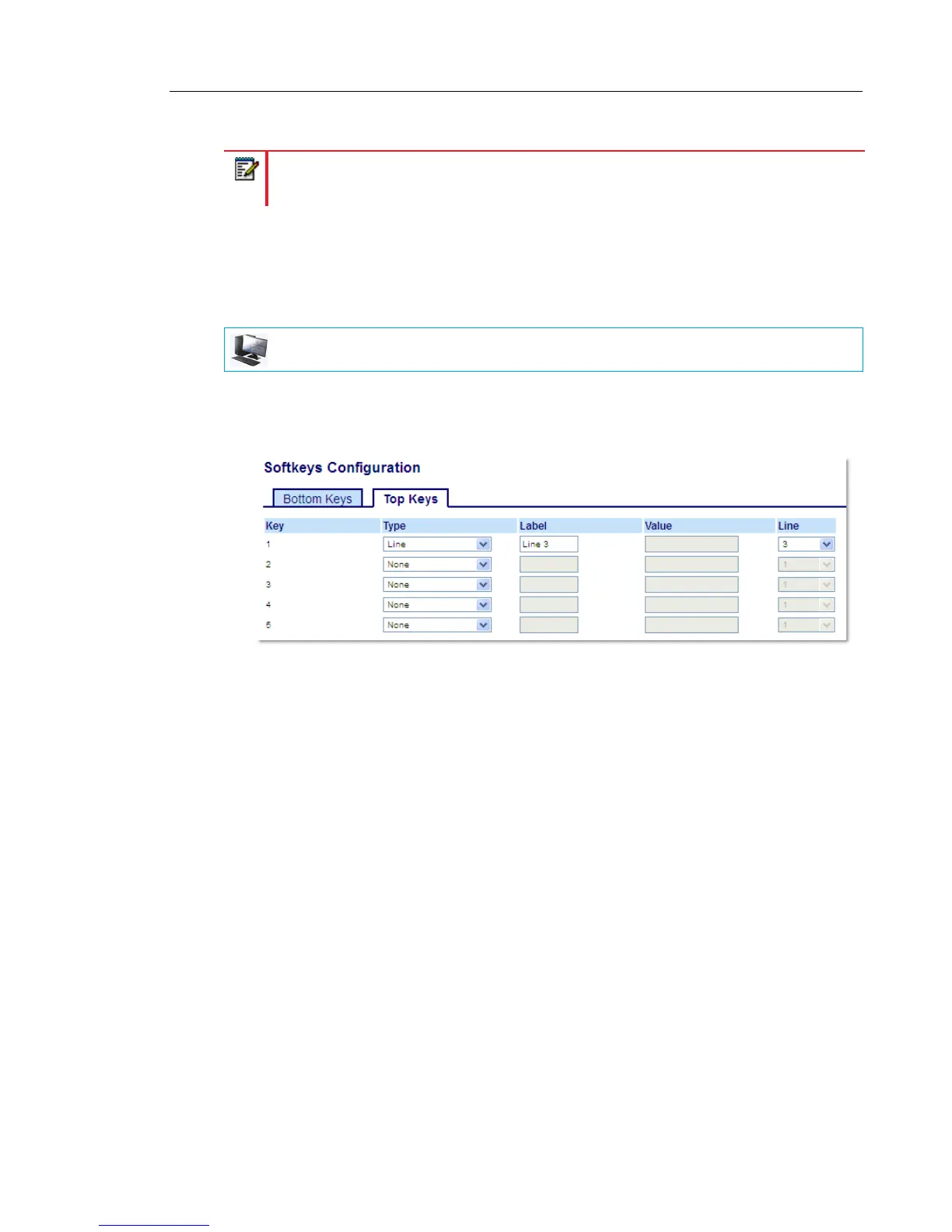
1. Click on Operation > Softkeys and XML.
or
Click on Operation > Expansion Module <N>.
Softkeys
2. Select from Key 1 through Key 48 on the top keys.
3. In the Type field, select Line to apply to the key.
4. In the Label field, enter a label to apply to this key.
5. In the Line field, select a line to apply to this key.
Valid values are 3 through 24.
Expansion Module Keys
6. Select from Key 1 through Key 16 (M680i) or Key 84 (M685i).
7. In the Line field, select a line to apply to this key.
Valid values are 3 through 24.
8. Click Save Settings.
Note: Line functionality can only be programmed on the top softkeys.
MITEL WEB UI


 To Next Page