Operator user‟s manual
60/78
4.2.4.1 Prints.
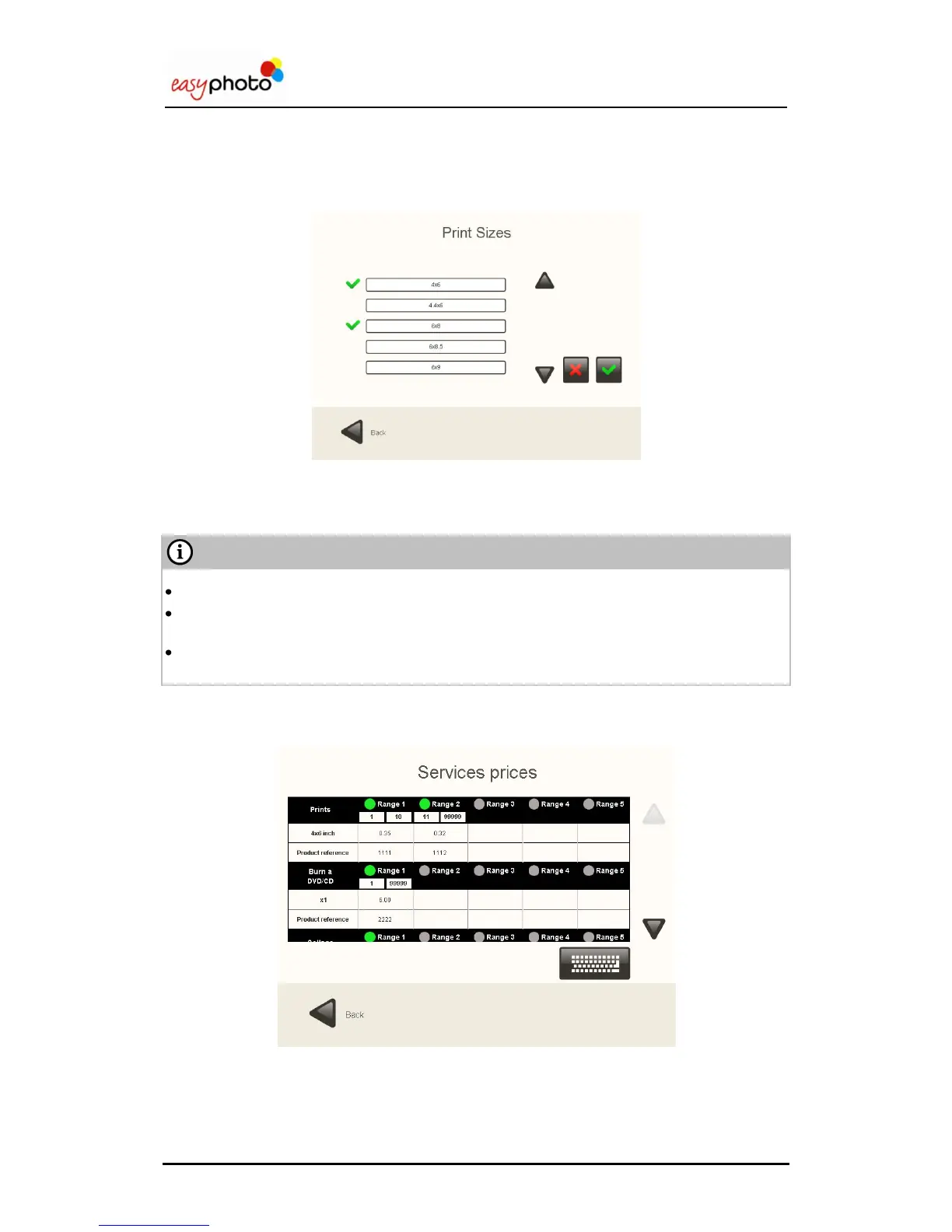
By pressing the „sizes‟ button, it is possible to set the available printing formats.
1. Use the arrows to display all the sizes.
2. Press the desired sizes to select them.
You can select a maximum of 4 sizes (when the system is not working as O.T.)
When working as an O.T., it‟s necessary to previously check that the selected printsizes are
available at Flexilab size, otherwise the orders will never be printed out.
If there is no printer attached to the system, the default print media size is 6x9 inches
(15x23cm).
3. Press the “Prices settings” button to display all the prices and/or modify them. The following
screen is showed:
4. Use the arrows to move across all available services.
5. Press the price you want to modify.
6. Once the price is selected, write the new one.
7. Insert the product reference (it will be used in the ticket printing. See chapter 4.2.3.1)


 To Next Page
 Loading...