78
M26 Camera Manual: Operating the Camera
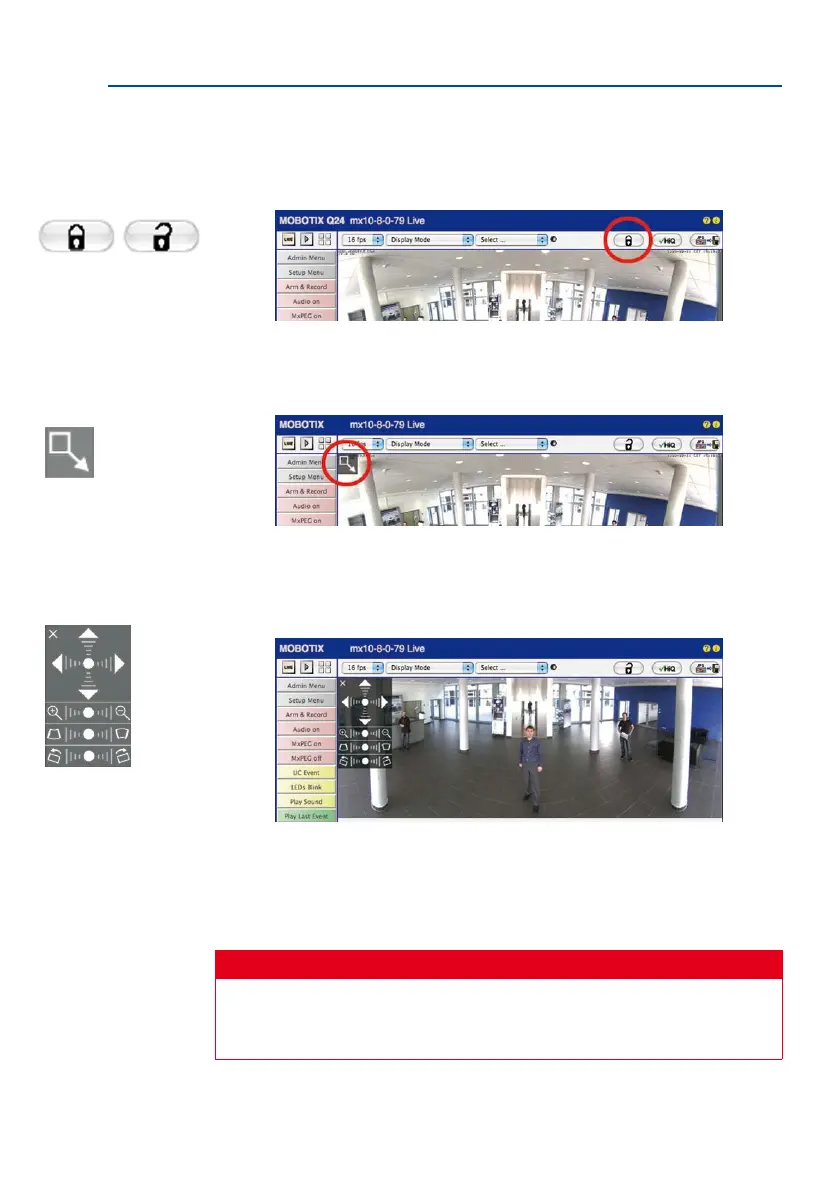
2. Click on the lock icon. Clicking on the lock once opens it (lock clasp is raised). The
lock prevents execution of later vPTZ actions, which could also unintentionally mod-
ify the view you congure. This holds for all overview display modes, that is, also for
Panorama/Focus, Double Panorama and Surround.
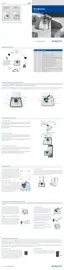
3. A new icon for processing the panorama image appears in the top le corner of the
camera image. Enlarge the image by clicking on the icon once (OnScreen Control
appears).
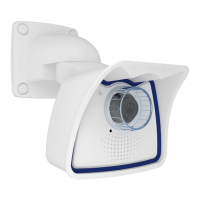
4. Using the OnScreen Control visible in the live camera image, you can now change
the displayed live camera image as desired (panning, tilting, zooming, rotating and
panorama correction; see g. on the right). When doing so, the vPTZ function using
the mouse or joystick is deactivated.
5. Aer you have modied the desired setting, close the control panel (x in the top
le hand corner).
6. Click on the lock icon again to close it (lock clasp is down). The panorama image
setting is then locked until the camera is next restarted.
Caution
To permanently save the standard image setting dened for the M26, go to the Store
CompleteConguration option in the Manage Settings Quick Control. The settings
will then remain in eect, even aer rebooting.
Open lock
Click on the icon
Camera live image
with
panorama correction with
OnScreen Control visible



 To Next Page