118
Q26 Camera Manual: Operating the Camera
3.2.4 Boot Options of the Camera
By default, the camera starts as DHCP client and automatically tries to get an IP address
from a DHCP server. To start the camera in a mode dierent from the default mode, you can
activate the boot menu of the camera.
Preparing the Camera
• Disconnect the camera’s power supply.
• Make sure that you have suitable item such as a paper clip at hand,
but never use
sharp or pointed objects!
• Reconnect the power supply of the camera.
Activating the Boot Menu
The red LED lights up 5 to 10 seconds aer establishing the power supply and will stay on
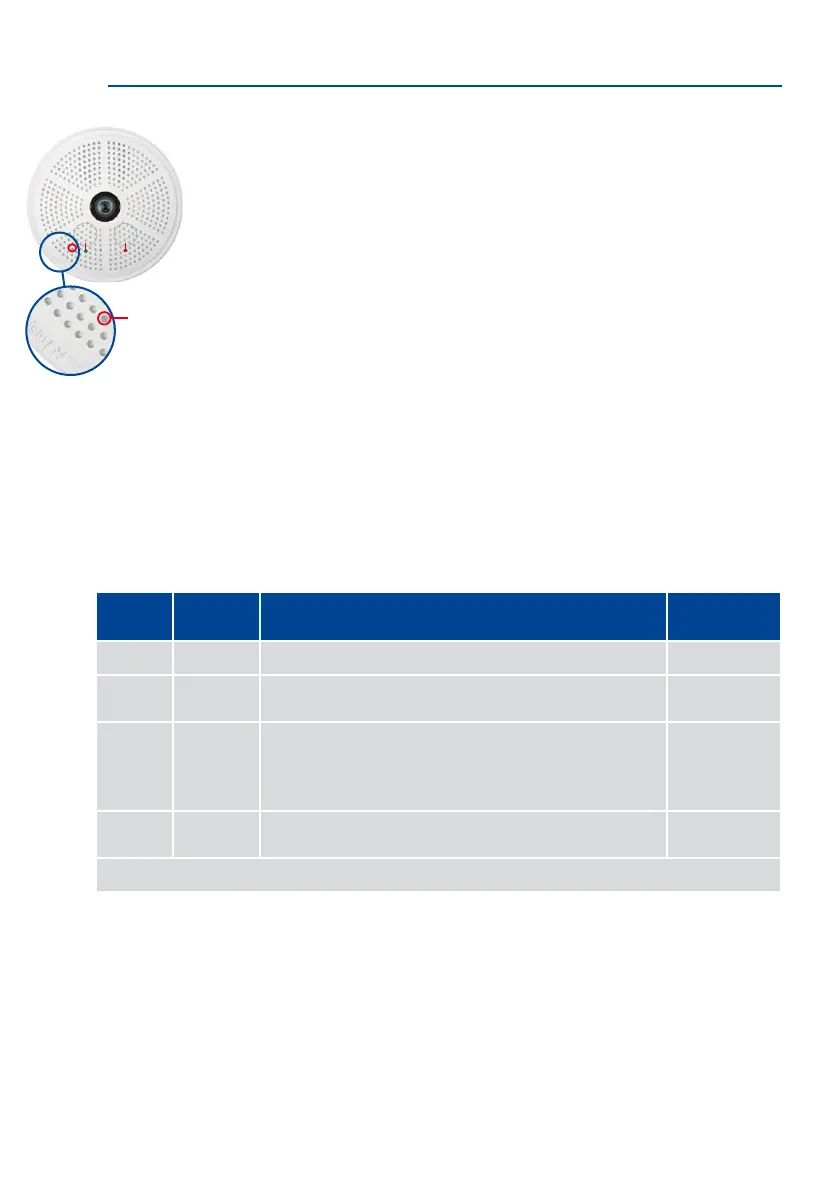
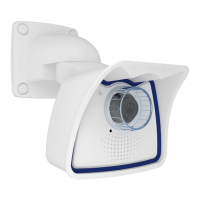
for 10 seconds. Briey press the key by inserting the paper clip into the hole indicated by
the red circle in the gure. The camera enters the boot menu, ready for selecting one of
the boot options.
The LED now ashes once and repeats the ash signal aer pausing for one second (the
number of ashes indicates the current boot option). To go to the next boot option, briey
press the key again (< 1 sec). Aer the last boot option, the camera returns to the rst option
(LED ashes once).
Selecting a Boot Option
Press the paper clip longer (> 2 sec) into the hole. The camera conrms the selection by
ashing rapidly three times. You can now remove the paper clip. Aer 20 sec, the camera
will conrm the selection by playing a sound according to the table above.
If nothing is selected, the camera will resume its normal boot process aer a certain time.
LED default settings:
1
Power (on),
Error (ashes)
2
Recording (ashes)
LED
ashes
Boot
Option
Meaning
Audio
Conrmation*
1 x — This option is not used on this camera model. —
2 x
Factory
Defaults
Starts the camera with factory defaults (factory default IP
address, users and passwords will not be reset).
Boing
3 x
Automatic
IP Address
Starts the camera as DHCP client and tries to obtain an IP
address from a DHCP server. If a DHCP server cannot be found
or no IP address can be obtained, the camera starts with its
factory default address.
Boing Boing
4 x
Recovery
System
Starts the camera with the recovery system, e.g., in order to
recover from a failed update of the camera soware.
Alarm Sound
*Only on cameras with audio option and installed speaker.


 To Next Page