M1000 MAIN MENU PROGRAMMING OPTIONS
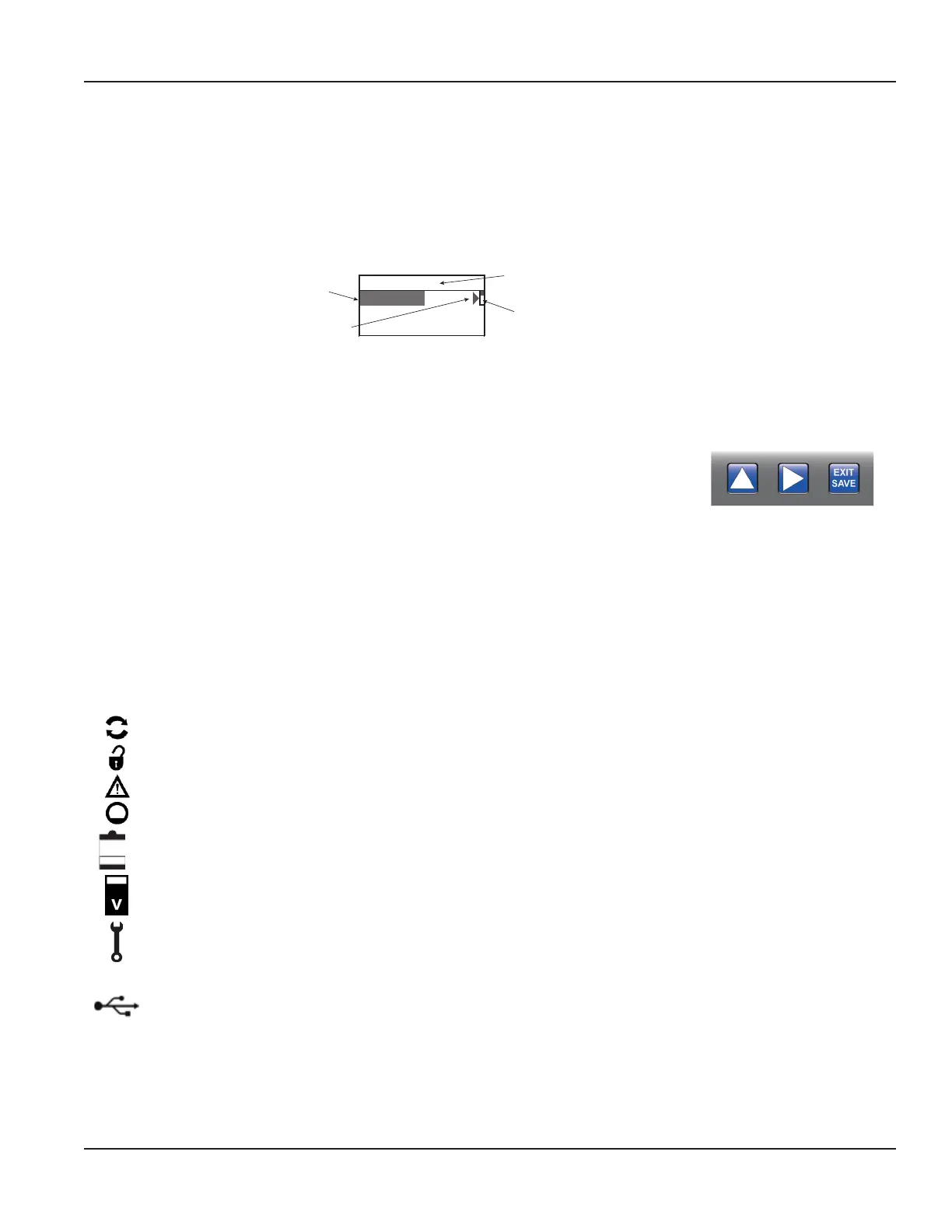
Screen Layout
The following M1000 programming options are available from the Main Menu:
• Meter Setup
• Measurement
• Input/Outputs
• Totals
• Communications
• Miscellaneous
• Information
• Pin
• Login
Menu header
Indicates a submenu
Submenu
Figure 29: Screen layout
Function Buttons
User the three function buttons on the front of the amplifier to program the M1000. Perform
screen navigation, digit and parameter selection by pressing a combination of these
threebuttons.
Press to scroll through the menu screens, cycle through options in a list or cycle through digits when entering a number.
Press or EXIT SAVE to enter a menu or move to the next submenu. The scrollbar on the upper right shows your position in
the list. Press EXIT SAVE to return from a submenu to the upper menu.
To select parameters or values from a list in a menu point, first press until the parameter or value is displayed then press
EXIT SAVE to select it. The current number in the list is marked by a little black square to the left of the number. For example,
DN 50.
To change a parameter, press to enter the menu. The first character flashes. Press to change the value. Once you have
changed the value, press to move to the next value. Press EXIT SAVE to confirm the new value.
Status Icons
Communication interface is activated
Meter is unlocked
Error message
Empty pipe detection
Low battery
Exceeded full scale
Memory problem
S
Simulation active
USB active
M1000 Main Menu Programming Options
Page 23 March 2020 MAG-UM-00379-EN-07


 To Next Page