User Manual
27
Chapter 6: Web Application Manager
6.1 Plug-ins download and installation
1. Open your web browser and input the IP address and web port of DVR;
2. If your computer is connected to internet, you will be prompted to download and install “ActiveX Control”;
3. You may have “Windows Security Alert” that attempts to block this with the windows Firewall. In that case,
click [Unblock] button to continue your installation processing.
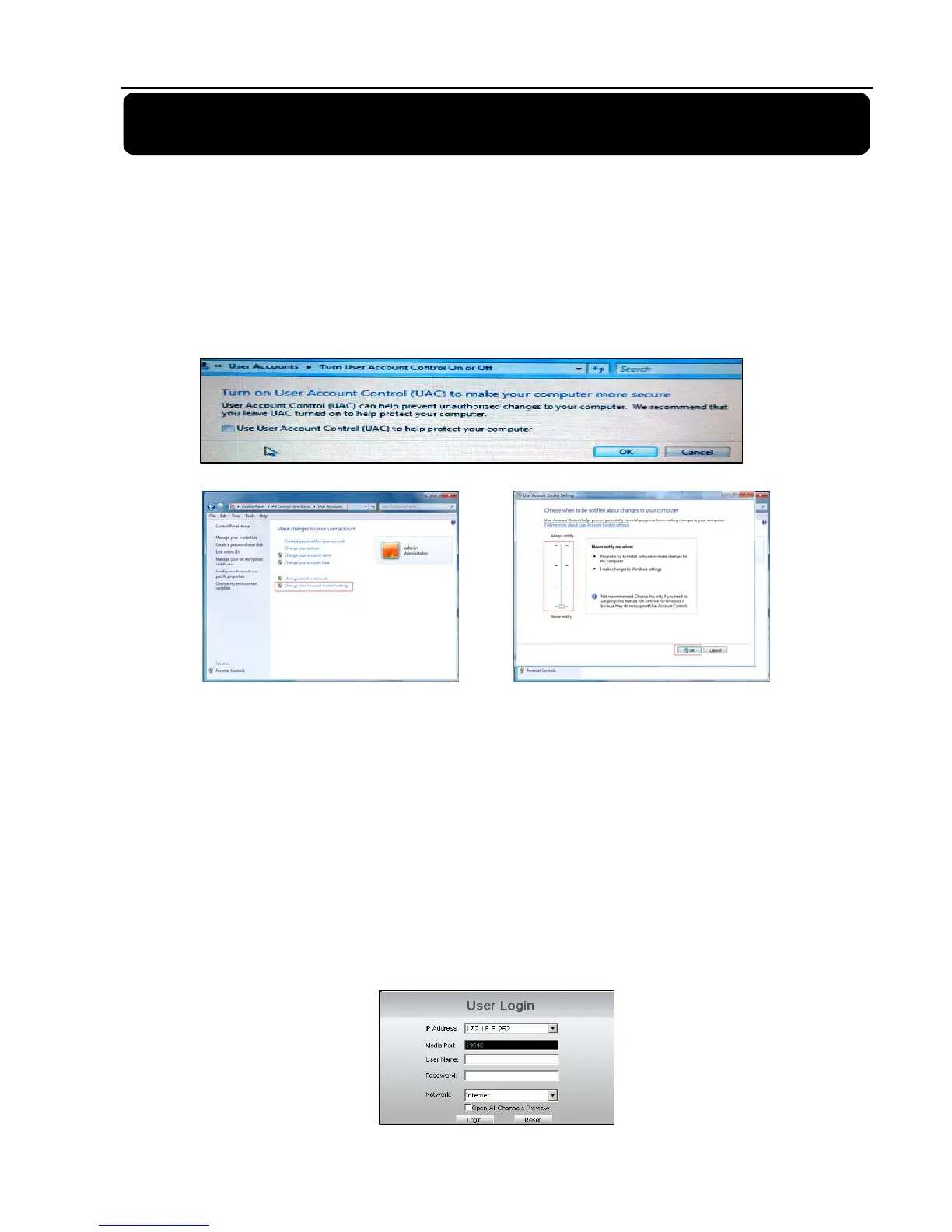
4. The Vista and Win7 system user may need to set user authority.
For Vista user, please click <StartSetupControl Panel> to enter into the below Picture:
For Win7 user, please set your user authority as per below pictures.
Reminder: If the plug-in program is not downloaded successfully, please open IE browser and enter into
<ToolInternet optionCustom> and check if your browser’s safety level or firewall setting is too advanced.
If you firstly log-in system, you are prompted to download and run “ActiveX Control”. You need waiting for
about one minute, Please be patient.
If you want to delete old IE webcam at DVR system update, click <StartRun> and input the command
characters: “regsvr32/u HiDvrOcx.ocx.
6.2 web Web Client Log-in
After plug-ins installation, please enter password and click [Log-in] button, and now you can view DVR
remotely through the Web Client.
Please note default password is empty. System allows Administrator to set new password as per
instructions in section 6.3.1.3 - [Device Manage] menu.
4-CH and 8-CH DVR allow you have respectively five users and three users on-line simultaneously.
WIN7-1 WIN7-2
Picture 6-1



 To Next Page