-24-
To change a file's status between Waiting and Exclusion (and vice versa), double click on the file line. The
Waiting state will change to an Exclusion state and be reported as "Skip". Similarly, a file with a "Skip"
status when double-clicked, will change to "Waiting."
Fig. 6.5 shows the status Exclusion that changed status of previously added at above by double clicking with
mouse.
Although you push Encoding button in this status, it will not execute compression and translation process.
Change the status to “Waiting” by double clicking the mouse and click the “Encoding” button to execute the
conversion process.
Fig. 6.6
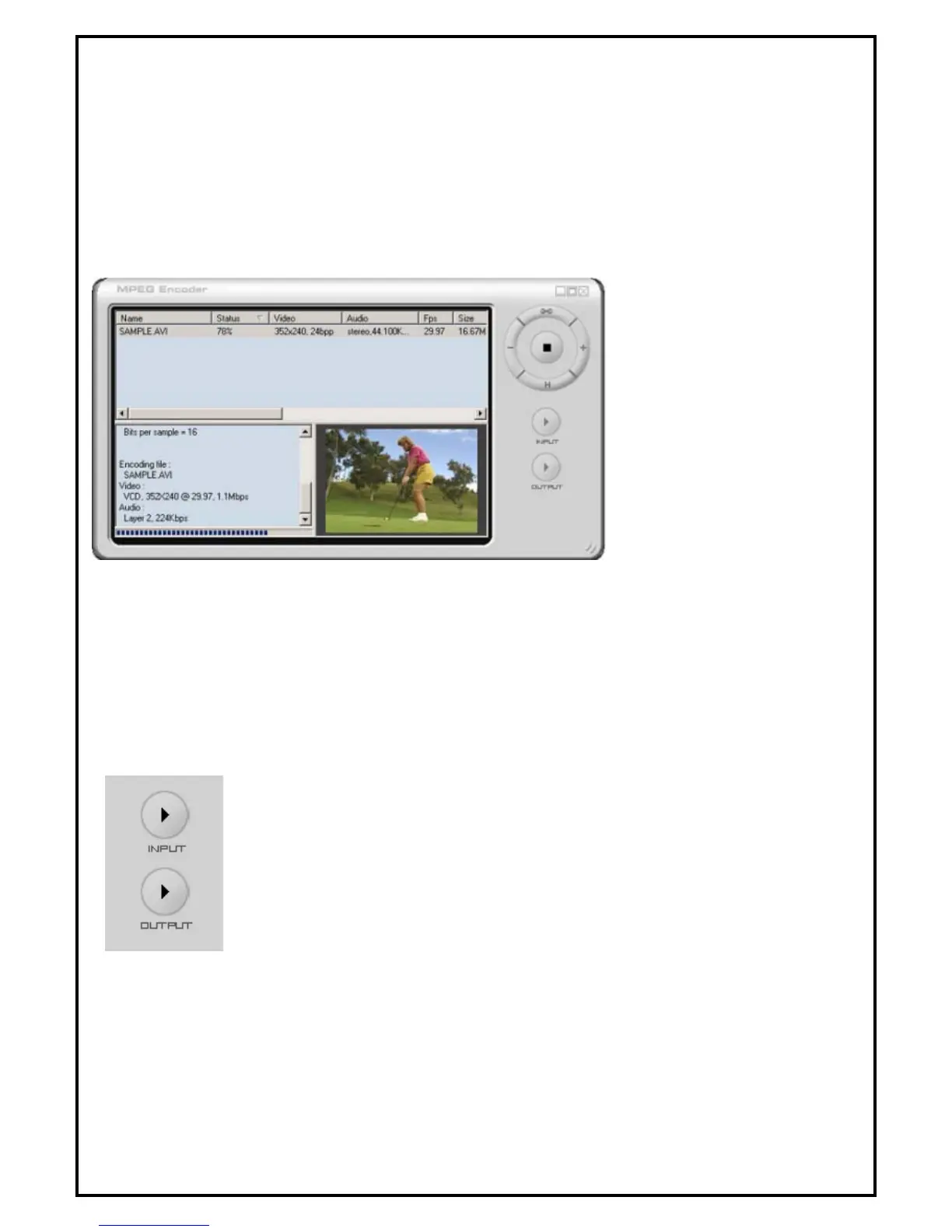
During Transcoding, the Status column changes to display the percentage of progress accomplished. Also,
once the transcoding process has begun the (right arrow) Encoding button changes to a Stop button. If the
Stop button is clicked-on during transcoding, the process will stop.
Once the transcoding process completes successfully, the status will change to “Done”. To transcode the
same file again. For example, double-click on the file in the Batch Process Display Window and the Status
will change to Waiting. To change the option again, highlight the file with a single mouse click and then
click on the Option or Edit button to execute the “Option Selection” dialog box.
To view the transcoded output video file, highlight the video file and click on the
“Output” Play button.



 To Next Page