UsingtheRouter’sWebInterface 7
Settingupyourdevice
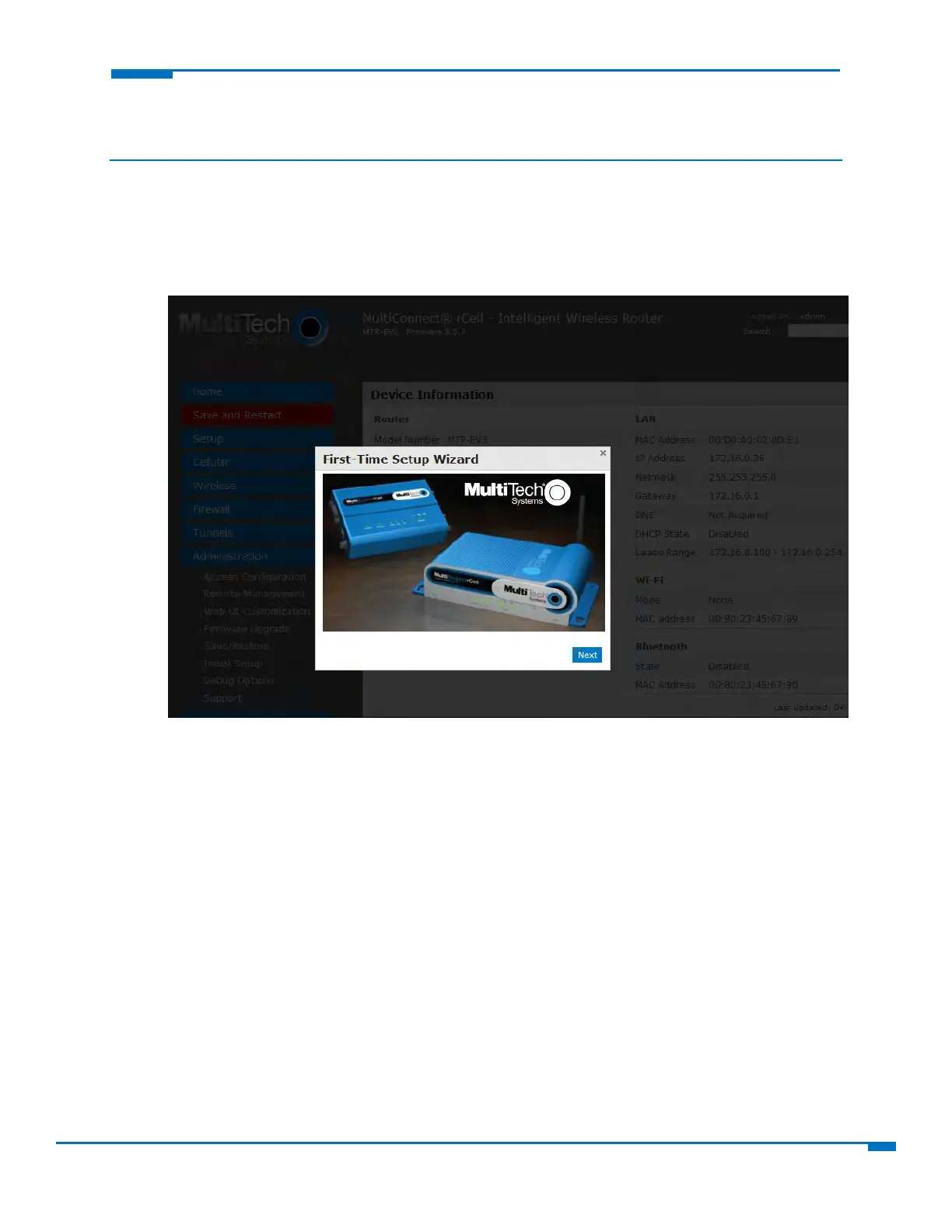
Theinitialsetupwizardcanhelpyousetupyourdevicequicklywithinformationthatiscommonlyneededto
operatetherouter.
Tousethewizard:
1. FromAdministration,selectInitialSetup.
Aseriesofwizardpanelsstepyouthroughsetup.
2. IntheChoosePasswordpanel,enterthefollowing:
a. IntheCurrentPasswordfield,typethecurrentpassword,thatis,thepasswordyouwantto
change.Theinitialpasswordshippedfromthefactoryisadmin.
b. IntheNewPasswordfield,typethepasswordyouwanttousetoreplacethecurre
nton
e.
c. Toconfirmtheaccuracyofthepassword,re‐typeitintheConfirmPasswordfield.
d. ClickNext.Orifyouaredonemakingchanges,clickFinish.
3. IntheTimeConfigurationpanel,setthedatetimeandtimezone.
a. IntheTimefield,typethedes
i
redtime.
b. IntheDatefield,typethedesireddate.
c. FromtheTimeZonedrop‐down,selectthetimezoneinwhichtherouteroperates.
d. ClickNext.Orifyouaredonemakingchanges,clickFinish.
4. IntheIPSetuppanel,givetherouteritsaddressandnet
w
orkinformation:
a. IntheIPAddressfield,typetherouter'sIPaddress.
b. IntheMaskfield,typethemaskforthenetwork.Thedefaultis255.255.255.0.
c. InthePrimaryDNSfield,typetheaddressoftheprimaryDNS..
d. ClickNext.Orifyo
uaredonemakingcha
nges,clickFinish.
5. InthePPPConfigurationpanel,configurePPPforyourrouter.



 To Next Page