Chapter 2 – Installing and Cabling the MultiVOIP
MultiVOIP® Voice/Fax over IP Gateways 15
Connecting MultiVOIP to LAN and Telephone Equipment
(MVP-410/810)
To connect the MultiVOIP to your LAN and telephone equipment.:
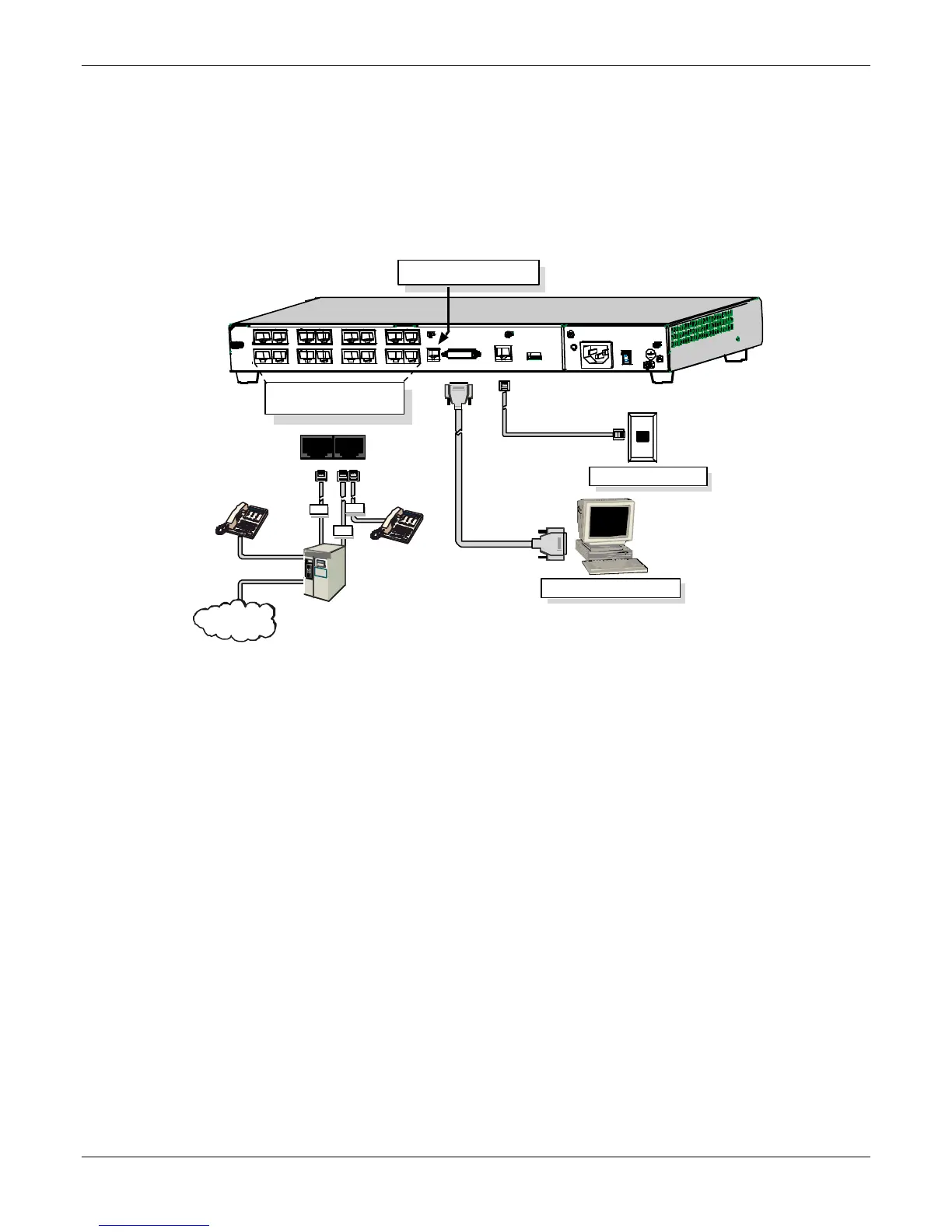
1. Connect the power cord supplied with your MultiVOIP to a live AC outlet and to the power connector on the
back of the MultiVOIP as shown at top right in the figure that follows. The E&M jacks are not present on the
–SS and –FX models.
2. Connect the MultiVOIP to a PC by using a DB-25 (male) to DB-9 (female) cable. Plug the DB-25 end of the
cable into the Command port of the MultiVOIP and the other end into the PC serial port.
3. Connect a network cable to the ETHERNET 10BASET connector on the back of the MultiVOIP. Connect the
other end of the cable to your network.
a. For an FXS or FXO connection (-SS and -FX series).
(FXS Examples: analog phone, fax machine |
FXO Examples: PBX extension, POTS line from central office.)
Connect one end of an RJ-11 phone cord to the Channel 1 FXS/FXO connector on the back of the
MultiVOIP. Connect the other end to the device or phone jack.
b. For an E&M connection.
(E&M Example: trunk line from telephone switch.)
Connect one end of an RJ-45 phone cord to the Channel 1 E&M connector on the back of the MultiVOIP.
Connect the other end to the trunk line.
Verify that the E&M Type in the E&M Options group of the Interface dialog box is the same as the E&M
trunk type supported by the telephone switch. See Appendix B for an E&M cabling pin-out.
Ethernet Connection
C om m an d P or t Con n ec ti on
COMMAND
10 BASET
E& M FX S/FXO E&M FXS/FXO
E &M FXS /FXO E&M FXS/FXO
E&M
FXO
PSTN
E&M FXS/FXO
FXS
E&M FXS/FXO E&M FXS /FXO E&M FXS/FXO E&M FXS/FXO
Voice/Fax Channel Connections
Channels 1-4 Bottom MVP410 /810
Channels 5-8 Top MVP810 Only
COMMAND
MODEM
ETH ERN ET
Command Modem connector
for remote configuration


 To Next Page