Chapter 4 – Configuring Your MultiVOIP
MultiVOIP® Voice/Fax over IP Gateways 83
Troubleshooting Software Issues
In the lower left corner of the screen, the connection status of the MultiVOIP appear. The messages in the lower
left corner change as detection occurs. The message “MultiVOIP Found” confirms that the MultiVOIP is in
contact with the MultiVOIP configuration program. If the message displayed is “MultiVOIP Not Found!” please
try the resolutions that follow.
Fixing a COM Port Problem
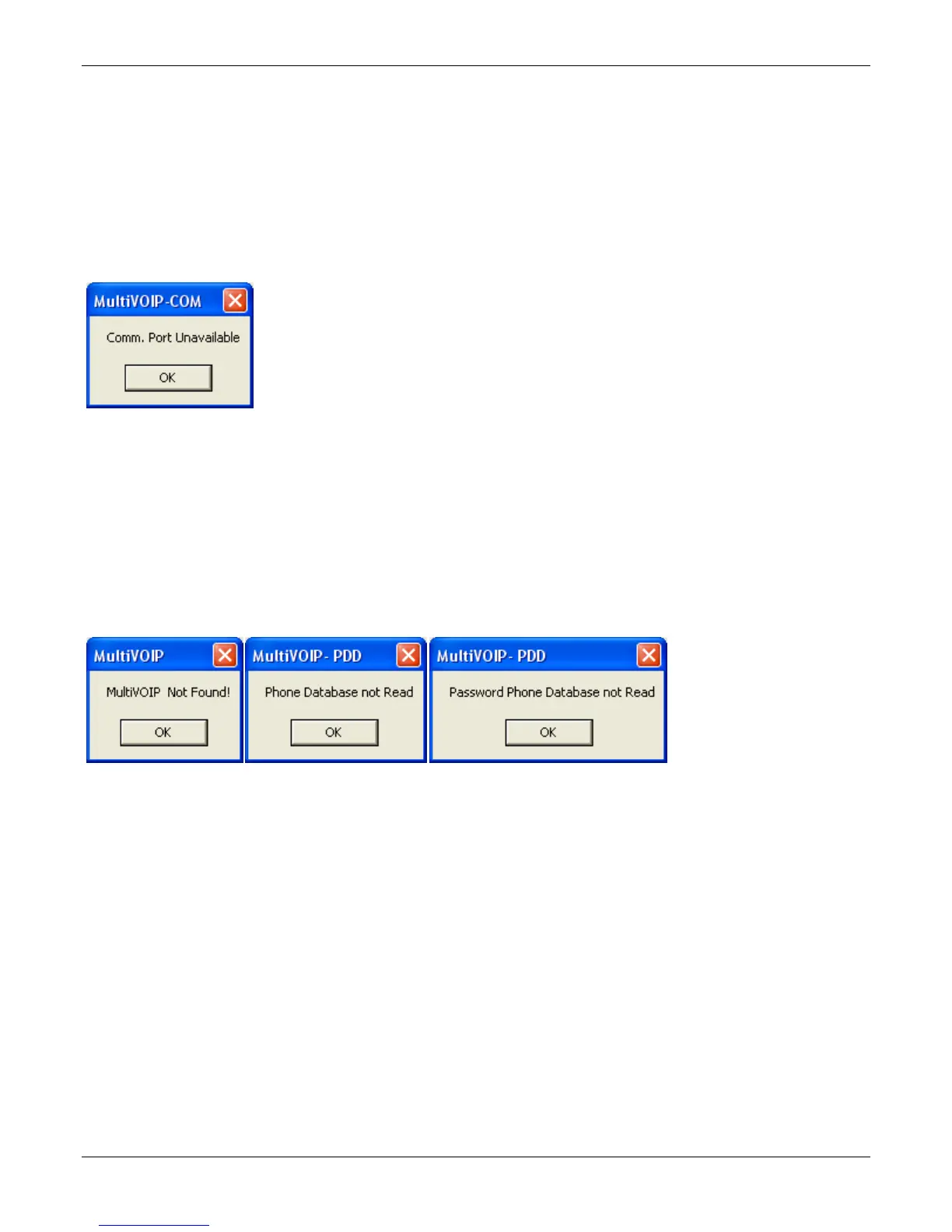
If the MultiVOIP main screen appears but is grayed out and seems inaccessible, the COM port that was specified
for its communication with the PC is unavailable and must be changed. An error message appears.
To change the COM port setting:
1. From the COM Port Setup dialog box, perform one of the following:
● Go to the Connection pull-down menu. Select and choosing Settings.
● Use the left side control panel. In the Select Port field, select a COM port that is available on the PC. If
no COM ports are currently available, re-allocate COM port resources in the computer’s MS Windows
operating system to make one available.
Fixing Cabling Problems
If the computer cannot locate the MultiVOIP device, three error messages appear.
These messages indicate that MultiVOIP is disconnected from the network. For instructions on MultiVOIP cable
connections, see Chapter 3.


 To Next Page