Chapter 4 – Configuring Your MultiVOIP
MultiVOIP® Voice/Fax over IP Gateways 67
Configuring SNMP
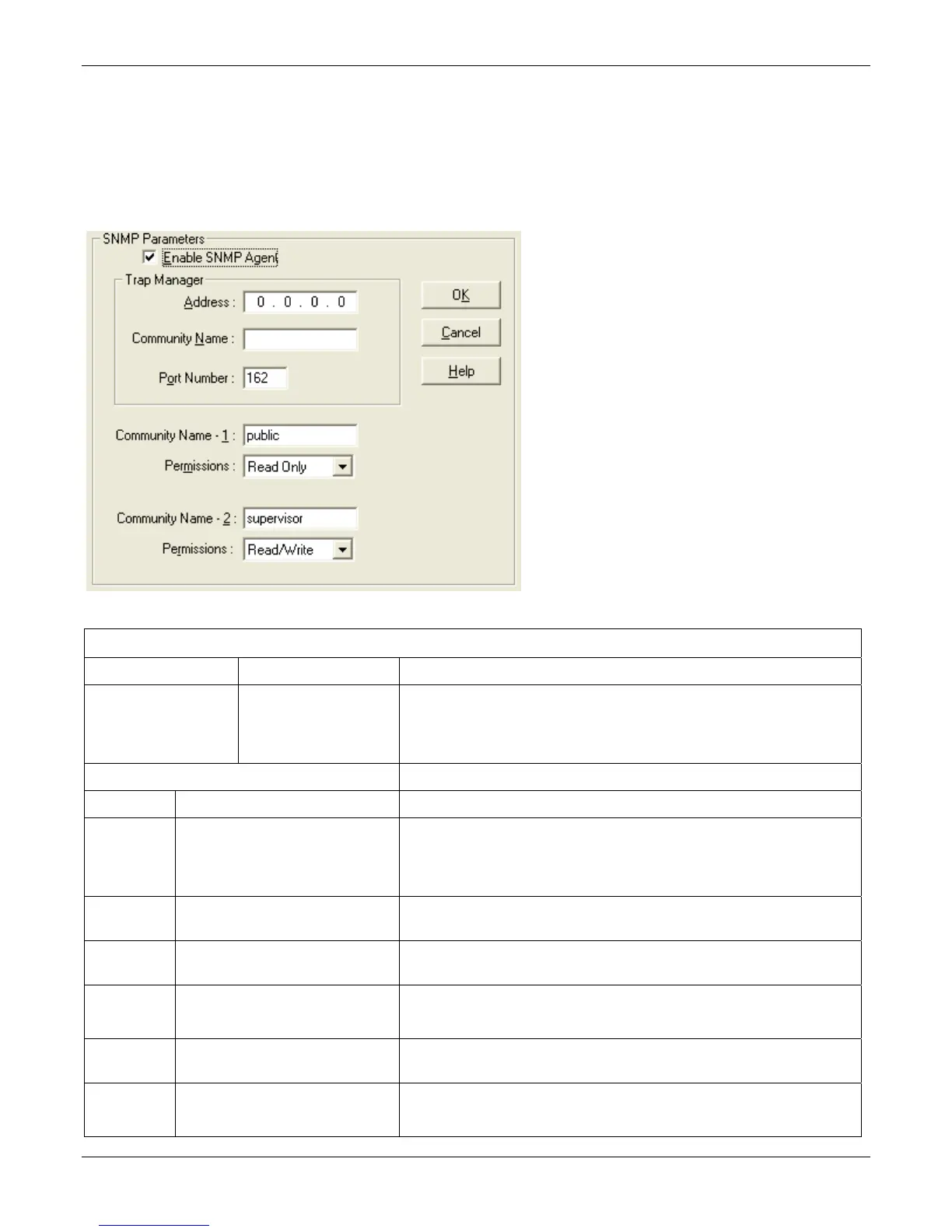
If you want to manage your MultiVOIP remotely using the MultiVoipManager software, set the Simple Network
Management Protocol parameters. To make the MultiVOIP controllable by a remote PC running the
MultiVoipManager software, check the Enable SNMP Agent checkbox on the SNMP Parameters screen.
The –SS and –FX series MultiVOIPs have limited SNMP functionality available. If this is something you want to
use on those models, contact Multi-Tech support for assistance.
The table that follows describes the SNMP Parameter fields.
SNMP Parameter Definitions
Field Name Values Description
Enable SNMP Agent Y/N Enables the SNMP code in the firmware of the MultiVOIP. This must be
enabled for the MultiVOIP to communicate with and be controllable by the
MultiVoipManager software.
Default: disabled
Trap Manager Parameters
Address n.n.n.n IP address of MultiVoipManager PC.
Community
Name
-- A “community” is a group of VOIP endpoints that can communicate with each
other. Often “public” is used to designate a grouping where all end users have
access to entire VOIP network. However, calling permissions can be
configured to restrict access as needed.
Port Number 162 The default port number of the SNMP manager receiving the traps is the
standard port 162.
Community
Name 1
Length = 19 characters (max.)
Case sensitive.
First community grouping.
Permissions Read-Only,
Read/Write
If this community needs to change MultiVOIP settings, select Read/Write.
Otherwise, select Read-Only to view settings.
Community
Name 2
Length = 19 characters (max.)
Case sensitive.
Second community grouping
Permissions Read-Only,
Read/Write
If this community needs to change MultiVOIP settings, select Read/Write.
Otherwise, select Read-Only to view settings.


 To Next Page