BTS User Manual
Neware Technology Ltd.
http://www.newarebattery.com
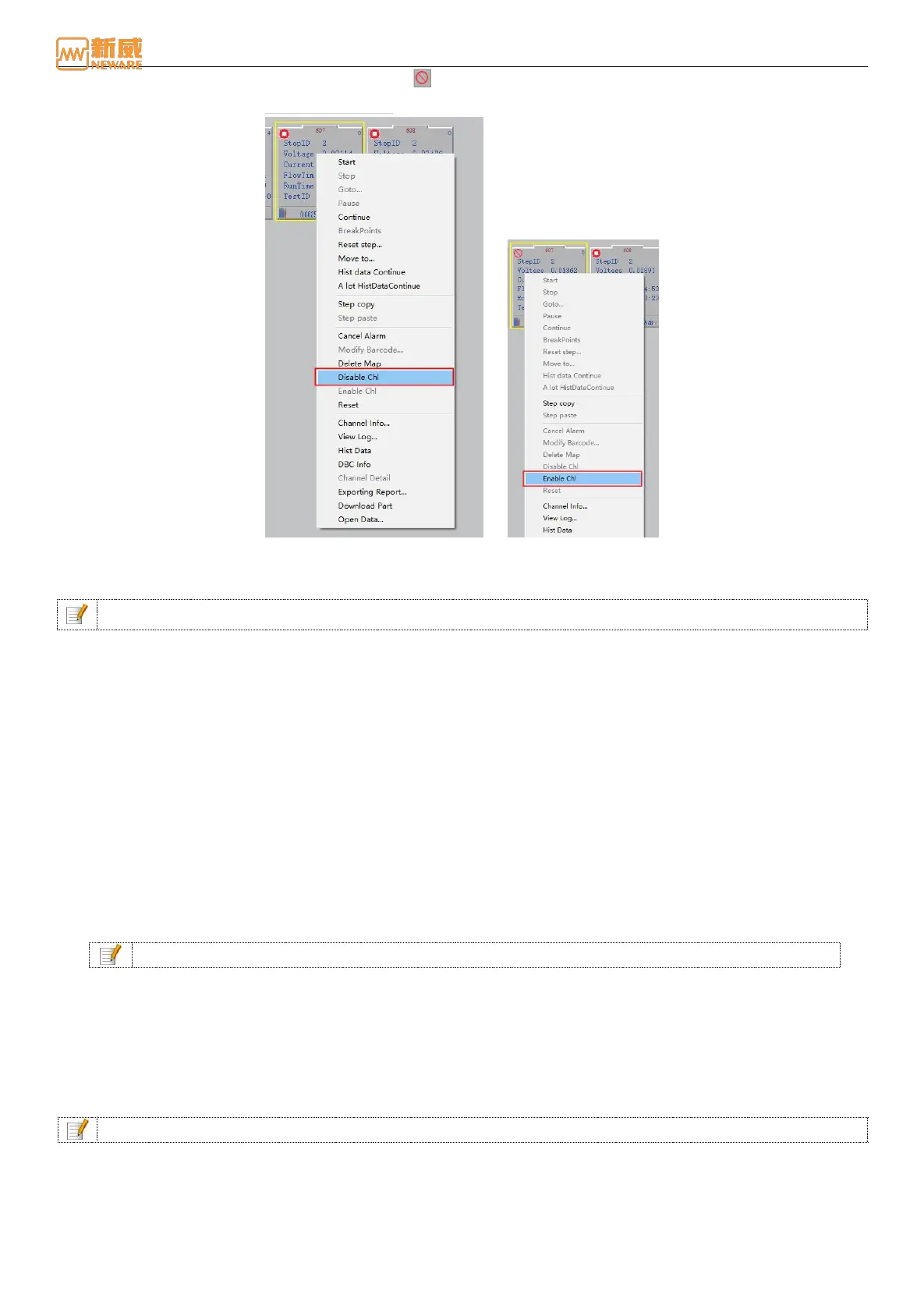
After selecting Disable Chl, the icon on the channel is
Figure 4-27 Disable/Enable channel
If a channel has been identified as disabled, you can use the Enable Chl to restore the channel, as shown in the preceding
figure.
Notice: A Disabled Channel is defined as a channel that is in the stopped or completed state.
View Log
You can view the current channel during work events (such as: users start, stop, continue, jump, step reset, communication
error, data export channel, etc.), the events in the process of testing the system time, the event corresponding data sequence
number, the events of the type, as well as the events such as the voltage and current, a precise search.
Methods for the following:
1. Select the channel to be viewed and right click → select the "View Log" option. The log search and preview window
are displayed, as shown in the following figure.
2. You can query logs based on the device ID, unit ID, channel ID, and time range.
3. You can view different types of logs, including all logs, client logs, server logs, and hardware logs.
4. You can query logs based on log description.
Figure 4-28 View Log
Notice: You can set log permissions in Log Configuration as required.
Step Operation
Users can copy, paste, and reset the steps of the current channel as required.
1. Copy step
Copy the existing step flow information in the channel to the target channel, so that the target channel and the copied
channel have the same step flow.
Operation: After selecting the channel that to be executed, right click the mouse button → Step Copy → Select the target
channel as shown in Figure 4-29:
Notice: A channel step in the protected state cannot be copied.
2. Step paste
Paste the step flow information that has been copied in the channel onto the target channel.
Operation: Select target channel → right-click → "Step paste", then the editing window of the step file pops up, and the
step on the interface is the current step file pasted. Users can also set and modify steps on this interface, as shown in the
picture below. In the figure, it means copying the step files of other channels to channel 17-2.



 To Next Page