BTS User Manual
Neware Technology Ltd.
http://www.newarebattery.com
3.) To start editing the step, save the step file and name it TEST1 (save button is in upper left corner).
4.) Import the DBC variable template.
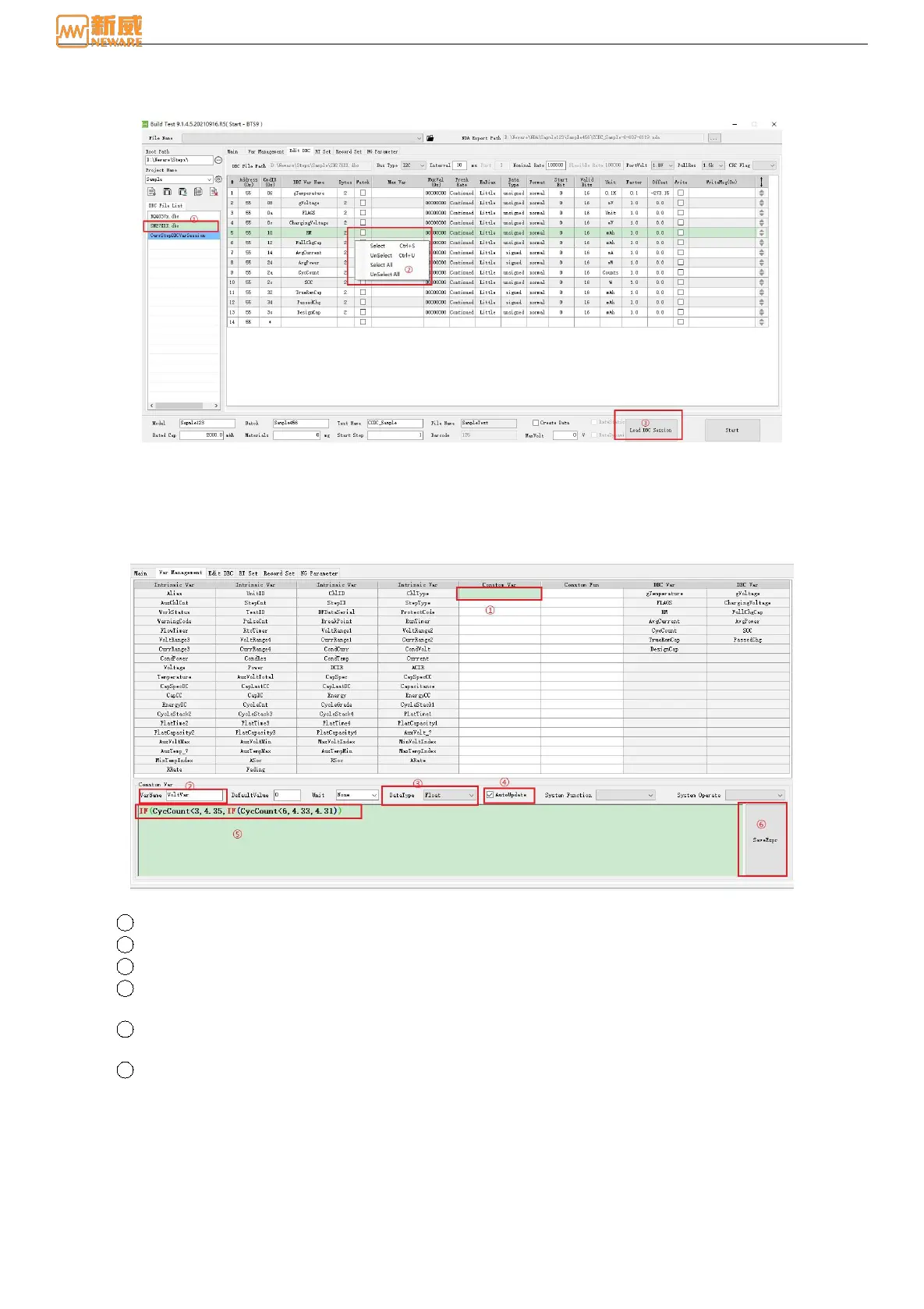
Figure 8-22 Import DBC file
4.)Regards there are variables that need to be customized in the step flow, we need to create them in variable management.
Description of variables/functions in practical case:
Variable name Expression Description
VoltVar IF(CycCount<3,4.35,IF(CycCount<6,4.33,4.31)) CycCount isDBC variable, which means VoltVar change based on CycCount
5.)How to create a variable/function?
Figure 8-23 Edit custom variables
1 Select the custom variable blank.
2 Enter a variable name (the variable name can not be repeated).
3 Select U32 for positive integer, int for negative integer, and float for decimal.
4 Since real-time changes are based on CycCount changes, the automatic solution needs to be checked. That is,
the automatic solution needs to be checked if real-time calculation is required.
5 In the expression editing area, input the corresponding expression:
“IF(CycCount<3,4.35,IF(CycCount<6,4.33,4.31))”
6 After editing, you need to click "Save Custom Variable." After editing, you also need to click the save/update
button.



 To Next Page