60 USB-Link™ Installation and Setup Manual
Chapter 3 • Preparing to Use the USB-Link™
Step 6: Use the Bluetooth Connection Utility
You use the Bluetooth Connection Utility to do the following:
• Select an adapter
• Open a serial connection to the adapter
• Test that the adapter is online and ready to respond
• Test the signal strength
(only with Widcomm
®
Bluetooth PC driver 1.4x and higher)
• Determine that the signal strength falls within the level specified
(only with Widcomm
®
Bluetooth PC driver 1.4x and higher)
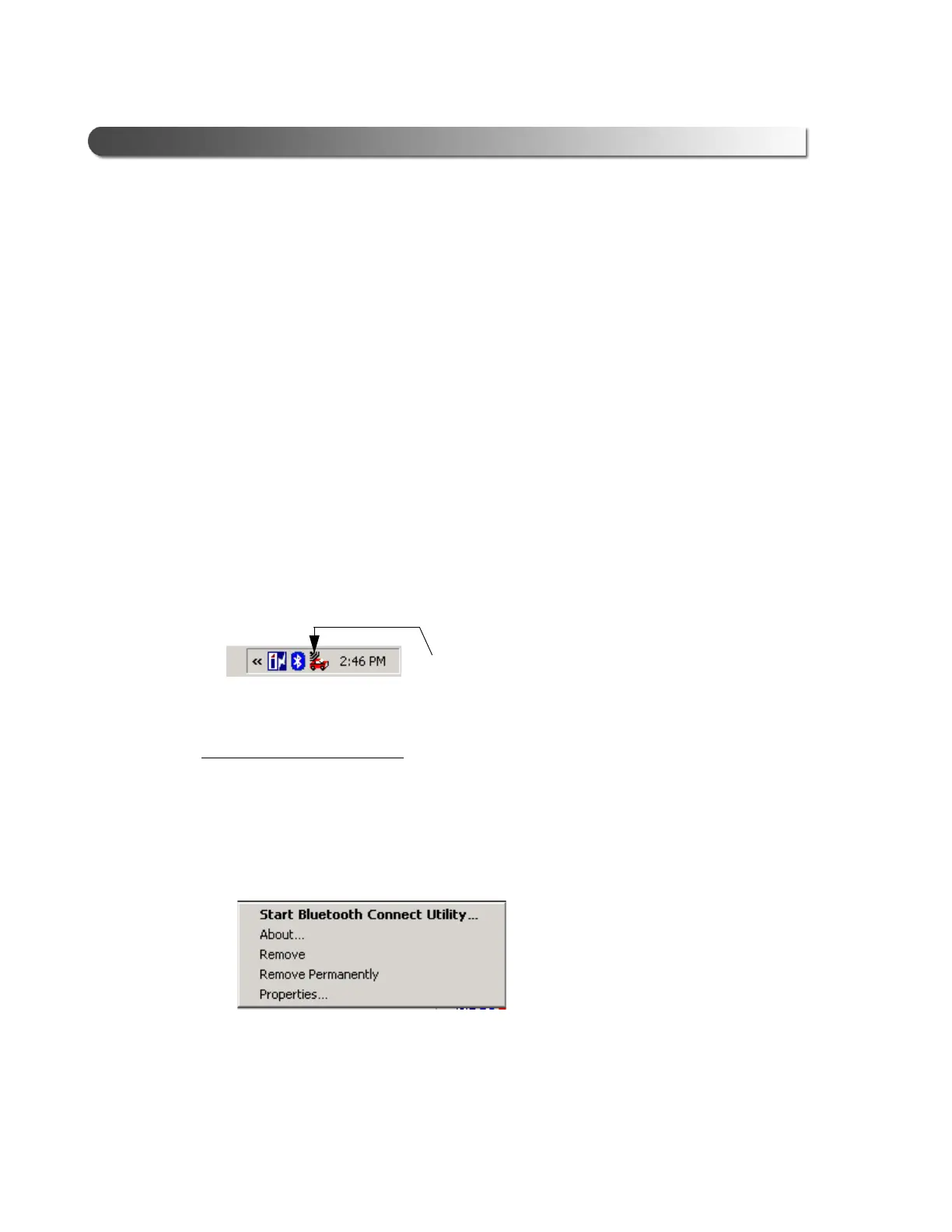
To start the utility, use the Bluetooth Connection Utility icon, which is located on
the Windows taskbar.
To use the Connection Utility:
1 From the taskbar on the Windows desktop, right-click the Bluetooth Con-
nection Utility icon.
The Bluetooth Connection Utility menu appears.
2 Click Start Bluetooth Connect Utility...
Figure 3.3 Bluetooth Connection Utility Icon
Figure 3.4 Bluetooth Connection Utility Menu
Bluetooth Connection Utility Icon


 To Next Page