- Step 7: Test the Connection to the Vehicle
USB-Link™ Installation and Setup Manual 65
Step 7: Test the Connection to the Vehicle
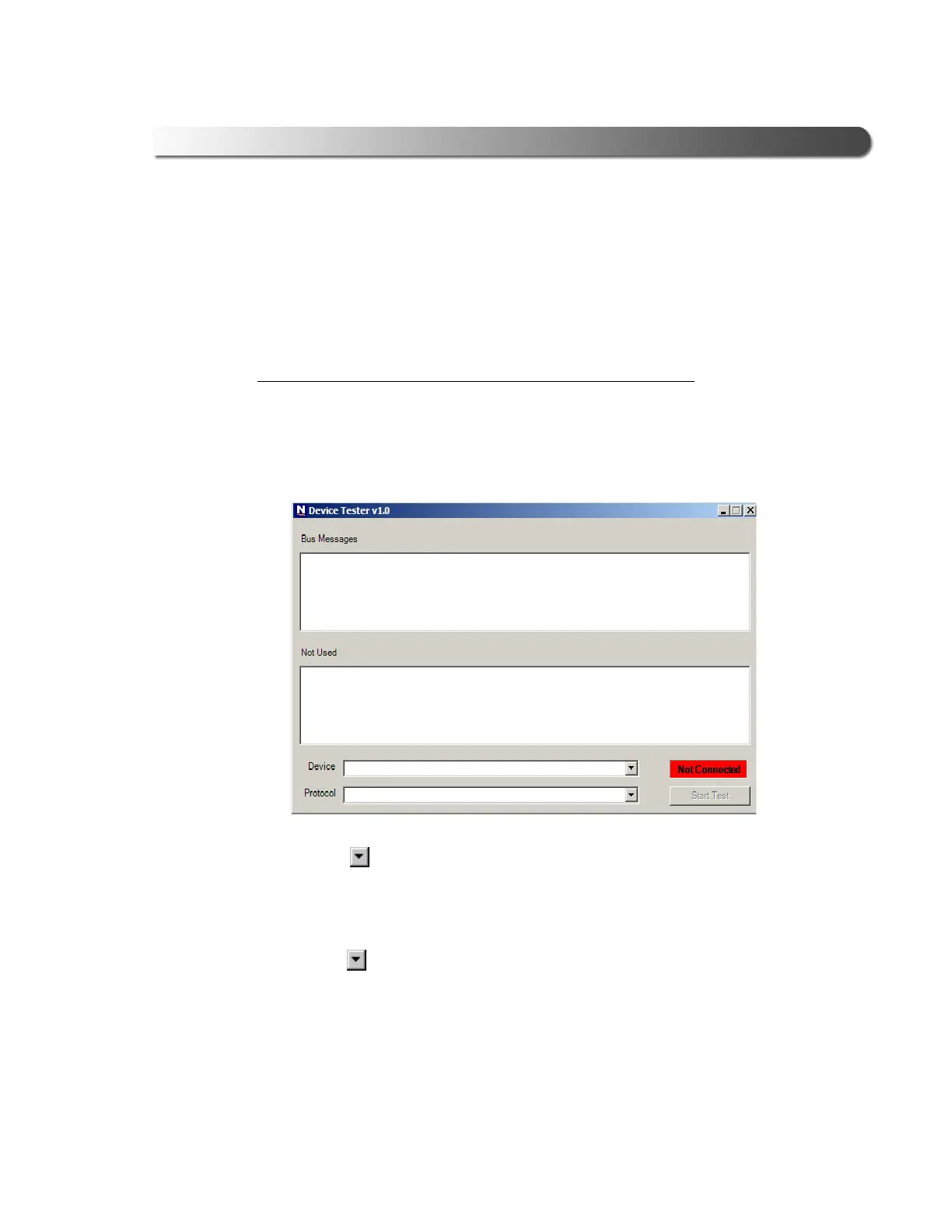
You use the Device Tester to test the connection between the USB-Link™ and
the vehicle. At startup, the Device Tester checks for any NEXIQ drivers installed
on the PC.
Access the Device Tester from the Windows taskbar.
To test the connection between the USB-Link™ and the vehicle:
1 Click Start and then select Programs
4
NEXIQ NX RP1210A Devices
4
Device Tester.
The application is started and the Device Tester screen is displayed.
2 Use the button in the Device box to select the appropriate device (for
example, USB Link J1708).
—The Device box lists all the devices supported by the NEXIQ drivers in-
stalled on the PC.
3 Use the button in the Protocol box to select the appropriate protocol (e.g.,
J1708, J1939, or CAN).
—The Protocol box lists only the protocols supported by the device selected
in the Device box.
4 Press the Start Test button.
Figure 3.9 Device Tester Screen, Showing a Status of Not Connected


 To Next Page