66 USB-Link™ Installation and Setup Manual
Chapter 3 • Preparing to Use the USB-Link™
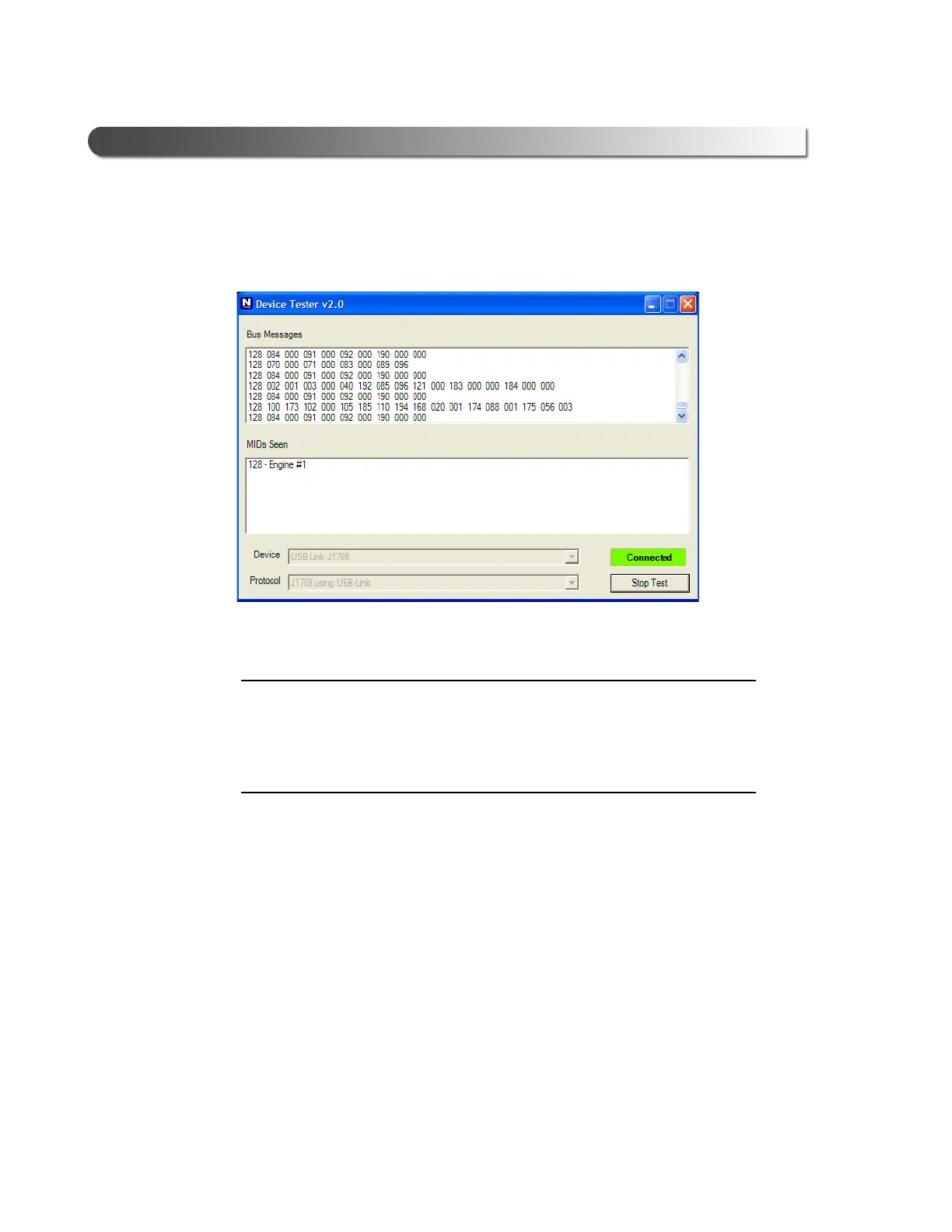
The Device Tester screen is refreshed, and data received from the vehicle
bus is displayed in the Bus Messages window.
NOTE:
i The window in the lower portion of the screen displays a list of all systems
seen on the bus. It is used for J1708 and J1939 only. For all other proto-
cols this window will be unavailable (i.e., NOT USED). For J1708, the
window title reads MIDs Seen. For J1939, the window title reads Source
Addresses Seen.
If the Connection Indicator button is red (i.e., Not Connected), do one of the
following:
—For wireless connection using Bluetooth technology:
• In the Device list, make sure that the heading is BT USB-Link
(Protocol desired).
• Check to ensure that the connections between the USB-Link™
and the vehicle are secure (i.e., the Diagnostic Connector).
• Check to make certain that the Power LED on the USB-Link™ is
illuminated.
• Check to make sure you are “paired” with devices.
Figure 3.10 Device Tester Screen, Showing a Status of Connected


 To Next Page