- Step 6: Use the Bluetooth Connection Utility
USB-Link™ Installation and Setup Manual 63
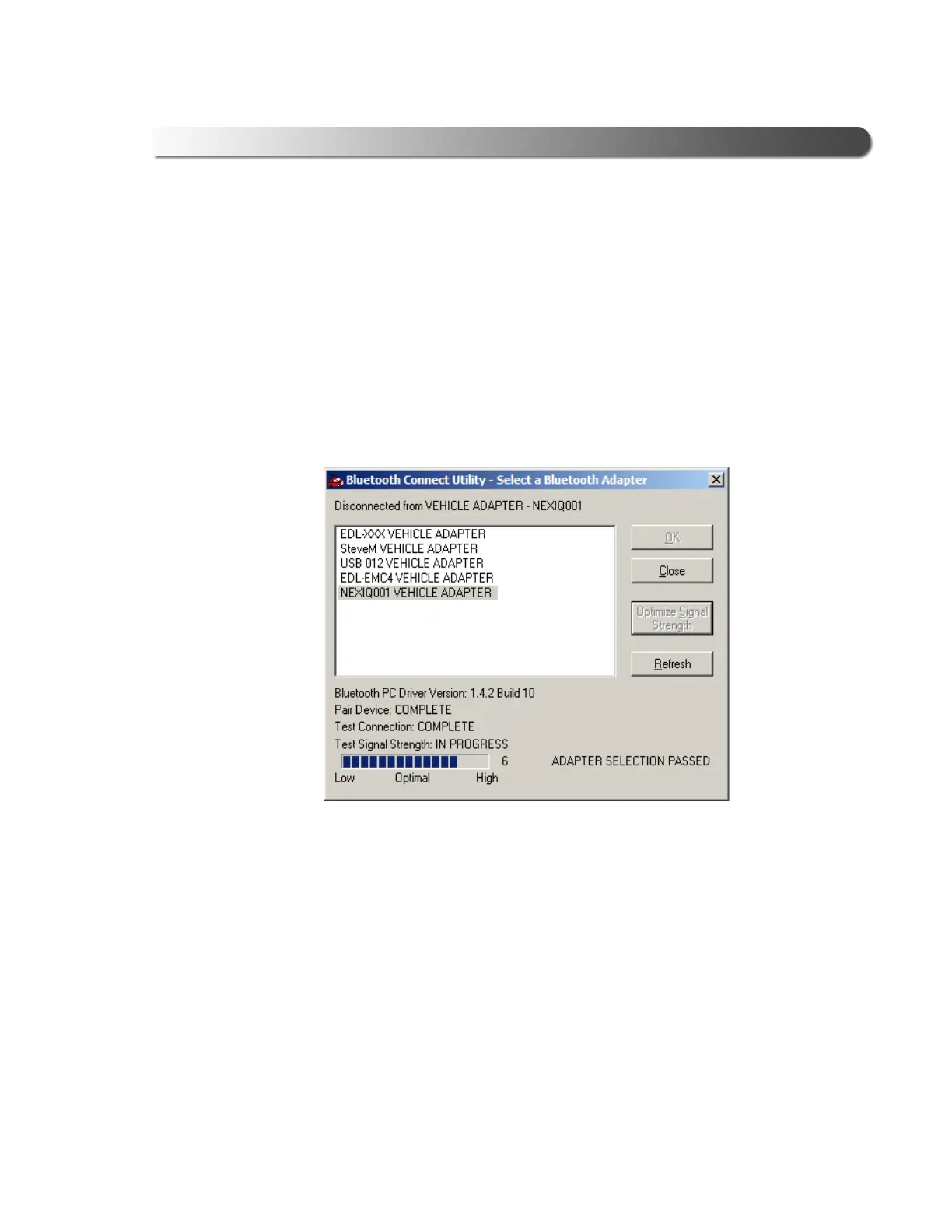
The utility performs the steps to ensure that the Bluetooth adapter is ready
for communication with the USB-Link™.
The utility also opens a serial connection to the device and tests to make
certain that the device is online and ready to respond.
Finally, the utility tests the Returned Signal Strength Indicator (RSSI) and
determines if the signal strength falls within the level specified by the user
(Bluetooth PC driver 1.4x and higher only).
The results of these tests are displayed in the lower right corner of the
screen (e.g., ADAPTER SELECTION PASSED).
At this point, you have several options.
—If you want to select a different vehicle adapter (i.e., USB-Link™) from
among those displayed, select the adapter from the list, and click OK.
—If you want to search for a different adapter not included in the display
(e.g., you just connected another USB-Link™ to a vehicle), click Refresh
and make your selection from the newly displayed list.
—If the Test Signal Strength: status bar (located in the lower left corner) in-
dicates that the signal is low, you can move the USB-Link™ closer to the
PC/laptop and click Optimize Signal Strength.
The utility “pairs” with the device, tests the connection, and attempts to test
Figure 3.7 Adapter Confirmation


 To Next Page