32
The Basics of Shooting and Playback
Step 6 Delete Unwanted Images
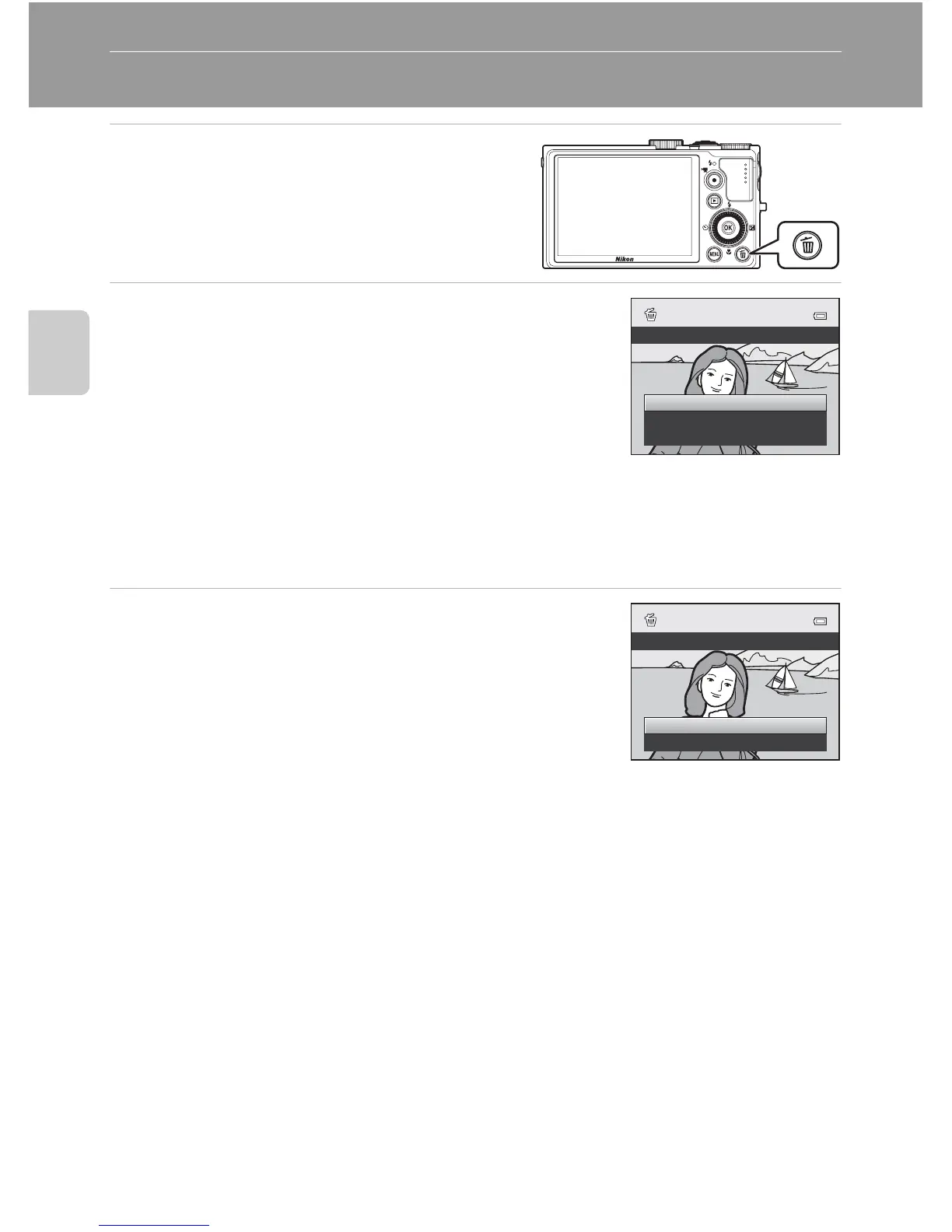
1 Press the l button to delete the
image currently displayed on the
monitor.
2 Press the multi selector H or I to select the
desired deletion method and press the k
button.
• Current image: Only the current image is deleted. If
the key picture of a sequence is selected, all images in
the sequence are deleted.
• Erase selected images: Multiple images can be
selected and deleted. See “Operating the Erase Selected Images Screen” (A33) for
more information.
• All images: All images are deleted.
• To exit without deleting, press the d button.
3 Press H or I to select Yes and press the k
button.
• Deleted images cannot be recovered.
• To cancel, press H or I to select No and press the k
button.
B Notes on Deletion
• Deleted images cannot be recovered. Transfer important images to a computer before deleting
them.
• Protected images cannot be deleted (A84).
C Deleting Images in a Sequence
•
When images are taken with continuous shooting, each series of images is treated as a group
(pictures in a sequence) and only the group’s “key picture“ is displayed in the default setting
(
E
14).
• When you press the l button during key picture playback, all images in the key picture’s
sequence can be deleted (E15).
• To delete each picture in a sequence, before pressing the l button, press the k button to display
each image in the sequence individually.
C Deleting the Last Image Captured While in Shooting Mode
When using shooting mode, press the l button to delete the last image that was saved.
All images
Erase selected images
Current image
Delete
Erase 1 image?
Yes
No





 To Next Page