137More About Playback
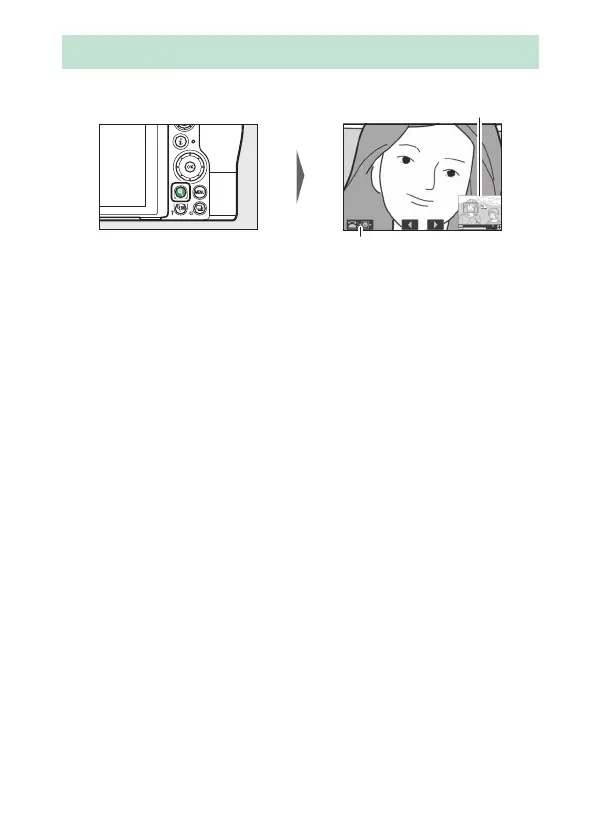
To zoom in during full-frame playback, press X or J.
While zoom is in effect, you can:
• Zoom in or out/view other areas of the image: Press X or use stretch
gestures to zoom in to a maximum of approximately 32×, 24×,
or 16× for large, medium, or small images respectively (Z 7, or
in the case of the Z 6, to a maximum of approximately 24×, 18×,
or 12×; all figures are for FX format). Press W (Q) or use pinch
gestures to zoom out. While the photo is zoomed in, use the
multi selector or slide a finger over the screen to view areas not
currently visible in the display. Keep the multi selector pressed
to scroll rapidly to other areas of the frame. A navigation
window is displayed for a few seconds after the zoom ratio is
altered; the area currently visible in the display is indicated by a
yellow border. The bar under the navigation window shows the
zoom ratio, turning green at 1 : 1.
• Select faces: Faces detected during zoom are indicated by white
borders in the navigation window. Rotate the sub-command
dial or tap the on-screen guide to view other faces.
• View other images: Rotate the main command dial or tap the e or
f icons at the bottom of the display to view the same location
in other photos at the current zoom ratio. Playback zoom is
cancelled when a movie is displayed.
• Return to shooting mode: Press the shutter-release button halfway
or press the K button to exit to shooting mode.
• Display the menus: Press G to view the menus.
Taking a Closer Look: Playback Zoom
Navigation window
On-screen guide


 To Next Page