325Menu Guide > N The Retouch Menu
3 Select the second image.
The selected image will appear as Image 1. Highlight
Image 2 and press J, then select the second photo as
described in Step 2.
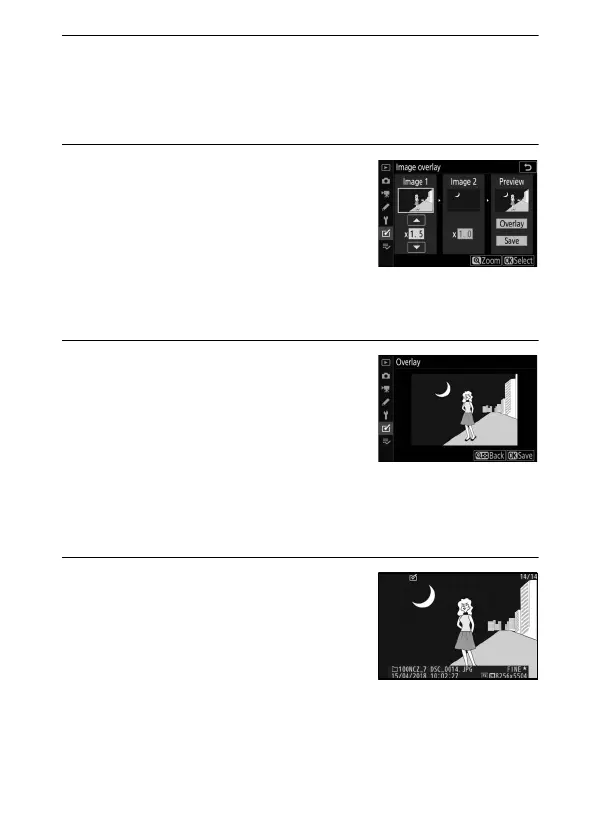
4 Adjust gain.
Highlight Image 1 or Image 2 and
optimize exposure for the overlay by
pressing 1 or 3 to select the gain
from values between 0.1 and 2.0.
Repeat for the second image. The
default value is 1.0; select 0.5 to halve gain or 2.0 to double it.
The effects of gain are visible in the Preview column.
5 Preview the overlay.
To preview the composition, press 4
or 2 to place the cursor in the
Preview column, then press 1 or 3
to highlight Overlay and press J
(note that colors and brightness in
the preview may differ from the final image). To save the
overlay without displaying a preview, select Save. To return
to Step 4 and select new photos or adjust gain, press W (Q).
6 Save the overlay.
Press J while the preview is
displayed to save the overlay. After an
overlay is created, the resulting image
will be displayed full-frame.


 To Next Page