UDO LP400 User Guide
_____________________________________________________________________________________________________
LP400 User Guide (11/07)
17
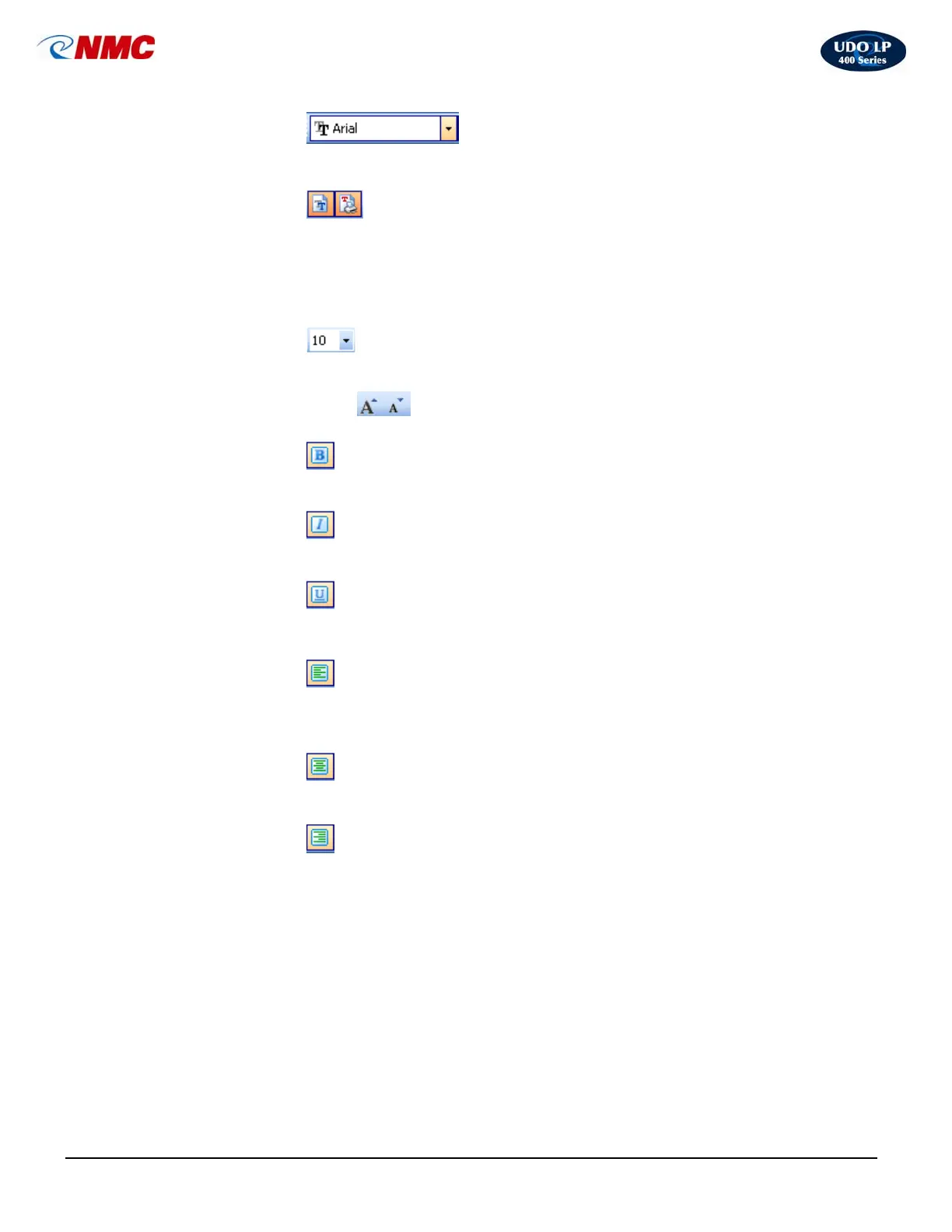
• Font Name
Shows the name of the font in use. Pull down menu allows you to change the font.
• Font Types
Options for fonts installed on your computer and available printer fonts.
Note: You can limit the display of fonts in the list. You can list all fonts on the system,
only graphic fonts (TrueType, opentype, type1, bitmap Windows fonts) or only thermal
printer resident fonts. Click on the two icons next to the list of fonts.
• Font Size
To change the size of the text, click the drop down list and select the appropriate
size. - OR -
You can also click on the
buttons to enlarge/reduce the size of the font.
Formats the selected text in bold style.
Formats the selected text in italic style.
Formats the selected text in underline style.
Aligns text to the left edge.
Note: Alignment buttons are accessible only for multi-line text objects.
Aligns text to the horizontal center.
Aligns text to the right edge.
C. The Design / Alignment Toolbar
Click the appropriate buttons in the Design toolbar to align selected objects to each
other.
First you have to select objects that you want to align.
Note: All objects are aligned relatively to the first selected object.
Note: If you hold the ‘<CTRL>’ key while clicking the buttons, objects are aligned
relative to label and not to the first selected object.
• Bold Type
• Italic Type
• Underline Type
• Align Left
• Align Center
• Align Right



 To Next Page