UDO LP400 User Guide
_____________________________________________________________________________________________________
LP400 User Guide (11/07)
19
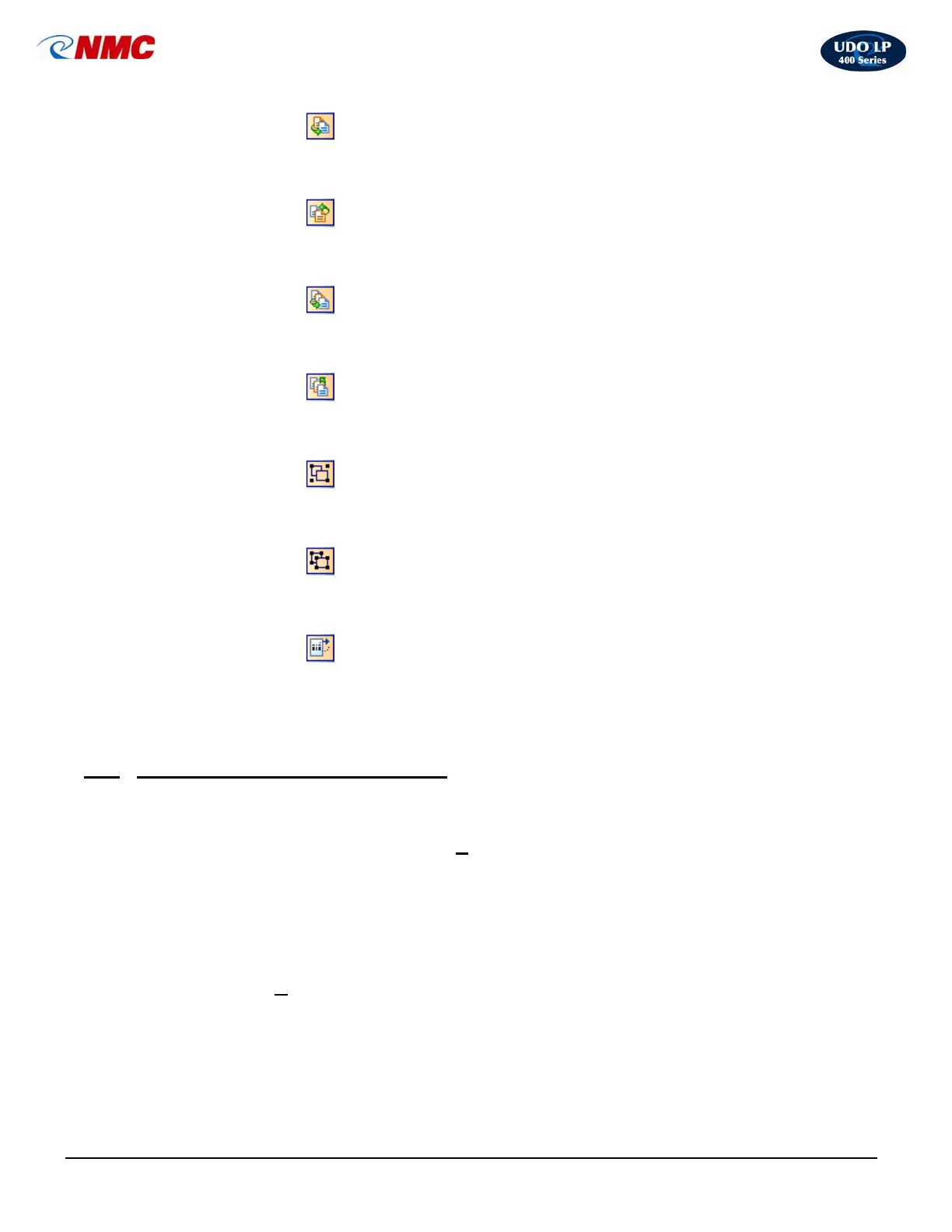
• To Front
Moves object to the top. Use this action to change the order of elements if several
elements overlap each other.
• To Back
Moves object to the back. Use this action to change the order of elements if several
elements overlap each other.
• One to Front
Move selected object to the front by one position. Use this action to change the order
of elements if several elements overlap each other.
• One to Back
Moves object to the back by one position. Use this action to change the order of
elements if several elements overlap each other
• Group
This tool is used to group selected objects into one object. When the objects are
grouped together, you can format them and move them on the label easier.
• Ungroup
This tool is used to ungroup the selected group of objects into the original individual
objects.
• Rotate Label on
Screen
This tool is used to rotate selected objects. Objects are rotated in steps of 90°. Center
of rotation is the center of selected elements
.
VIII. The Basics of Designing a Label
A. Inserting an Image
This section will take you through the basic steps of how to insert an image onto a label.
For more in-depth information, click the ‘H
elp’ menu at the top of the screen or contact
NMC.
1. Click on the ‘Picture’ button (Fig. 1) in the toolbox toolbar to the left of the
screen. Move the cursor to the correct position on the label field then click. A
dialog box will open.
2. Locate the image file on your computer or disk; select by clicking on the file.
Click ‘O
pen’.



 To Next Page