UDO LP400 User Guide
_____________________________________________________________________________________________________
LP400 User Guide (11/07)
27
When you enable the multi-band option, some options in the dialog box will become
unavailable as multi-band printing overrides them.
The dimensions of the label are entered in millimeters (mm), centimeters (cm), inches
(inch) or dots (dot) according to your previous selection. You can change the unit that
dimensions are displayed in by clicking the ‘Unit’ button below the label preview in
‘Label Setup’ (Click ‘F
ile’ from the menu bar, select ‘Label Setup’ then click on the
‘Printer’ tab).
1. Open the ‘L
abel Setup’ dialogue box by either right clicking on the label
and choose ‘L
abel Setup’ or choose ‘File’ then choose ‘Label Setup’ from
the top menu.
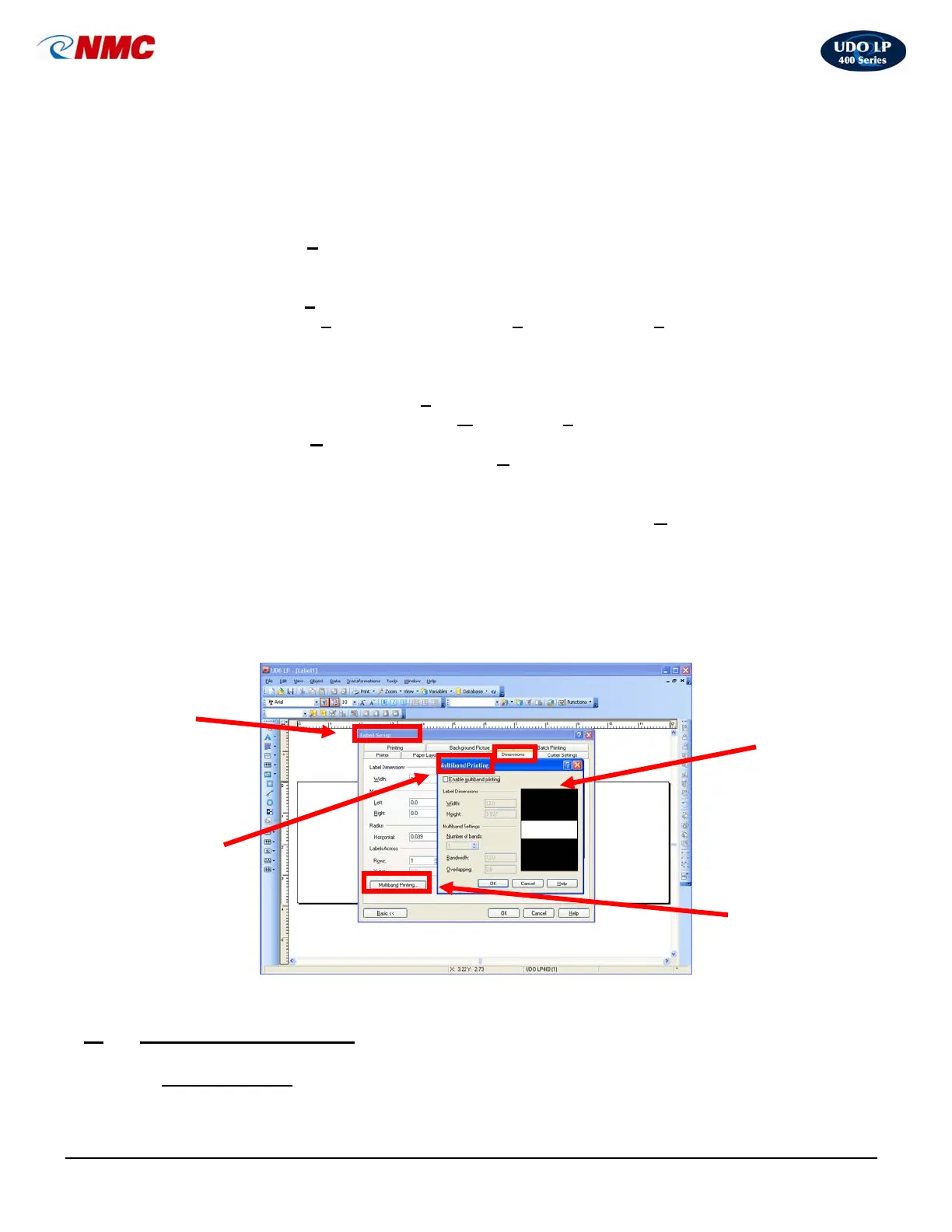
2. Click on the ‘Dimensions’ tab (Fig. 6).
3. Click on ‘Multi-band Printing’ button (Fig. 6).
4. Check ‘Enable Multi-band
Printing’ (Fig. 6).
5. Define the label dimensions – ‘W
idth’ and ‘Height’ (Fig. 6).
6. Define the ‘N
umber of bands’ (strips) you want to use (Fig. 6).
7. Enter the width of each band in the ‘B
andwidth’ field. The printing on each
band will be as wide as specified by this field. The maximum height of the
band is the height of the print head (4”).
8. Enter the amount of space on the label to overlap in the ‘O
verlapping’ field.
This field specifies the amount of space on the label which overlaps with the
neighboring label. Label bands can be easier joined together, if they overlap
(Fig. 6). NOTE: Look at the label preview to see how your settings affect the
label layout.
9. Click ‘OK’ in the Multi-band Printing dialogue box (Fig. 6).
10. Click ‘OK’ in the Label Setup dialogue box (Fig. 6).
X.
Common Applications
A. Directional Sign
Dimensions Tab
Multiband
Printing…
Label Setup
Dialogue
Box
Multiband
Printing
Dialogue
Box
Fig. 6



 To Next Page