UDO LP400 User Guide
_____________________________________________________________________________________________________
LP400 User Guide (11/07)
23
C. Rotating Text & Symbols
This section will take you through the basic steps of how to rotate an object on a label.
For more in-depth information, click the ‘H
elp’ menu at the top of the screen or contact
NMC.
a. Select the object.
b. Click on the ‘Rotate’ icon in the Design/Alignment Toolbar to the right of
the screen. The object will be rotated 90° clockwise.
NOTE: This option can also be selected though the ‘T
ransformations’ menu ‘Rotate’.
If the Design/Alignment Toolbar is not visible, click the ‘View’ menu then select
‘Toolbars’. Click on ‘Design’.
D. Curved Text
This section will take you through the basic steps of how to produce curved text. For
more in-depth information, click the ‘H
elp’ menu at the top of the screen or contact
NMC.
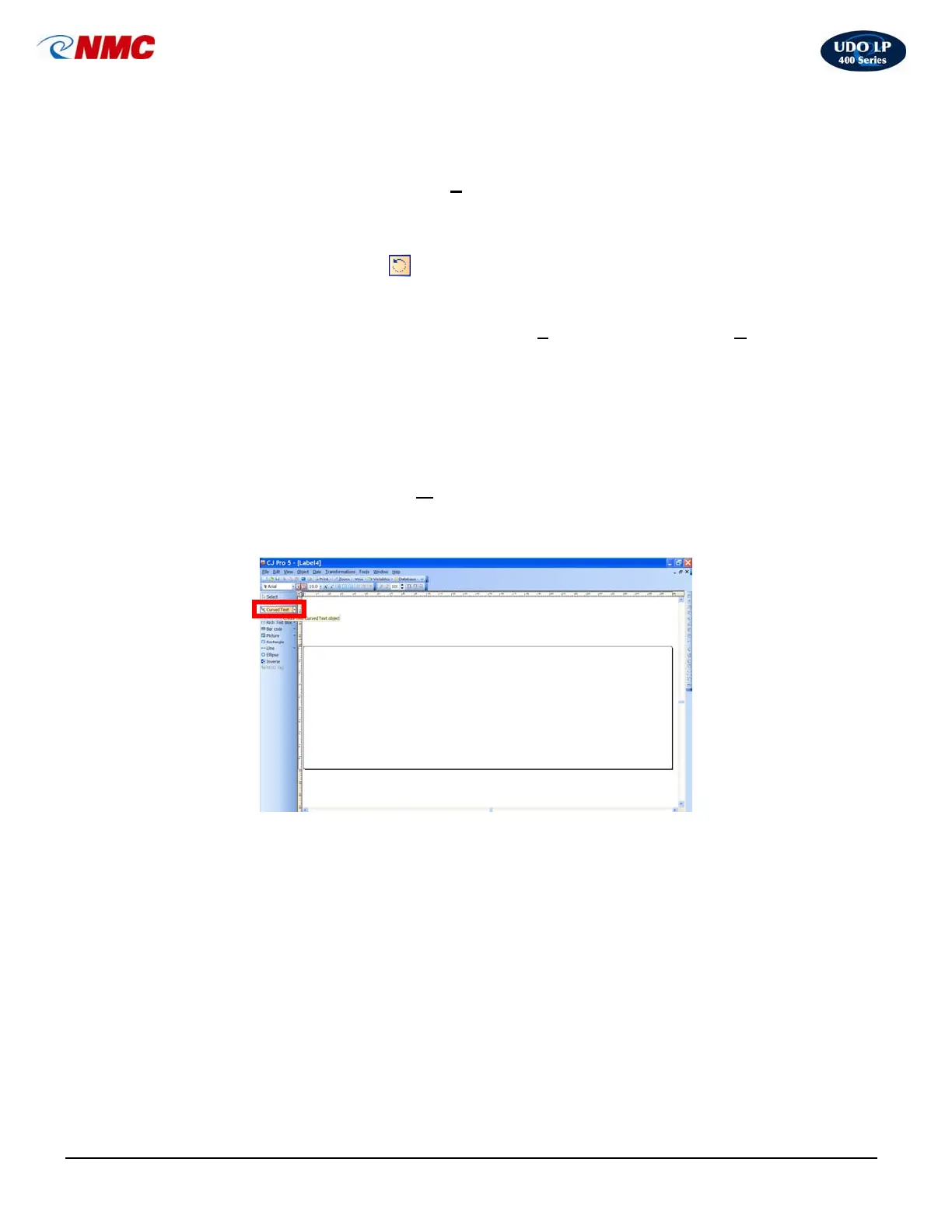
1. Click on Curved Text then click on the label (Fig. 5)
2. Insert the required text and click on OK. Increase the font size
accordingly. The text will appear in a small circle. Hold the
SHIFT key down while stretching the text out – this keeps the
text in proportion. (Fig. 6)
Fig. 5



 To Next Page