UDO LP400 User Guide
_____________________________________________________________________________________________________
LP400 User Guide (11/07)
28
section will take you through the steps of how to design and print a directional label. For
more in-depth information, click the ‘H
elp’ menu at the top of the screen or contact
NMC.
Designing this label will require you to incorporate both text and a symbol from the built-
in clipart gallery into the label.
1. To create a new label, open the ‘F
ile’ menu and select ‘New’ or Click on the
‘Create new label’ icon.
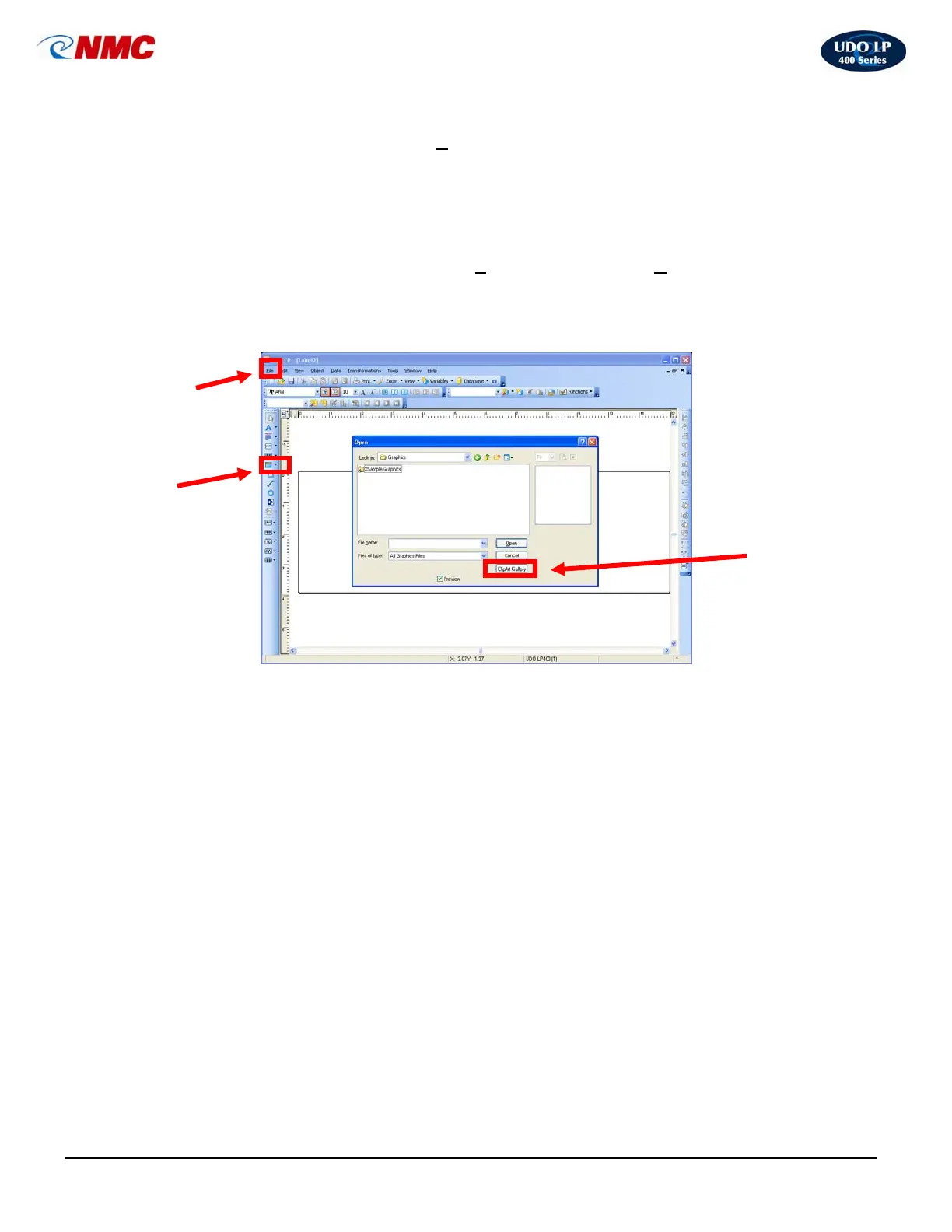
2. Click on the ‘Picture’ button (Fig. 1) located on the toolbar to the left of your
screen. Click the cursor in the label field where you want the image located.
3. Click on ‘Clipart Gallery’ (Fig. 2)
The Clipart Gallery is split into three sections:
-Symbols for EU
-Symbols for UK
-Symbols for USA
To view the various safety categories listed within each section, click on the
‘+’ symbol next to each of the sections.
4. Click on the ‘+’
next to ‘Symbols USA’. Click on the ‘Arrows’ category,
Double-Click on the arrow symbol shown (Fig. 2) or select the symbol and
Click ‘OK’.
Picture Tab
File Menu
Clipart
Gallery
Fig. 1



 To Next Page