UDO LP400 User Guide
_____________________________________________________________________________________________________
LP400 User Guide (11/07)
44
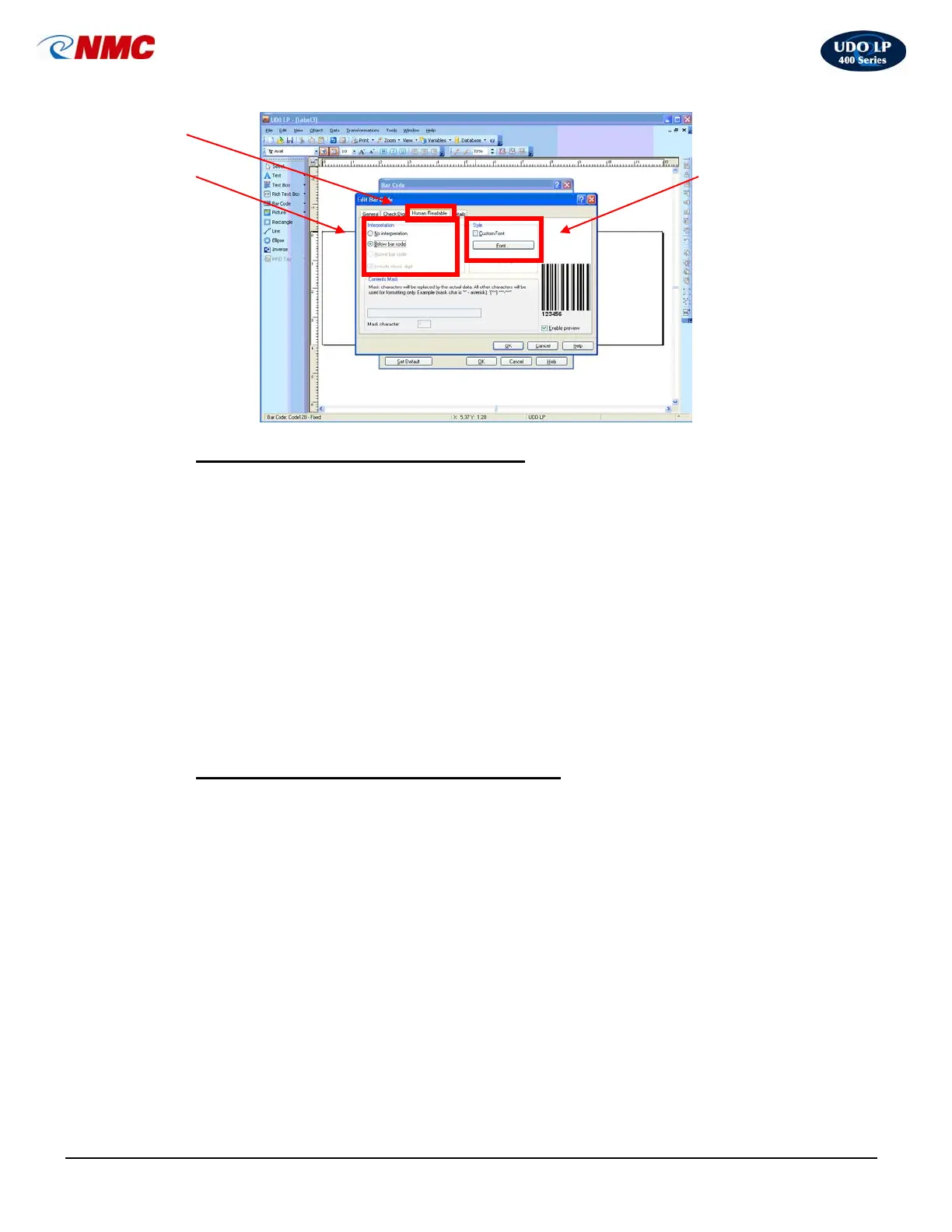
i. To change the text beneath the barcode:
1. Double Click on the inside of the barcode to open the ‘Barcode Dialog Box’
(Fig. 19). You can also right click and select ‘Bar Code Properties’ to open
the ‘Barcode Dialogue Box’.
2. Click on the ‘Bar Code’ tab. Click on the ‘Define’ box. (Fig. 19).
3. Click on ‘Print Bar Code as a Graphic’.
4. Click the ‘Human Readable’ tab and deselect the Auto Font Scaling option
by clicking on ‘Auto Font Scaling’. (Figure 20).
5. Click on the ‘Font’ button and adjust the font and/or size of text. Click ‘OK’.
Click ‘OK’ again in the ‘Edit Bar Code Dialog’ box.
j. To hide/unhide the text beneath the barcode:
1. Double Click on the inside of the barcode to open the ‘Barcode Dialog Box’
(Fig. 19). You can also right click and select ‘Bar Code Properties’ to open
the ‘Barcode Dialogue Box’.
2. Click on the ‘Bar Code’ tab. Click on the ‘Define’ box. (Fig. 19).
3. Click on the ‘Human Readable’ tab.
4. If you don’t want the information to be shown, Click on ‘No Interpretation’.
Leave as ‘Beneath Barcode’ if the information is to be displayed.
Fig. 20



 To Next Page