Nokia Customer Care Service Software Instructions
Company Confidential RH-75
Issue 2 06/2005 2005 Nokia Corporation. Page 7
Phoenix Service SW
Note: File names and screen shots are examples only. The name and the type designator may not be correct.
Before installation
• Check that a Dongle is attached to the parallel port of your computer.
• Download the installation package (e.g.
phoenix_service_sw_a10_2003_33_5_22.exe) to your computer (e.g. C:\TEMP).
• Close all other programs.
• Run the application file (e.g. phoenix_service_sw_a10_2003_33_5_22.exe) and fol-
low instructions on the screen.
• Administrator rights may be required to be able to install Phoenix depending on the
Operating System.
• If uninstalling or rebooting is needed at any point, you will be prompted by the
Install Shield program.
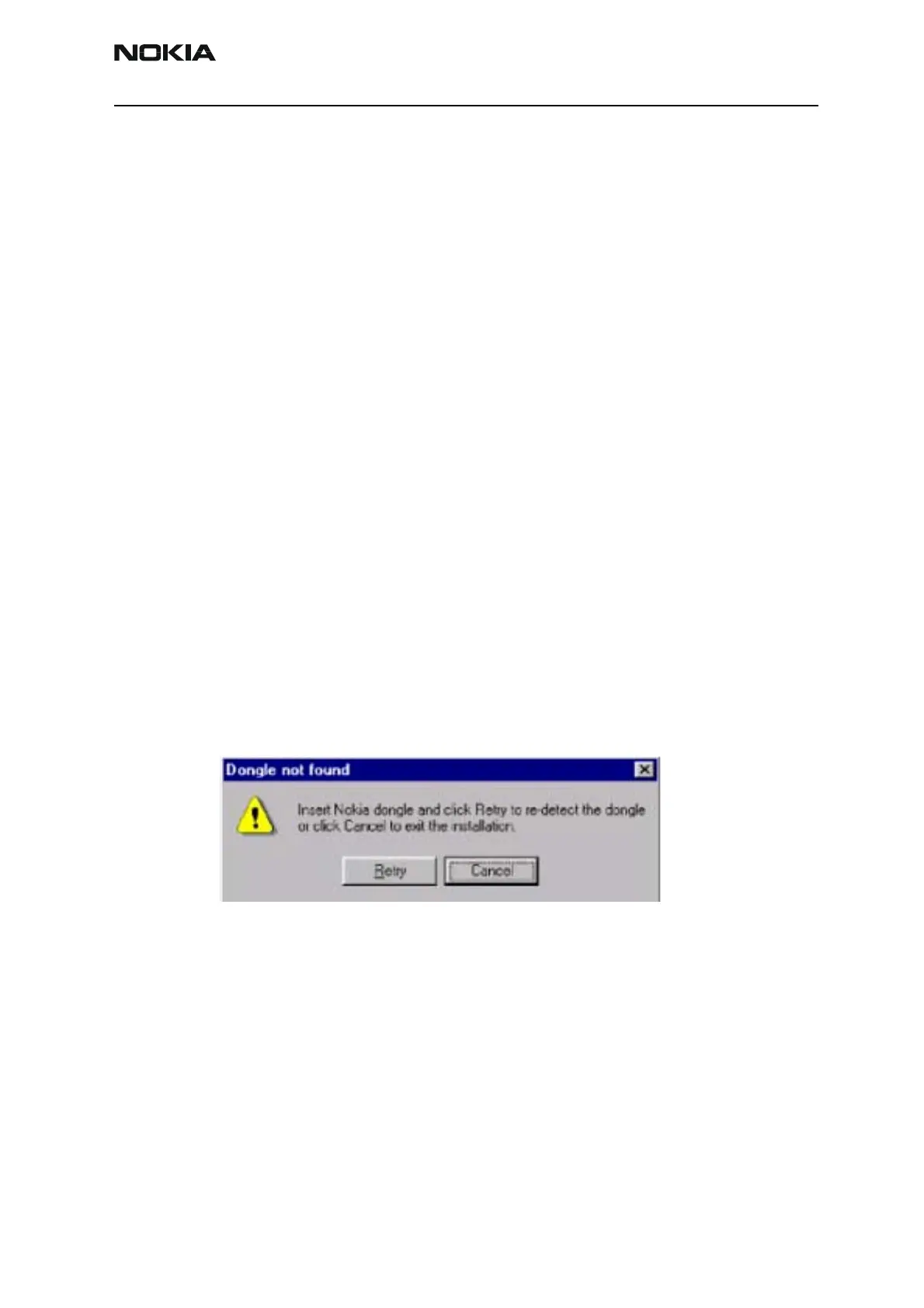
If at any point during installation you get this message, Dongle is not found and installa-
tion can´t continue.
Possible reasons may be defective or too old PKD-1Dongle (five digit serial number Don-
gle when used with FPS-8 Prommer) or that the FLS-4S POS Flash Dongle is defective or
power to it is not supplied by external charger.
Check the COM /parallel ports used first! After correcting the problem Installation can be
restarted.
Startup
Run the phoenix_service_sw_a10_2003_33_5_22.exe to start installation. Install
Shield will prepare.



 To Next Page