EasyManua.ls Logo

NORBIT iWBMS - User Manual

Default Icon
142 pages
Print Icon
To Next Page IconTo Next Page
Loading...
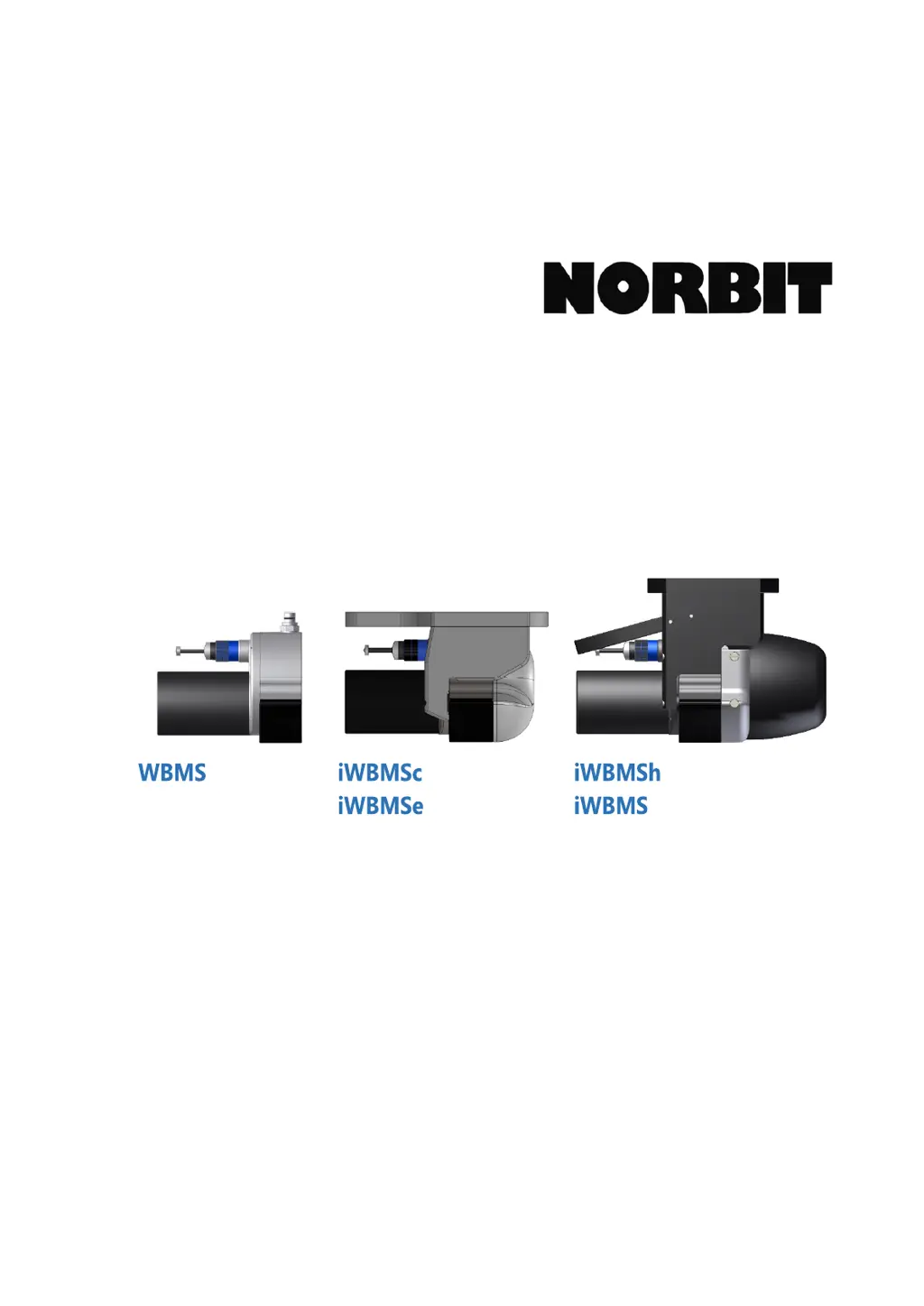
User and Technical Manual
NORBIT GUI 10.4.3
TN-140075-9 WBMS Bathy Manual
April 2020

Questions and Answers

  • W
    Whitney CampbellSep 8, 2025
    What to do if NORBIT iWBMS Industrial Equipment GUI does not match description or is not performing as described?
    • R
      Robin WrightSep 8, 2025
      If the NORBIT Industrial Equipment GUI does not match the description or is not performing as described, obtain the latest installer from NORBIT Support.
  • T
    Tammy Nguyen MDSep 7, 2025
    What to do if NORBIT Industrial Equipment sonar or GUI does not behave as expected?
    • D
      David MckeeSep 7, 2025
      If the NORBIT Industrial Equipment sonar or GUI is not behaving as expected, perform a factory reset. Select 'Set Sonar Factory Defaults' on the Connection dialog to clear the configuration.
  • A
    andrefordAug 22, 2025
    How to fix NORBIT iWBMS when sonar is connected but no INS data is received?
    • S
      susanjonesAug 22, 2025
      If the NORBIT Industrial Equipment sonar is connected but no INS data is being received, try the following: * Disable Windows Firewall, or allow NORBIT GUI access and add an exception for UDP port 5602. * Open Windows Command Prompt and type `ping 192.168.53.100` to check if the INS is detectable. * Check network configuration to ensure the computer IP address doesn't conflict with the INS IP address (192.168.53.100). * Check cable connections and re-seat if necessary. * Check for bent sonar cable pins. * Check for a possible IP address conflict in network settings. * Ground SIU. * Go to INS Tools > INS Setup Wizard and select Factory to restore default settings. * Perform the “resistance test” to check status of circuit components. Refer to Appendix for pinout diagrams.
  • B
    Brenda EstradaSep 4, 2025
    How to achieve successful heading alignment in NORBIT iWBMS?
    • W
      Whitney NunezSep 4, 2025
      If you're unable to achieve successful heading alignment with your NORBIT Industrial Equipment: * Check antenna connections, ensuring that antennas are connected to correct primary/secondary sockets. * Verify offset measurements. * Reset INS to factory defaults and start configuration over. * Review the GNSS environment. Try a different area or time.
  • D
    Duane ColeSep 3, 2025
    What to check if IMU is connected but there is no sonar connected in NORBIT Industrial Equipment?
    • V
      Veronica ShawSep 3, 2025
      If the IMU is connected but there is no sonar connected in your NORBIT Industrial Equipment setup: * Check cable connections and re-seat if necessary. * There may be a possible IP address conflict. Check network settings. * Ensure that GUI and BathyProxy are allowed in Windows Firewall. * Ground SIU.
  • A
    Andrew SandersSep 2, 2025
    Why the bottom detection quality is degraded in NORBIT Industrial Equipment?
    • Z
      zshawSep 2, 2025
      If the bottom detection quality of your NORBIT Industrial Equipment is degraded: * Check the sonar head for marine biofouling. Clean barnacles off gently. * Check that sonar cable connectors are clean, dry, and properly seated.
  • R
    Richard LopezAug 31, 2025
    What to do if NORBIT iWBMS Industrial Equipment surface SV sensor is not connected or shows incorrect values?
    • R
      Robert KirbyAug 31, 2025
      If the surface SV sensor is not connected or shows incorrect values on your NORBIT Industrial Equipment: * Check the SV sensor connection and tighten if necessary. * Stop the vessel to allow air bubbles to dissipate to see if reasonable values return. Adjust mounting to reduce bubble formation. * Inspect the sensor for visible damage. Any distortion in the sensor may cause incorrect measurements. * Check for foreign objects or debris on the sensor.
  • R
    Ronald ComptonAug 30, 2025
    What to do if NORBIT iWBMS Industrial Equipment is unable to receive RTK corrections?
    • M
      Michael CarlsonAug 30, 2025
      If you are unable to receive RTK corrections on your NORBIT Industrial Equipment, consider the following: * Check COM port settings. * Check cable connections. * Verify IP address and mount point if using network solution. * Check radio link, check frequency, and verify that baud rates and corrector types match. * Try with Null Modem to swap pins 2/3. * Check on a different unit to verify data stream. * For serial RTK data, use terminal emulator such as PuTTY to verify the data stream. * If using NTRIP, check the Internet connection and verify login details.
  • S
    Susan DaughertyAug 29, 2025
    What causes NORBIT iWBMS Industrial Equipment sonar display freezes and data packets are dropped?
    • F
      Frederick PerezAug 29, 2025
      If the NORBIT Industrial Equipment sonar display freezes and data packets are dropped: * Run Windows Task Manager to check if unnecessary programs or processes are consuming excessive network bandwidth. * Replace bad switch, hub or cable. * Update the computer network card driver. * Select Set Sonar Factory Defaults on the Connection dialog.
  • M
    Mark HallAug 27, 2025
    How to resolve data quality issues (motion artefacts, etc.) in NORBIT iWBMS?
    • A
      Amy VincentAug 27, 2025
      If you're experiencing data quality issues like motion artifacts with your NORBIT Industrial Equipment: * Ensure that multiple network cards (Wi-Fi and wired) are NOT connected to the same subnet, as this causes duplication of navigation data in the files. * Review the physical installation, ensuring that the mounting structure is rigid and free from vibration. * Check that there is no independent movement between GNSS antennas, and review the antenna separation (2m is ideal). * Review offsets and positioning quality. * Review the Data Quality Control Checklist.

Summary

Introduction to NORBIT WBMS Systems

System Specifications

Details the technical specifications and performance parameters of the WBMS systems.

Maintenance Schedule

Details periodic inspections and maintenance checks for the sonar system components.

Hardware Installation for NORBIT WBMS

Power Requirements

Details the power requirements for the WBMS family of systems, emphasizing clean power sources.

Mounting Considerations

Covers installation planning, sonar mounting location, and acoustic clearance zones.

Sensor Mounting

Provides guidelines for mounting the sonar head, IMU, and GNSS antennas.

Offsets and Reference Points

Sonar Offsets and Mounting Angles

Details specific offsets and mounting angles for various WBMS configurations.

System Operation and Configuration

WBMS GUI Installation

Guides users through installing the WBMS Graphical User Interface and its PC system requirements.

Network Configuration

Explains how to configure network settings for SIU communication and IP address management.

Connect to Sonar

Outlines the steps to establish a connection between the GUI and the sonar system.

INS Tools for iWBMS, iWBMSh & iWBMS

Covers integrated Applanix INS setup, including wizards, alignment, status, and subscriptions.

Sonar Settings Menus

Details the various sonar settings available in the GUI for optimizing data collection.

Data Formats, Recording & Output

Covers raw data recording formats (WBM, S7K) and network data subscriptions.

Theory of Operation

Survey Calibrations and Checks

Patch Test

Explains how to perform patch tests to resolve sonar and navigation system misalignments.

Dual Head Configuration

Optional Enhancements

Troubleshooting Guide

Symptoms and Suggested Actions

A table of common problems and their corresponding solutions for troubleshooting.

Sonar System Diagnosis

Provides guidelines for diagnosing sonar-related technical difficulties remotely.

Applanix INS Diagnosis

Guides users through diagnosing issues with the integrated Applanix INS system.

Basic Acquisition Software Setup

Appendix A: Quick Start Guide

NORBIT iWBMS Specifications

General IconGeneral
BrandNORBIT
ModeliWBMS
CategoryIndustrial Equipment
LanguageEnglish

Related product manuals