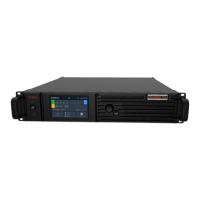
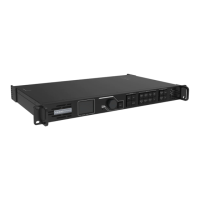
MCTRL4K LED Display Controller
User Manual 7 Menu Operations
www.novastar.tech 25
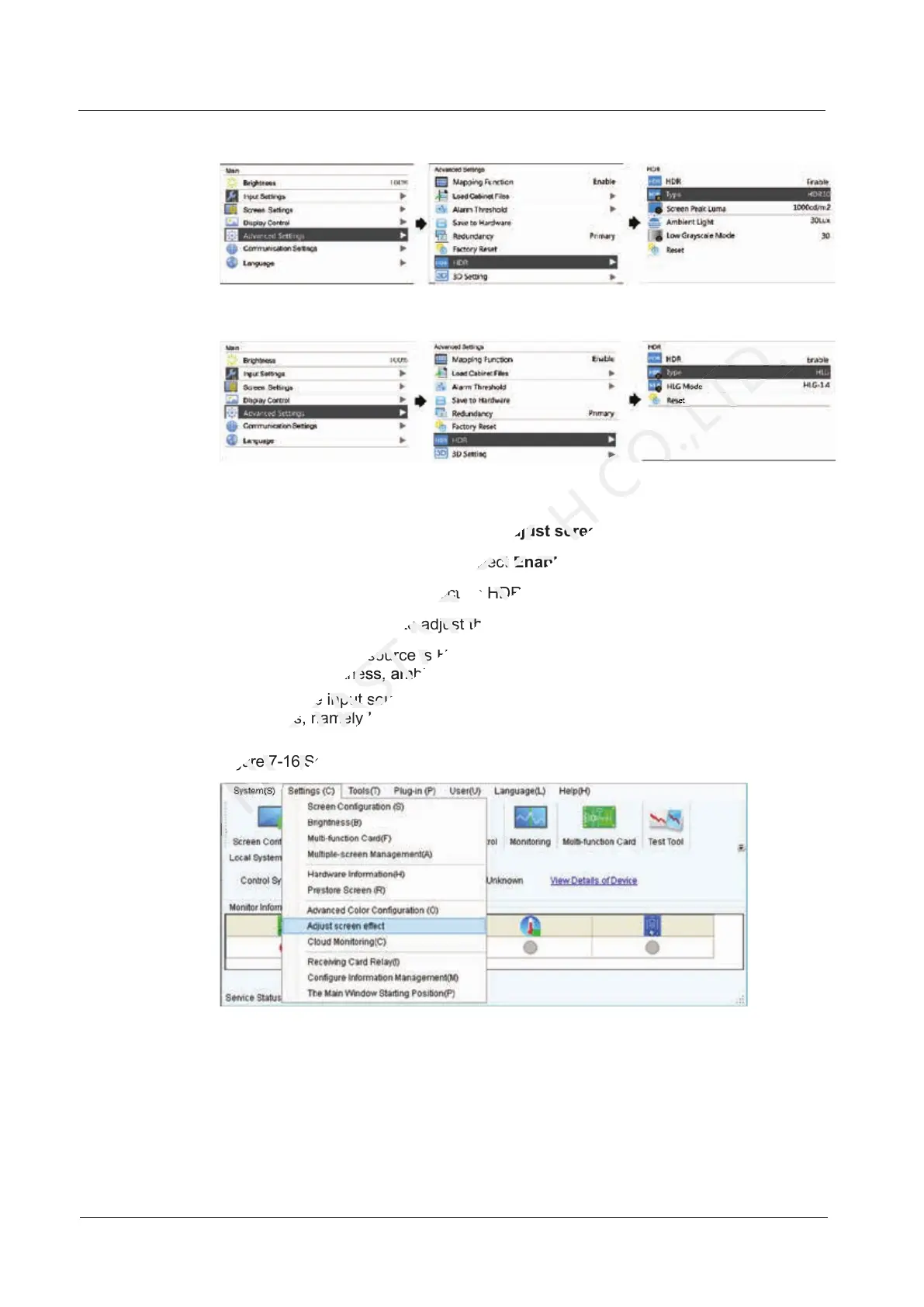
Figure 7-14 HDR10 operation menu
Figure 7-15 HLG operation menu
Method 2: Operation in NovaLCT
Step 1 Run NovaLCT and choose Settings > Adjust screen effect.
Step 2 Under HDR Parameter Settings, select Enable.
Step 3 Click the drop-down box to select an HDR standard (HDR10 and HLG supported).
Step 4 Set the HDR parameters to adjust the display effect.
When the input source is HDR10, you can drag the sliders to adjust the peak
screen brightness, ambient light and low grayscale mode in real time.
When the input source is HLG, you can click to select one HLG mode from the 7
modes, namely HLG1 (300 nits) to HLG7 (1700 nits).
Figure 7-16 Selecting Adjust screen effect
Step 3 Click the drop-down box to select an HDR standard (HDR10 and HLG supported).
NOVASTAR
Step 3 Click the drop-down box to select an HDR standard (HDR10 and HLG supported).
Step 4 Set the HDR parameters to adjust the display effect.
NOVASTAR
Step 4 Set the HDR parameters to adjust the display effect.
When the input source is HDR10, you can drag the sliders to adjust the peak
NOVASTAR
When the input source is HDR10, you can drag the sliders to adjust the peak
screen brightness
NOVASTAR
screen brightness
ambient light a
NOVASTAR
ambient light a
When the input source is HLG, you can click to select
NOVASTAR
When the input source is HLG, you can click to select
modes, namely HLG1 (300 nits) to HLG7 (1700 nits).
NOVASTAR
modes, namely HLG1 (300 nits) to HLG7 (1700 nits).
Figure 7-
NOVASTAR
Figure 7-
Selecting Adjust screen effect
NOVASTAR
Selecting Adjust screen effect
Adjust screen effect
TECH
Adjust screen effect
Step 3 Click the drop-down box to select an HDR standard (HDR10 and HLG supported).
TECH
Step 3 Click the drop-down box to select an HDR standard (HDR10 and HLG supported).



 To Next Page