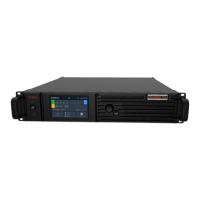
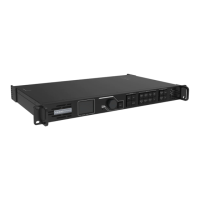
MCTRL4K LED Display Controller
User Manual 8 Operations on PC
www.novastar.tech 40
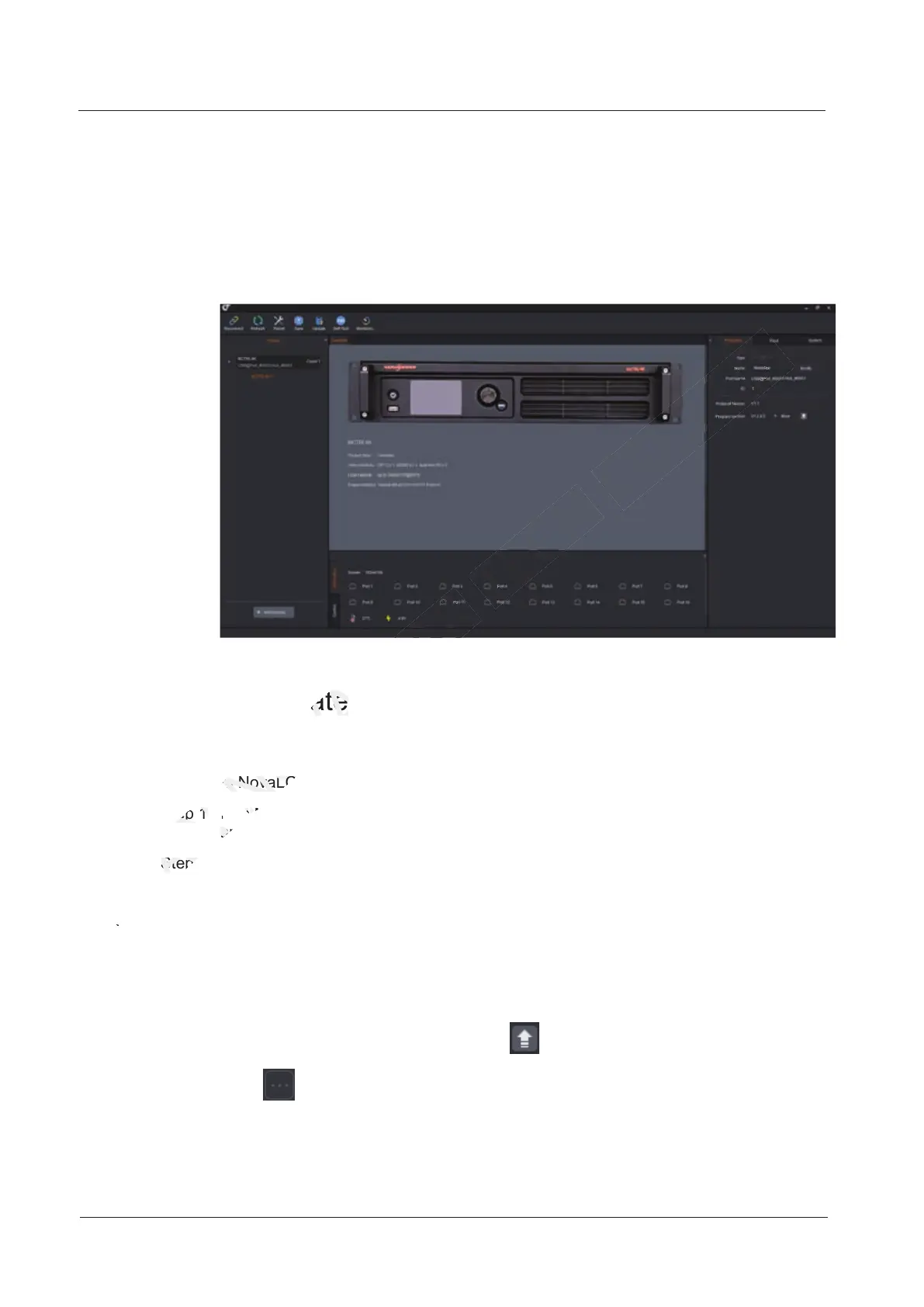
8.5.2 SmartLCT
Connect the MCTRL4K to the control computer installed with SmartLCT (V3.2.0 or
later) with USB cable to perform building-block cabinet configuration, seam
brightness adjustment, real-time monitoring, brightness adjustment, hot backup, etc.
For details on their operations, see SmartLCT User Manual.
Figure 8-8 User interface of SmartLCT
8.6 Firmware Update
8.6.1 NovaLCT
In NovaLCT, perform the following steps to update the MCTRL4K firmware.
Step 1 Run NovaLCT and choose User > Advanced Synchronous System User Login
and log in as an advanced user.
Step 2 Type the secret code "admin" to enter the program loading page.
Step 3 Click Browse to select the update program path and then click Update.
8.6.2 SmartLCT
In SmartLCT, perform the following steps to update the MCTRL4K firmware.
Step 1 Start SmartLCT and enter the V-Sender page.
Step 2 In the properties area on the right, click to enter the Firmware Upgrade page.
Step 3 Click to select the update program path.
Step 4 Click Update.
and log in as an advanced user.
XI'AN
and log in as an advanced user.
Step 2 Type the secret code "
XI'AN
Step 2 Type the secret code "
Step 3 Click
XI'AN
Step 3 Click
8.6.2 SmartLCT
XI'AN
8.6.2 SmartLCT
8.6 Firmware Update
NOVASTAR
8.6 Firmware Update
8.6.1 NovaLCT
NOVASTAR
8.6.1 NovaLCT
In NovaLCT, perform the following steps to update the MCTRL
NOVASTAR
In NovaLCT, perform the following steps to update the MCTRL
NovaLCT and choose
NOVASTAR
NovaLCT and choose



 To Next Page