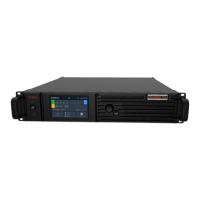
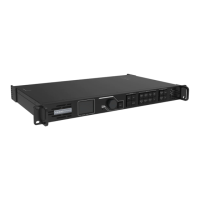
MCTRL4K LED Display Controller
User Manual 7 Menu Operations
www.novastar.tech 18
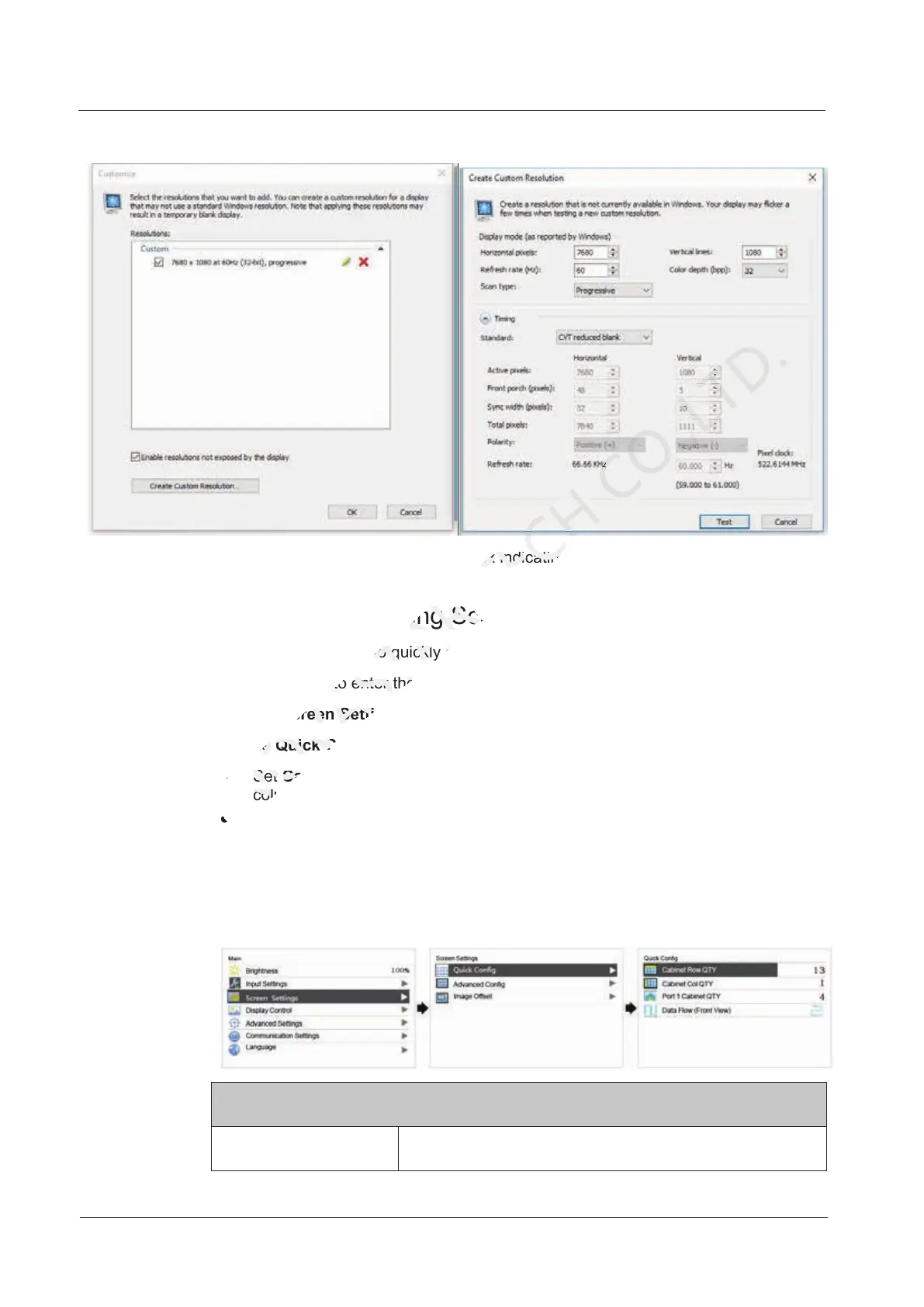
Figure 7-4 Creating custom resolution
Step 5 Click Test. In the displayed dialog box indicating the test is successful, click Yes to
save the custom resolution.
7.1.3 Step 3 Quickly Configuring Screen
This function is used to quickly configure a screen.
Step 1 Press the knob to enter the main menu.
Step 2 Choose Screen Settings > Quick Config to enter the submenu.
Step 3 Enable Quick Config and set the parameters.
Set Cabinet Row QTY and Cabinet Col QTY (number of cabinet rows and
columns to be loaded).
Set Port 1 Cabinet QTY (number of cabinets loaded by Ethernet port 1). The
device has restrictions on loading capacity of the Ethernet ports. For details, see
Note a).
Set Data Flow of the screen. For details, see Note c), d), and e).
Figure 7-5 Quick configuration
Note
a). If n ports are used to
Example:
7.1.3 Step 3 Quickly Configuring Screen
NOVASTAR
7.1.3 Step 3 Quickly Configuring Screen
This function is used to quickly configure a screen.
NOVASTAR
This function is used to quickly configure a screen.
Step 1 Press the knob to enter the main menu.
NOVASTAR
Step 1 Press the knob to enter the main menu.
Screen Settings
NOVASTAR
Screen Settings
Step 3 Enable
NOVASTAR
Step 3 Enable
Quick Config
NOVASTAR
Quick Config
Cabinet Row QTY
NOVASTAR
Cabinet Row QTY
columns to be loaded).
NOVASTAR
columns to be loaded).
. In the displayed dialog box indicating the test is successful, click
TECH
. In the displayed dialog box indicating the test is successful, click
7.1.3 Step 3 Quickly Configuring Screen
TECH
7.1.3 Step 3 Quickly Configuring Screen



 To Next Page