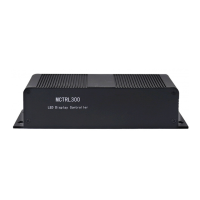
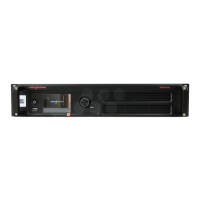
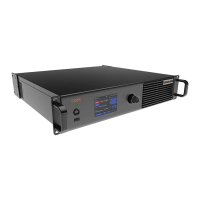
MCTRL4K LED Display Controller
User Manual 7 Menu Operations
www.novastar.tech 24
7.5.7 HDR
HDR is short for high dynamic range. The HDR function of the MCTRL4K works with
the A8s or A10s Plus receiving card to greatly enhance the image quality of the
screen, presenting more clear and vivid images.
The HDR supports HDR10 and HLG standards. You can use the following two
methods to enable HDR function and set its parameters.
Method 1: Operation on LCD Menu
Step 1 Choose Advanced Settings > HDR and enable HDR function.
Step 2 Select an HDR type from HDR10 and HLG.
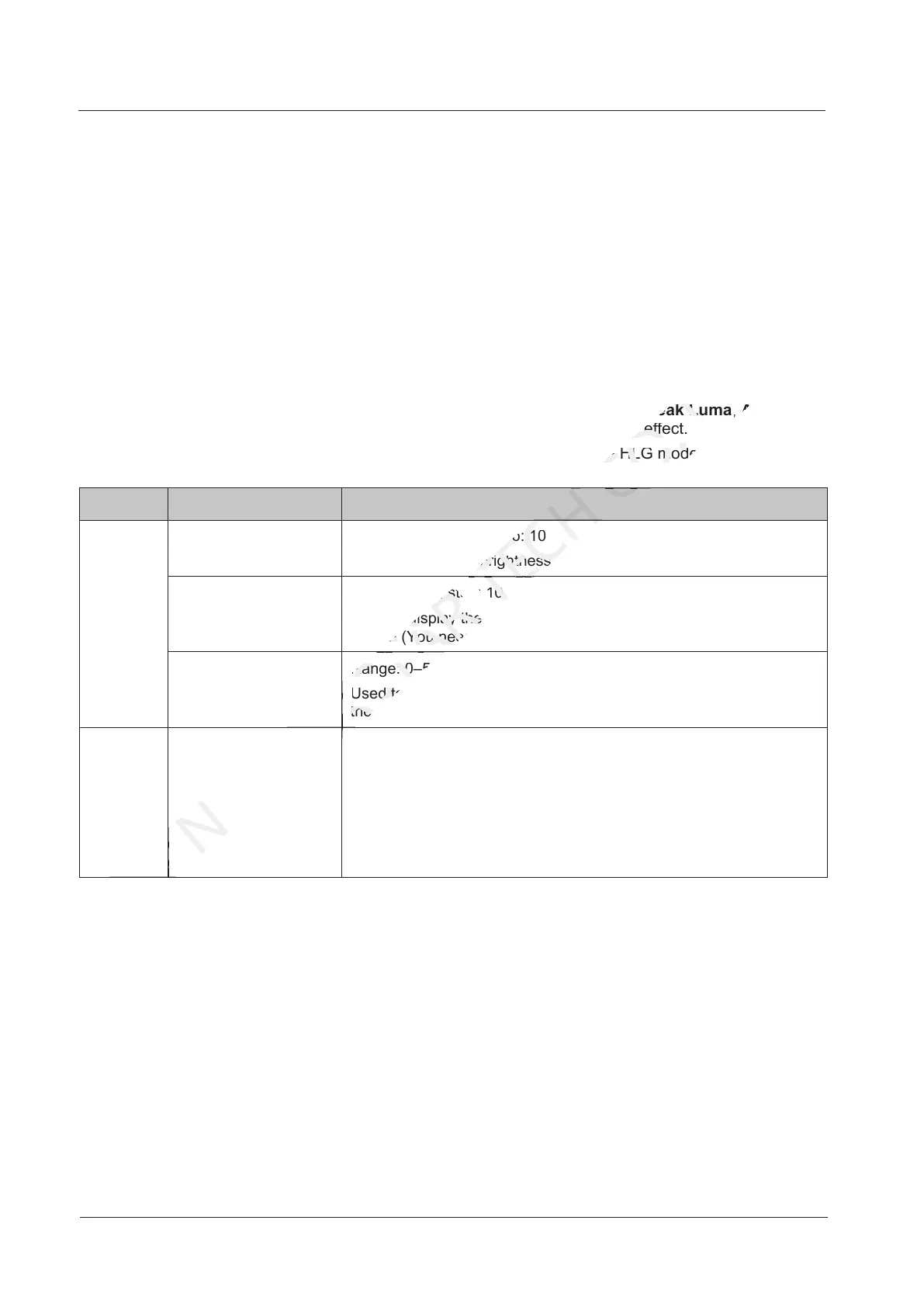
When the input source is HDR10, you can set Screen Peak Luma, Ambient
Light and Low Grayscale Mode to adjust the display effect.
When the input source is HLG, you can select one HLG mode from the 7 modes,
namely HLG1 (300 nits) to HLG7 (1700 nits).
Standard Parameter Description
HDR10 Screen Peak Luma Range: 100–10000; step: 10
Used to adjust the brightness during normal operating of the screen
Ambient Light Range: 0–30; step: 10
Used to display the brightness of ambient light radiated to the
screen (You need to enter the brightness value after measuring.)
Low Grayscale Mode Range: 0–50; step: 1
Used to improve the image display effect. The bigger the value is,
the clearer the details in shadows will be.
HLG HLG Mode A total of 7 HLG modes supported, including HLG1 (300 nits), HLG2
(450 nits), HLG3 (600 nits), HLG4 (750 nits), HLG5 (1000 nits),
HLG6 (1300 nits) and HLG7 (1700 nits)
Used to adjust the image display effect. You can select a mode
based on the actual screen peak Luma value. At the same time, you
can try the adjacent HLG modes based on the on-site ambient light
brightness to see their effects and select the best mode.
Step 3 (Optional) Choose Rest to reset the HDR settings to factory settings.
display the
NOVASTAR
display the
You need to enter the brightness value after
NOVASTAR
You need to enter the brightness value after
Range: 0
NOVASTAR
Range: 0
the clearer the details in shadows will be.
NOVASTAR
the clearer the details in shadows will be.
sed to adjust the brightness during normal operating of the screen
TECH
sed to adjust the brightness during normal operating of the screen
Screen Peak Luma
CO.,LTD.
Screen Peak Luma
to adjust the display effect.
CO.,LTD.
to adjust the display effect.
the input source is HLG, you can select one HLG mode from the 7 modes
CO.,LTD.
the input source is HLG, you can select one HLG mode from the 7 modes



 To Next Page