MCTRL4K LED Display Controller
User Manual 8 Operations on PC
www.novastar.tech 34
8 Operations on PC
8.1 Individual Gamma Adjustment for RGB
The MCTRL4K supports individual Gamma adjustment for RGB when the bit depth of
input source is 10-bit or 12-bit, which effectively controls image non-uniformity under
low grayscale and white balance offset to improve image quality.
Step 1 Run NovaLCT, click Screen Configuration, choose the current operation
communication port and click Next.
Step 2 On the Sending Card tab page, select the corresponding input source bit depth and
click Set.
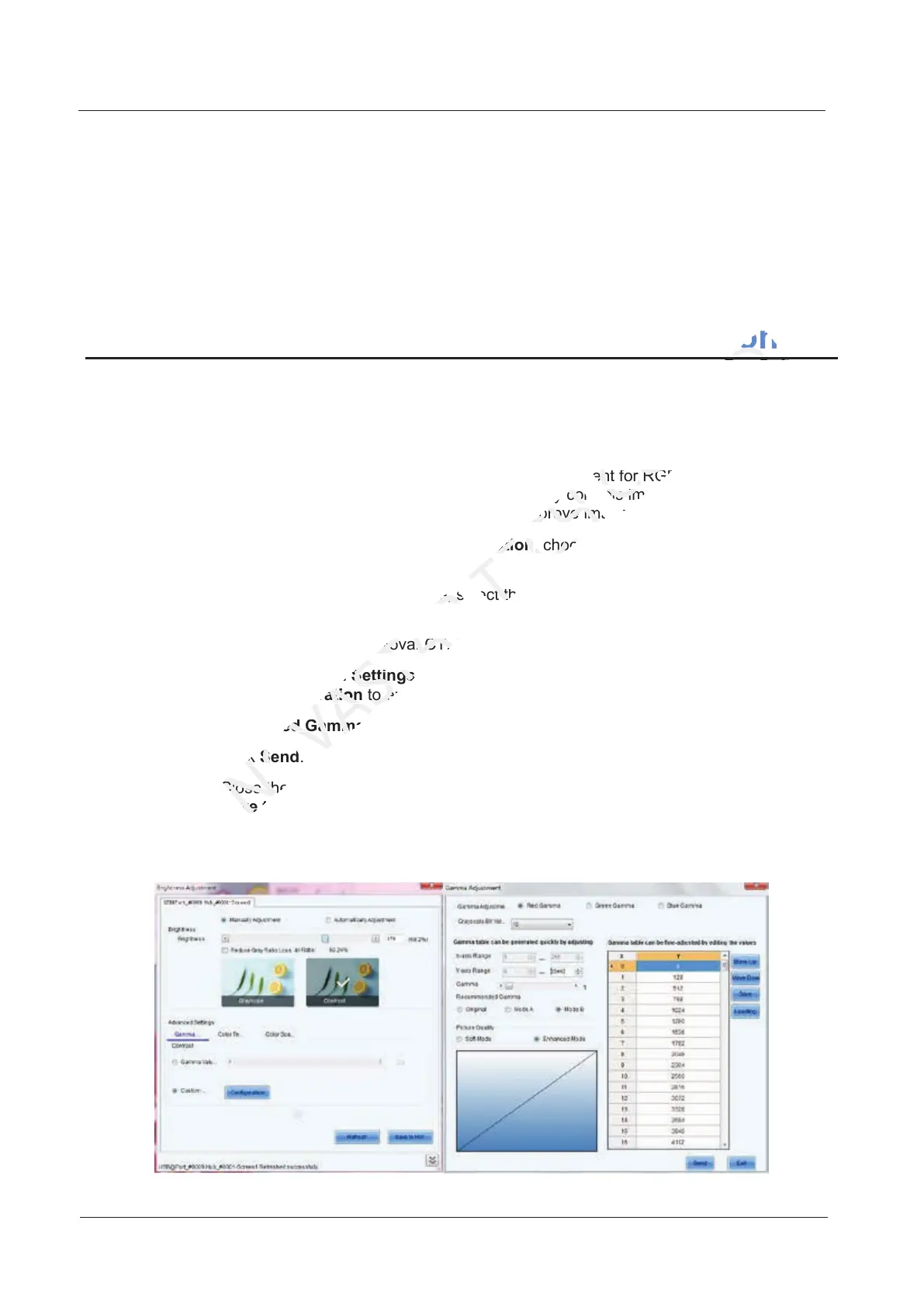
Step 3 On the home page of NovaLCT, choose Brightness > Manually Adjustment.
Step 4 Under Advanced Settings, choose Gamma > Custom Gamma Adjustment and
click Configuration to enter the Gamma Adjustment page.
Step 5 Adjust Red Gamma, Green Gamma and Blue Gamma, respectively.
Step 6 Click Send.
Step 7 Close the Gamma Adjustment page. On the Brightness Adjustment page, click
Save to HW.
Figure 8-1 Gamma adjustment page
Step 7 Close the
XI'AN
Step 7 Close the
tab page, select the corresponding input source bit depth
NOVASTAR
tab page, select the corresponding input source bit depth
Step 3 On the home page of NovaLCT, choose
NOVASTAR
Step 3 On the home page of NovaLCT, choose
Advanced Settings
NOVASTAR
Advanced Settings
, choose
NOVASTAR
, choose
Configuration
NOVASTAR
Configuration
to enter the
NOVASTAR
to enter the
Red Gamma
NOVASTAR
Red Gamma
Step 6 Click
NOVASTAR
Step 6 Click
Step 7 Close the
NOVASTAR
Step 7 Close the
Save to HW
NOVASTAR
Save to HW
supports individual Gamma adjustment for RGB when the bit depth of
TECH
supports individual Gamma adjustment for RGB when the bit depth of
-bit or 12-bit, which effectively controls image non-uniformity under
TECH
-bit or 12-bit, which effectively controls image non-uniformity under
low grayscale and white balance offset to improve image quality.
TECH
low grayscale and white balance offset to improve image quality.
Screen Configuration
TECH
Screen Configuration
, choose the current operation
TECH
, choose the current operation
tab page, select the corresponding input source bit depth
TECH
tab page, select the corresponding input source bit depth
Operations on
CO.,LTD.
Operations on
8.1 Individual Gamma Adjustment for RGB
CO.,LTD.
8.1 Individual Gamma Adjustment for RGB
supports individual Gamma adjustment for RGB when the bit depth of
CO.,LTD.
supports individual Gamma adjustment for RGB when the bit depth of
-bit or 12-bit, which effectively controls image non-uniformity under
CO.,LTD.
-bit or 12-bit, which effectively controls image non-uniformity under
low grayscale and white balance offset to improve image quality.
CO.,LTD.
low grayscale and white balance offset to improve image quality.



 To Next Page