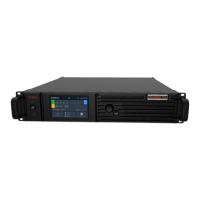
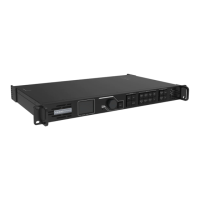
MCTRL4K LED Display Controller
User Manual 7 Menu Operations
www.novastar.tech 17
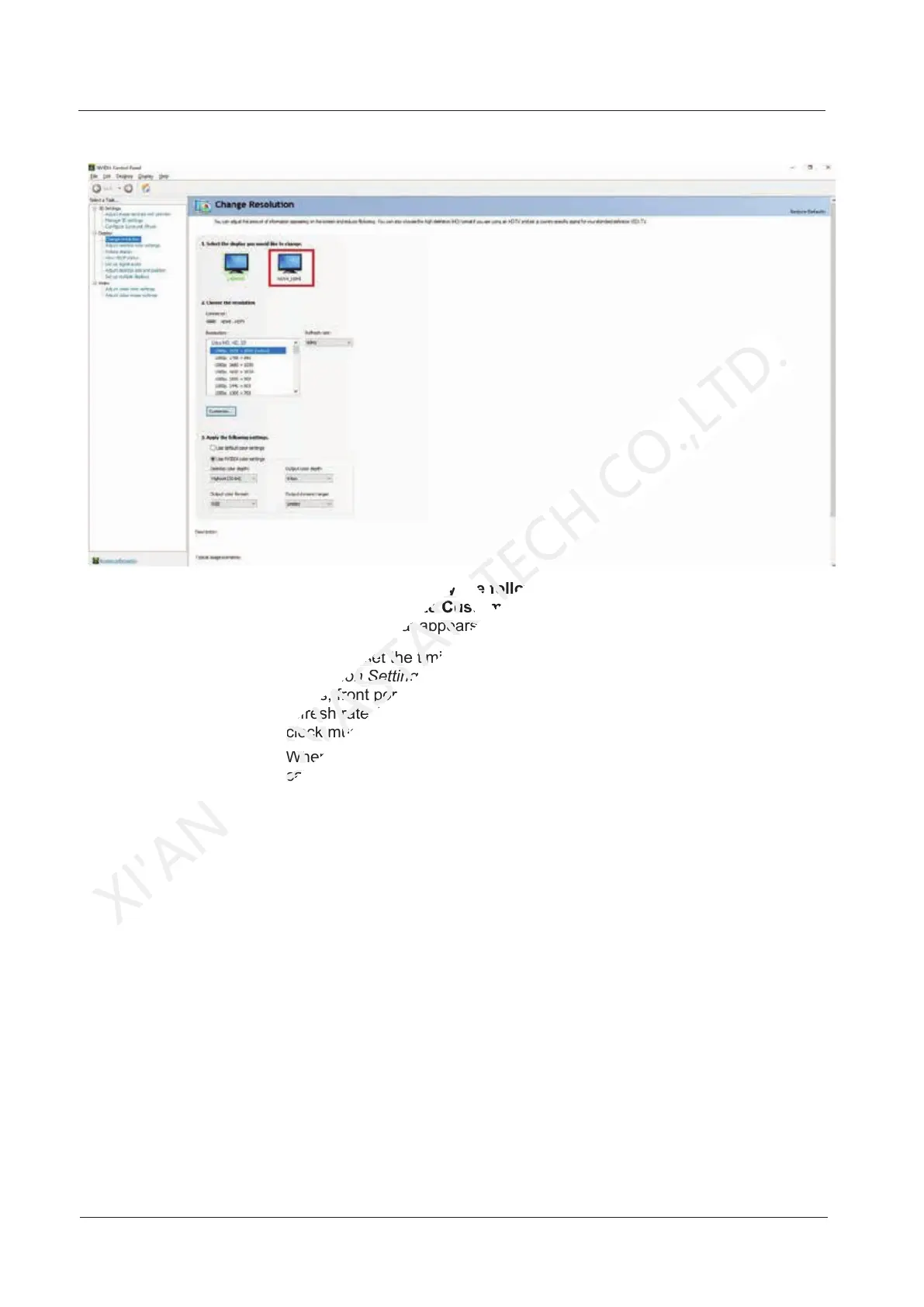
Figure 7-3 Changing resolution
Step 4 Click Customize under 2. Apply the following settings. In the Customize dialog
box that appears, click Create Custom Resolution. In the Create Custom
Resolution dialog box that appears, set the parameters.
− When you set the timing standard to Manual, use the MCTRL4K Ultra-High
Resolution Settings Generator to calculate the parameters, including active
pixels, front porch (pixels), sync width (pixels), polarity, total pixels and
refresh rate. Then enter the parameter values manually. Note that the pixel
clock must not be greater than 595.0 MHz.
− When you set the timing standard to CVT reduced blank, the software will
calculate the parameters automatically and they cannot be changed
manually.
2. Apply the following settings
NOVASTAR
2. Apply the following settings
Create Custom Resolution
NOVASTAR
Create Custom Resolution
dialog box that appears, set the parameters.
NOVASTAR
dialog box that appears, set the parameters.
you set the timing standard to
NOVASTAR
you set the timing standard to
Resolution Settings Generator
NOVASTAR
Resolution Settings Generator
pixels, front porch (pixels), sync width (pixels), polarity, total pixels and
NOVASTAR
pixels, front porch (pixels), sync width (pixels), polarity, total pixels and
refresh rate. Then enter the parameter values manually. Note that the pixel
NOVASTAR
refresh rate. Then enter the parameter values manually. Note that the pixel
clock must not be greater than 595.0 MHz.
NOVASTAR
clock must not be greater than 595.0 MHz.
calculate the parameters automatically and they cannot be changed
NOVASTAR
calculate the parameters automatically and they cannot be changed
2. Apply the following settings
TECH
2. Apply the following settings
Create Custom Resolution
TECH
Create Custom Resolution



 To Next Page